
How to Make an Image Circular in Google Slides (2026)
Crop an image into a circle in Google Slides using the Mask image tool. Pick the Oval shape to turn rectangular photos into perfect circles for headshots and profile pictures.
Circular images polish a slide - perfect for team headshots, profile photos, or icon-style call-outs. Google Slides masks images using shape templates: pick the Oval mask and the rectangular photo becomes an oval. Drag a corner with Shift to make it a perfect circle. The original image stays editable - the mask is non-destructive, so you can resize, swap, or remove the circle any time.
How to mask an image with a circle in Google Slides?
1. Click the image on the slide to select it.
2. Click the Mask image dropdown arrow on the toolbar (next to Crop image).
3. Hover Shapes, then pick the Oval at the top-left of the shape grid.
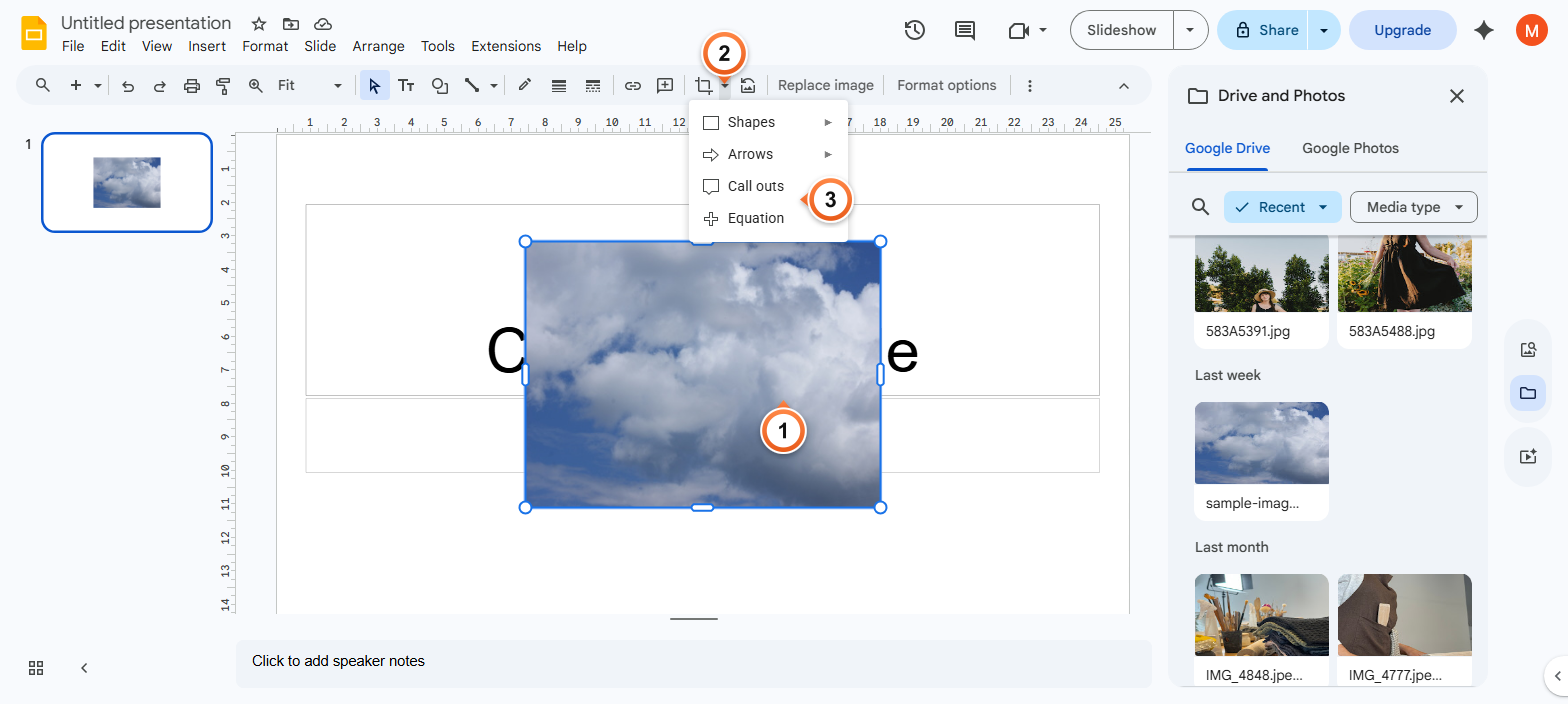
Note: Slides offers four mask categories: Shapes, Arrows, Callouts, and Equation. The Oval shape is the first item under Shapes - pick it and the image instantly takes on an elliptical crop.
How to make the masked image a perfect circle?
1. After applying the Oval mask, click and hold a corner handle of the image.
2. Hold Shift and drag the corner inward or outward to keep the aspect ratio square - this turns the oval into a perfect circle.
3. Release the mouse - the image is now a true circle.
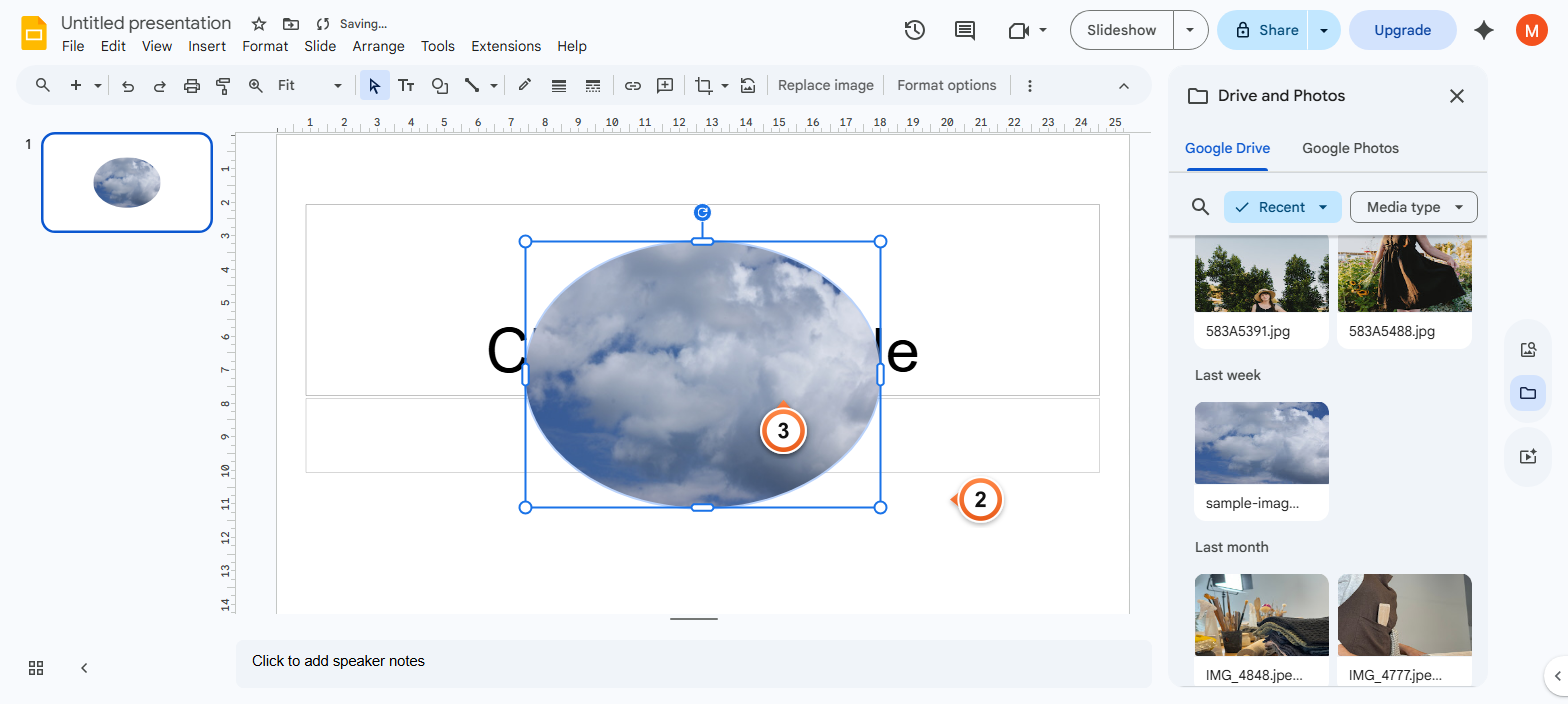
Note: Holding Shift while dragging a corner constrains proportions. Without Shift, the image stays oval - which is fine if that's the look you want. To recenter the visible portion of the photo inside the circle, double-click the image to enter crop mode and drag the inner image around.
How to undo the circular mask?
1. Select the masked image on the canvas.
2. Click the Reset image icon on the toolbar (the curved-arrow icon next to the Mask dropdown).
3. The image returns to its original rectangular shape with no crop or mask applied.
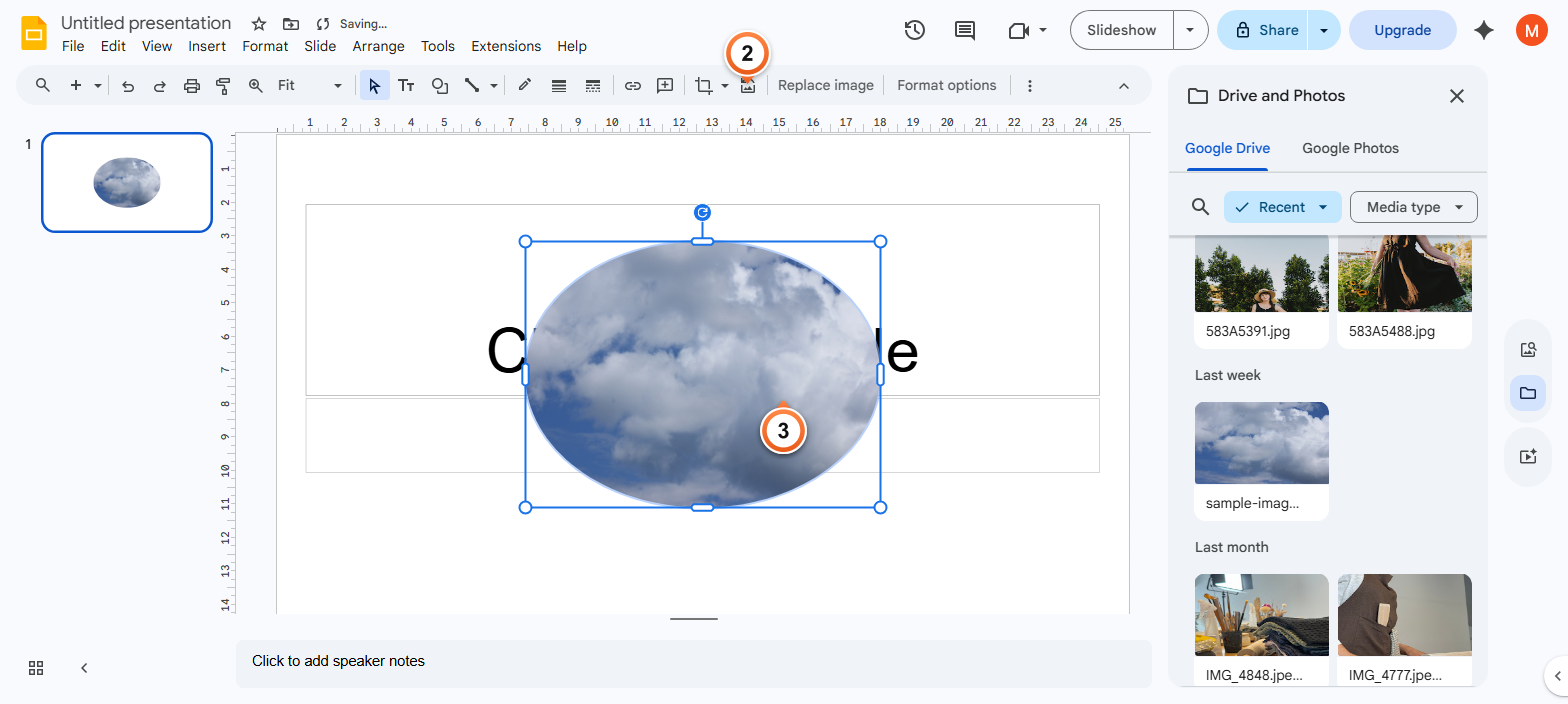
Note: Reset image clears every transformation: mask, crop, and any colour adjustments under Format options. To remove only the mask while keeping the crop, apply a different mask shape that matches the bounding box (the Rectangle mask under Shapes).
Frequently Asked Questions
Why is my image oval instead of a perfect circle in Google Slides?
The Oval mask matches your image's current bounding box. If the image is wider than tall, it stays an ellipse. To force a perfect circle, drag a corner handle while holding Shift to make the bounding box square - the oval becomes circular automatically. Or set width and height to identical values via right-click > Image options > Size.
Can I crop an image into other shapes besides a circle?
Yes. The Mask image dropdown (next to Crop image on the toolbar) offers four shape libraries: Shapes (rectangles, ovals, triangles, stars, hexagons), Arrows (callout arrows for emphasis), Callouts (speech-bubble masks), and Equation (math symbol shapes). Pick any one and the image takes that outline.
Does masking an image change the underlying photo?
No - masking is non-destructive. The original image data stays intact; the mask just hides everything outside the chosen shape. You can switch between mask shapes, undo back to a rectangle, or apply Reset image to clear all transformations and return to the original photo. The file size of the deck barely changes. Same goes for transparency - the original pixels stay, only the display changes.
How do I make multiple images circular at the same time?
Mask must be applied per-image - there's no multi-select shortcut for the Mask dropdown. The fastest workflow: mask the first image to a circle, then copy it (Ctrl+C). For each remaining image, click it, paste the formatting via Edit > Paste special > Paste format only (Ctrl+Alt+V). The mask transfers in one shortcut.
How do I add a border around the circular image?
Select the masked image, then in the toolbar pick a Border colour (the pen icon dropdown). Border weight controls thickness (1 px to 24 px). The border traces the mask shape exactly - so on a circular mask, you get a clean ring around the photo. Useful for team headshots where you want a brand-coloured outline. Full guide: Add Borders and Shading in Google Slides.
Can I crop an image into a heart, star, or custom shape?
Yes for hearts and stars - both live in the Shapes mask library (heart is under the basic shapes; star has 4-point through 32-point variants). Custom freehand shapes aren't supported as mask templates. Workaround: design the custom shape in a graphics tool (Figma, Photoshop), export as PNG with transparency, and insert that as the image instead.
Why is the Mask image option greyed out for me?
Most likely you've selected something other than an image - the Mask dropdown only appears when an actual image is selected. Click the photo again (not its container or any text on top of it). Also confirm: the deck is open in Edit mode, not View-only. Ask the deck owner for edit access via Share if you only have view access.
Will a circular image stay circular when downloaded as PDF or PowerPoint?
Yes. The mask is preserved in PDF, PPTX, and PNG exports. PowerPoint reads the oval crop natively. PDF rasterizes the result so the circle stays as it appears on screen. Slides also keeps the original image embedded, so anyone editing the exported deck can swap the mask back to a rectangle without re-uploading.
Want a deck where every team headshot is already circular and uniformly sized? Try Slidee - generate a polished presentation with consistent image styling in 30 seconds.