
How to Make an Image Transparent in Google Slides (2026)
Make any image semi-transparent in Google Slides. Open Format options, expand Adjustments, and drag the Opacity slider - step-by-step with screenshots.
A semi-transparent image lets text show through, softens a background, or layers visuals without the harsh edge of a solid block. Google Slides handles this natively through Format options > Adjustments > Opacity (the slider used to be labelled Transparency - same control, new name).
How to insert an image in Google Slides?
1. Click Insert in the top menu.
2. Select Image to open the submenu.
3. Choose your source - Upload from computer, Drive, Search, or By URL.
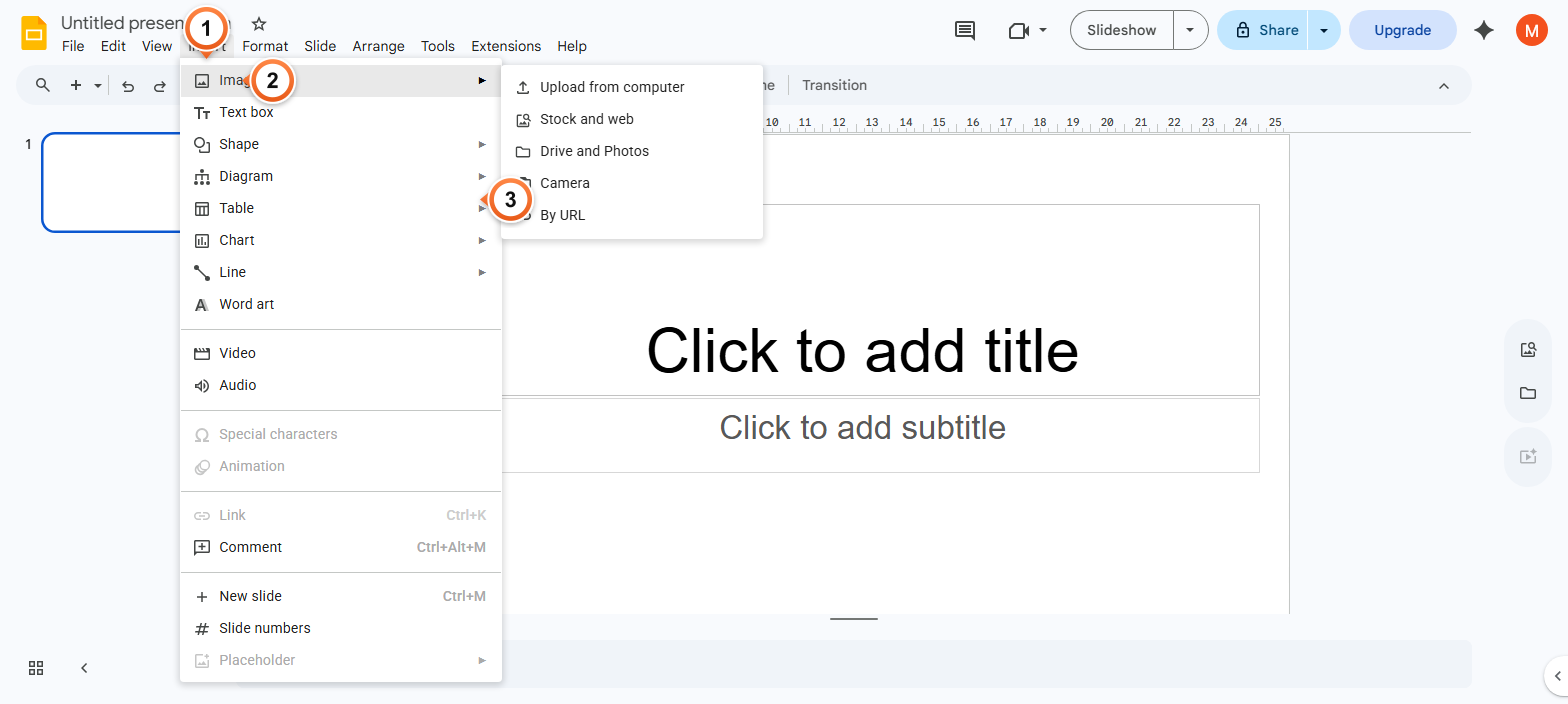
Note: Insert > Image accepts JPG, PNG, GIF, BMP, TIFF, WebP, and SVG. The fastest path is Upload from computer for one-off images, or Drive for files you reuse across decks.
How to open Format options for an image?
1. Click the image on the slide to select it.
2. Click Format options in the toolbar.
3. The panel opens on the right with Size, Position, Re-colour, and Adjustments sections.
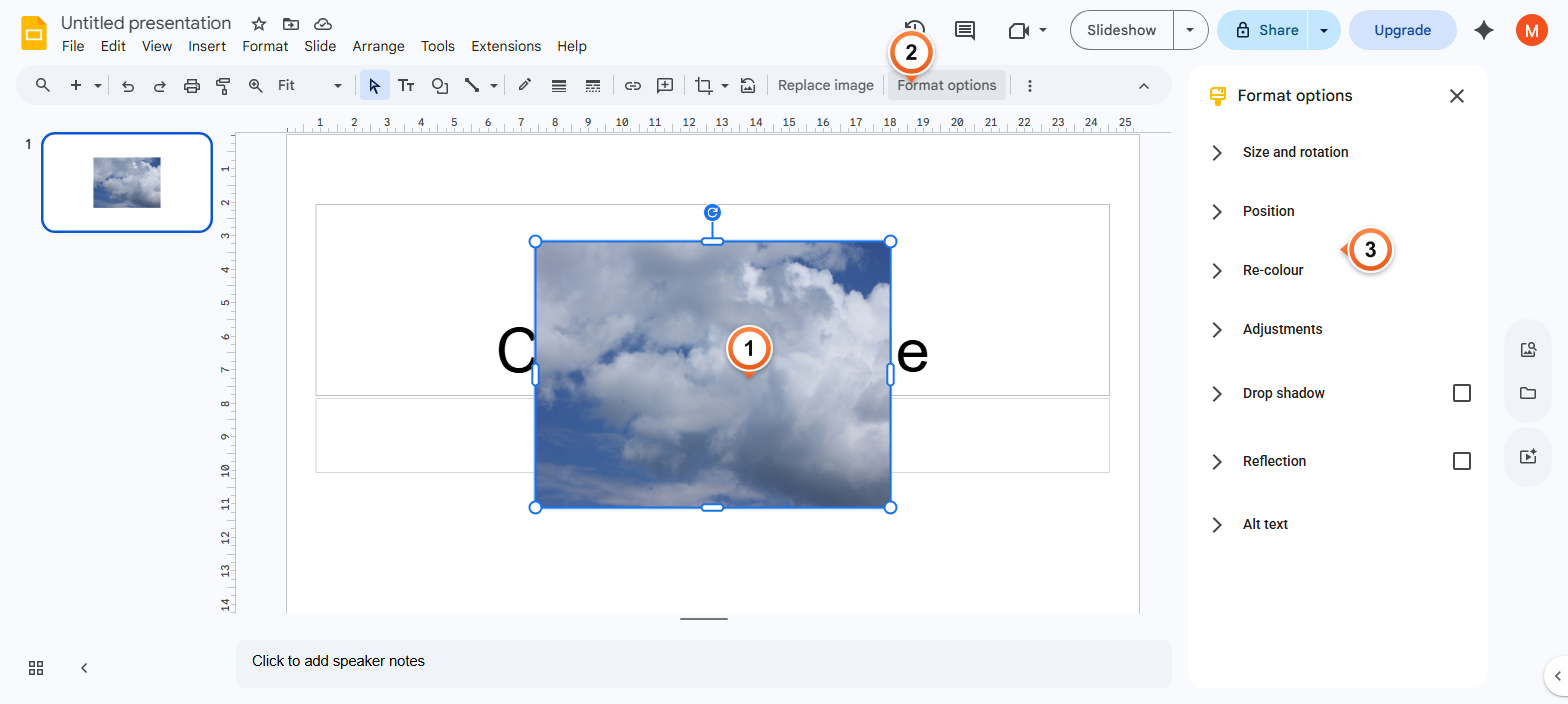
Note: You can also right-click the image and pick Format options, or use the Format > Format options menu - all three open the same panel.
How to adjust image transparency in Google Slides?
1. Click Adjustments in the Format options panel to expand it.
2. Drag the Opacity slider - higher value = more transparent.
3. Click anywhere outside the panel to confirm - changes apply live.
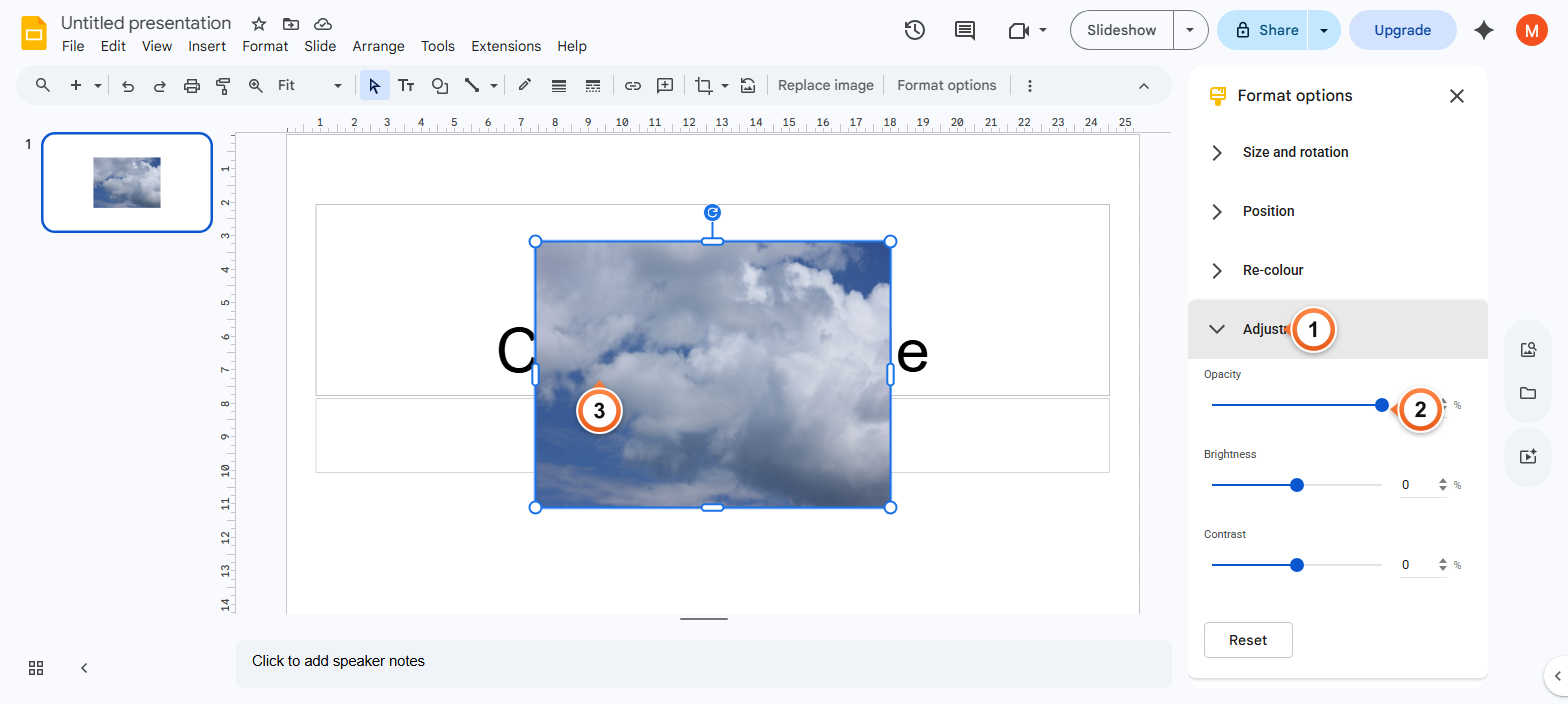
Note: For most background images, 40–70% opacity keeps body text readable while preserving the visual. The slider used to be labelled "Transparency" - same control, new name.
Frequently Asked Questions
Can I make an image fully transparent in Google Slides?
Yes. Drag the Opacity slider to 100% and the image becomes fully see-through. At that point the image is invisible, so this is mainly useful for animations where the image fades in or for keeping a placeholder in the layout.
Why doesn't the transparency slider work on my image?
Two common causes: the image was added as a slide background (Slide > Change background > Image) - the Opacity slider only works for inline images inserted via Insert > Image. The other cause is that you have a shape selected instead of the image - click directly on the image so its blue handles appear before opening Format options.
How do I make a logo transparent in Google Slides?
Insert the logo via Insert > Image > Upload or Drive, click the logo to select it, open Format options, expand Adjustments, then drag Opacity to around 30–50% for a watermark effect. If your logo file is already a transparent PNG, the empty areas stay see-through automatically - Opacity adjusts only the visible artwork.
How do I remove the white background from a logo or screenshot?
Google Slides cannot remove a solid background from an image. Use a free tool like remove.bg or Canva's background remover first, save the result as a transparent PNG, then insert it into your slide. Once in Slides, the transparent areas stay transparent regardless of the Opacity slider.
Can I save a slide with a transparent image as a PNG?
Partially. File > Download > PNG image flattens the slide, so transparency between layers within the slide is preserved, but the slide background colour is rendered as solid white (or whatever you set). To export with a fully transparent slide background, you need a third-party export tool - Slides itself does not output transparent slide PNGs.
How do I make text transparent over an image?
Click the text box, open Format options, expand Adjustments, and drag the Opacity slider. The same control works for any object - text boxes, shapes, lines, and images. For semi-transparent text on a coloured shape, set the shape's fill colour with a custom alpha value (Fill colour > Custom > drag the alpha slider in the colour picker).
What's the difference between Opacity and Transparency in Google Slides?
They're the same control, renamed. Older Google Slides versions and some help docs still call it Transparency, while the current UI labels it Opacity. The slider behaves the same way - drag right to make the image more see-through. There is no separate transparency setting in addition to opacity.
Can I animate transparency in Google Slides?
Not directly - Slides does not support animating Opacity changes. The workaround is to duplicate the slide and set a different Opacity on each copy, then use a slide transition (Slide > Transition > Fade) between them. The fade transition tweens between the two opacity values, simulating an animation.
Want backgrounds, overlays, and brand styling handled automatically? Try Slidee - generate a complete deck with on-brand visuals in 30 seconds.