
How to Insert a Text Box in Google Slides (2026)
Insert a text box in Google Slides via Insert > Text box or the toolbar shortcut. Drag to size, type, and format - step-by-step with screenshots.
A text box is a free-floating container that holds text anywhere on the slide - independent of the title and body placeholders. Use text boxes for callouts, captions, sidebars, or any text that doesn't belong to the slide's main layout. Google Slides offers two equally fast ways to insert one: the Insert menu, or the dedicated text box icon on the toolbar.
How to insert a text box from the Insert menu?
1. Click Insert in the top menu.
2. Pick Text box - the cursor turns into a crosshair.
3. Click and drag on the slide to draw the text box at your chosen size.
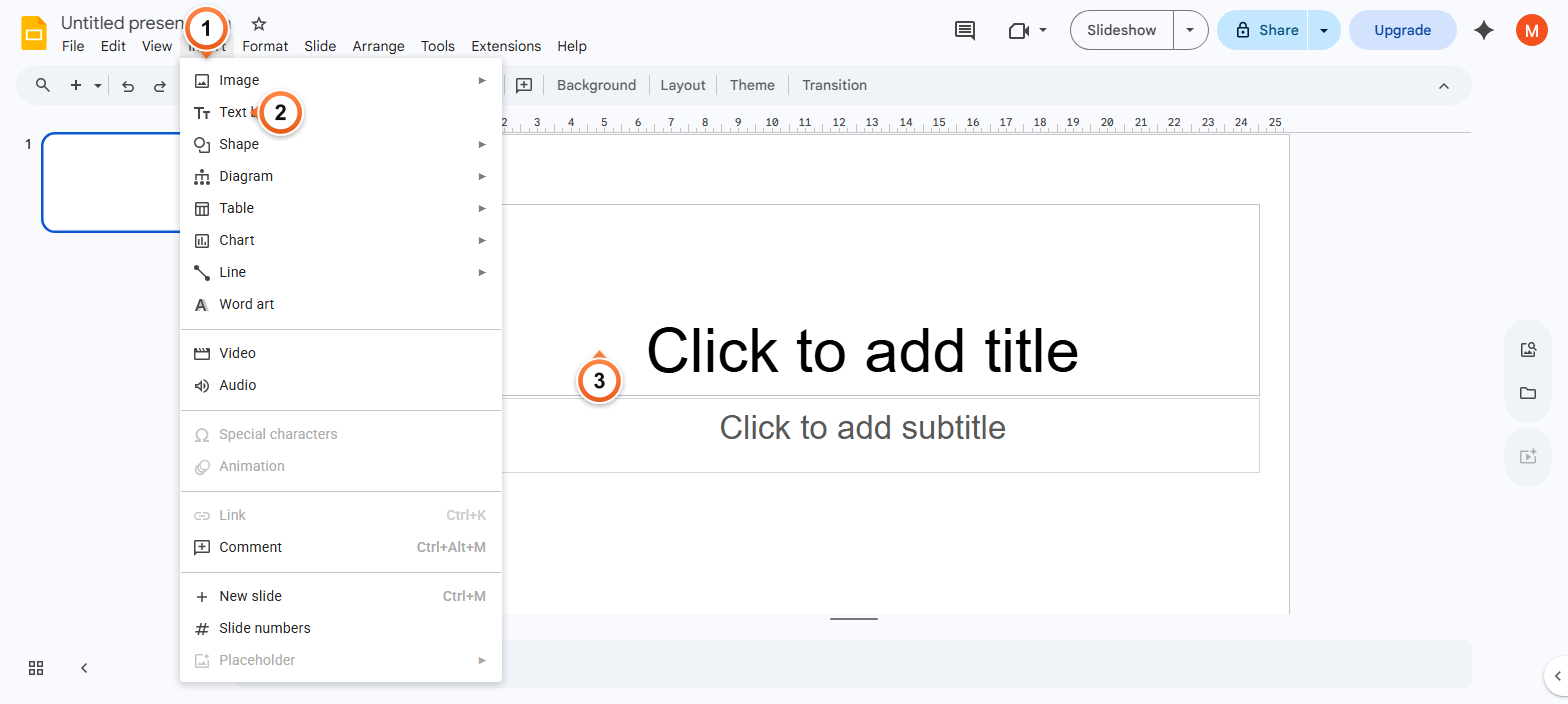
Note: Drag to set the box dimensions, then type your text. The box auto-resizes vertically as you add lines but keeps the width you initially drew. Resize handles let you adjust the width later.
How to use the toolbar shortcut for a text box?
1. Click the Text box icon in the toolbar (a square with a T inside).
2. Click and drag on the slide canvas to draw the box.
3. Type your text - the box stays selected so you can format it immediately.
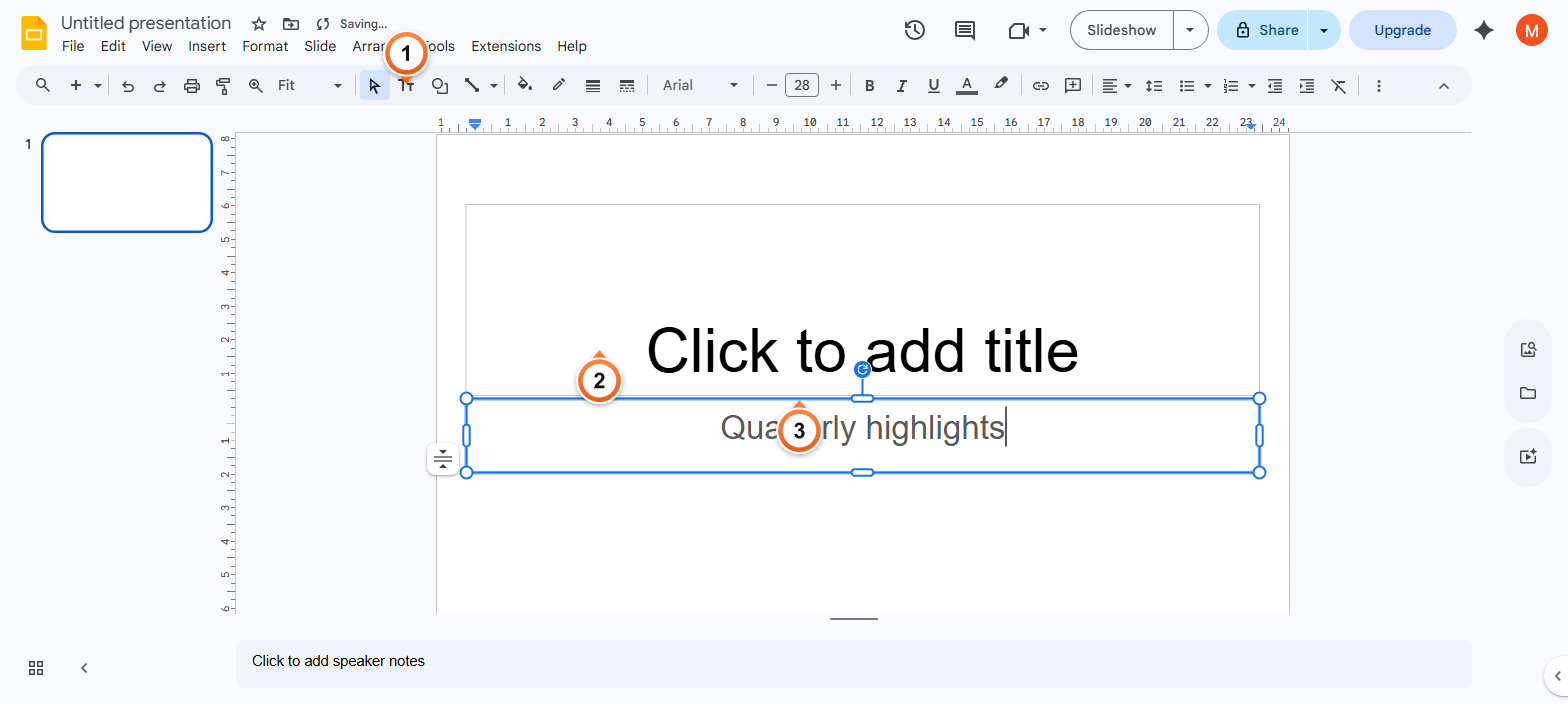
Note: The toolbar icon is faster than the Insert menu for repeated text boxes. Hover the icon to confirm the Text box tooltip - it sits between the Selection arrow and the Shape tools.
How to format a text box?
1. Click inside the text box to enter edit mode, then drag to select text.
2. Use the toolbar to change font, size, colour, alignment, or apply bold, italic, underline.
3. Click outside the box to deselect - the formatted text stays in place.
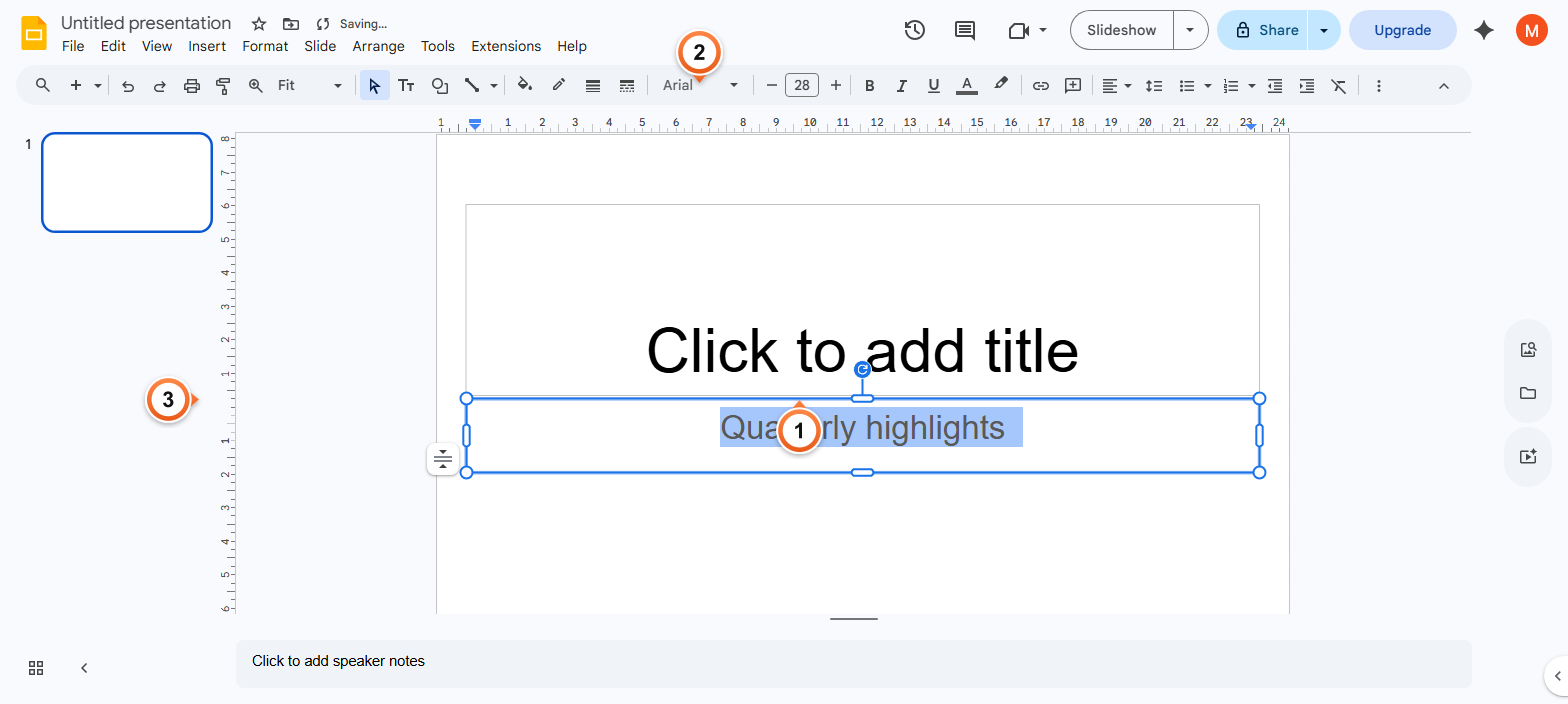
Note: Press Esc once to exit text-edit mode while keeping the box selected (so you can move or resize it). Press Esc again to fully deselect. Right-click the box for the full formatting menu including borders, fill colour, and Format options.
Frequently Asked Questions
What's the keyboard shortcut for a text box in Google Slides?
There's no dedicated shortcut to start a new text box. The fastest path is the Toolbar icon (T-in-a-square) or Insert > Text box. Once a box exists, Tab cycles between text boxes on the slide, and Ctrl+Enter creates a new line within the box. To turn the typed lines into a list, see Add Bullet Points in Google Slides.
Why is my text box invisible until I click on it?
Text boxes have no border or fill by default - just the text itself. If the box is empty, there's nothing visible. Add some text or, to see the boundary while editing, select the box and add a Border colour from the toolbar (the pen icon). For a permanent visible frame, set Border weight to 1 px or higher.
How do I make a text box transparent or coloured?
Click the box to select it (don't enter edit mode). In the toolbar, pick Fill colour (paint-bucket icon) and choose any colour, or Custom to set a transparent / semi-transparent fill. Border colour controls the outline. Combine the two for boxed callouts: white fill + brand-coloured border. For object-level transparency (the whole text box, not just the fill), see Make an Image Transparent - the same Opacity slider works on text boxes.
How do I resize a text box without distorting the text?
Drag the side handles (left, right, top, bottom) to change width or height independently - the text reflows automatically. Drag corner handles to resize both dimensions; the text stays the same font size unless you also drag while holding Shift. The font size only changes if you manually pick a new size from the toolbar.
Can I rotate a text box in Google Slides?
Yes. Click the box to select it - a small round handle appears above the top edge. Drag the handle to rotate freely; hold Shift to snap in 15-degree increments. For exact rotation, right-click the box, pick Rotate, and choose 90 degrees clockwise / counter-clockwise / 180 degrees.
How do I copy text formatting between text boxes?
Click in the source box, then click the Paint format icon in the toolbar (paint roller). The cursor becomes a roller. Click in the target text box - the formatting transfers. To apply to multiple boxes, double-click the Paint format icon to lock the tool, then click each target. Press Esc to exit paint-format mode.
Why can't I type in my text box?
You're likely in object-select mode (single click selects the box, but doesn't enter edit). Double-click the box to enter edit mode - the cursor appears inside and you can type. Or press Enter / F2 with the box selected. If still not working, the box may be on a locked layout - check Slide > Edit theme.
Can I link a text box across multiple slides?
Not directly - Google Slides doesn't have linked text boxes that share content. To repeat the same text on every slide, edit the master via Slide > Edit theme and add the text box to the master layout. All slides using that layout inherit it. To update once and propagate, modify the master.
Want a deck where text and visuals are already in place? Try Slidee - generate a complete presentation with smart layouts and styled text boxes in 30 seconds.