
How to Add Bullet Points in Google Slides (2026)
Add bullet points in Google Slides with one click, create nested sub-bullets with Tab, and customise bullet styles. Step-by-step with screenshots.
Bullet points break a wall of text into scannable ideas. Google Slides has a one-click toolbar button, keyboard shortcuts (Ctrl+Shift+8) for fast lists, Tab to indent into sub-bullets, and a Bullets & numbering submenu for custom styles like dashes, arrows, or numbered lists. This guide covers all three.
How to add bullet points to a text box?
1. Click inside a text box and select the lines you want to bullet.
2. Click the Bulleted list button on the toolbar (or press Ctrl+Shift+8).
3. Type each item on its own line - Slides adds the bullet automatically.
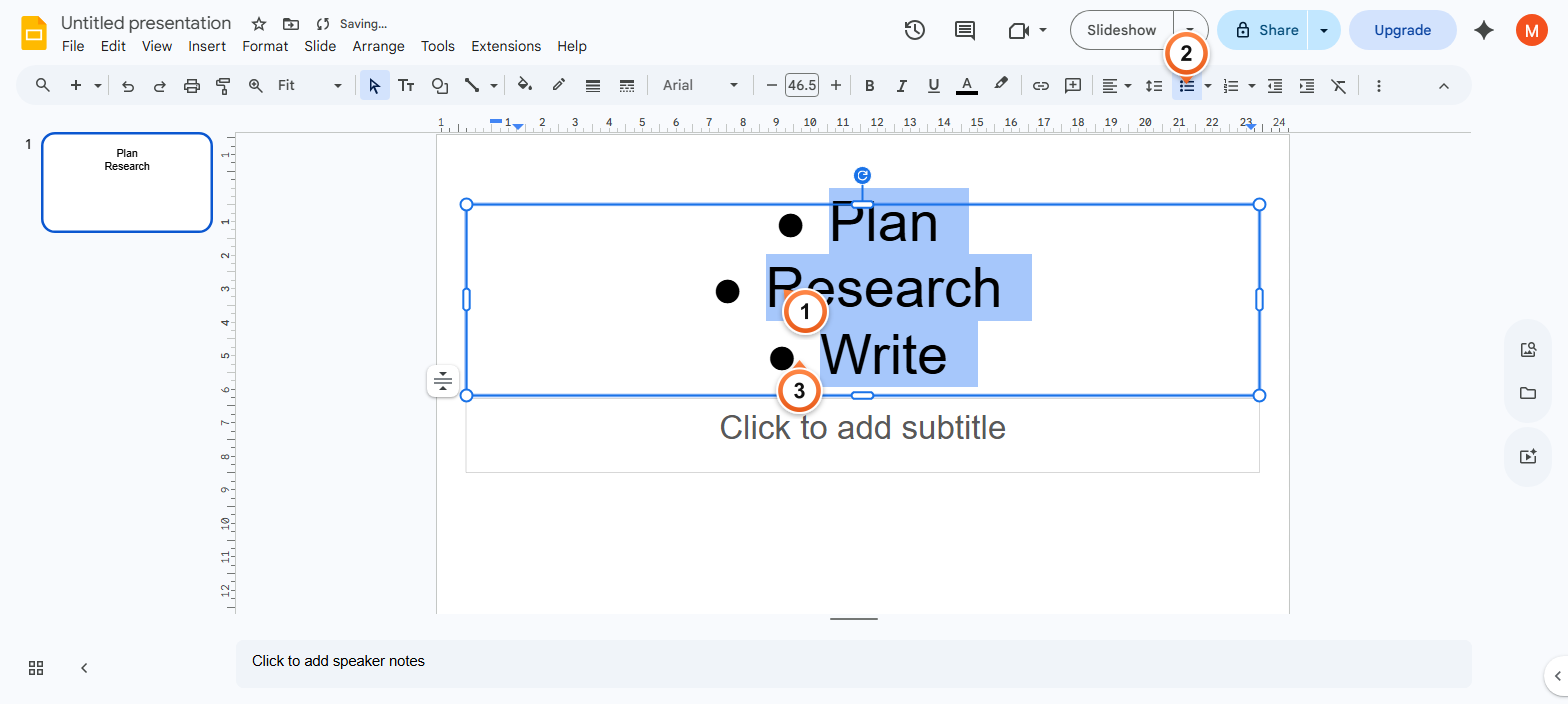
Note: Keyboard shortcut for a numbered list is Ctrl+Shift+7. The Bulleted list dropdown arrow next to the icon lets you pick from disc, circle, square, or dash bullets.
How to create nested sub-bullets?
1. Place your cursor at the start of the line you want to nest.
2. Press Tab to indent the line one level (or click Increase indent in the toolbar).
3. Press Shift+Tab to outdent back to the parent level.
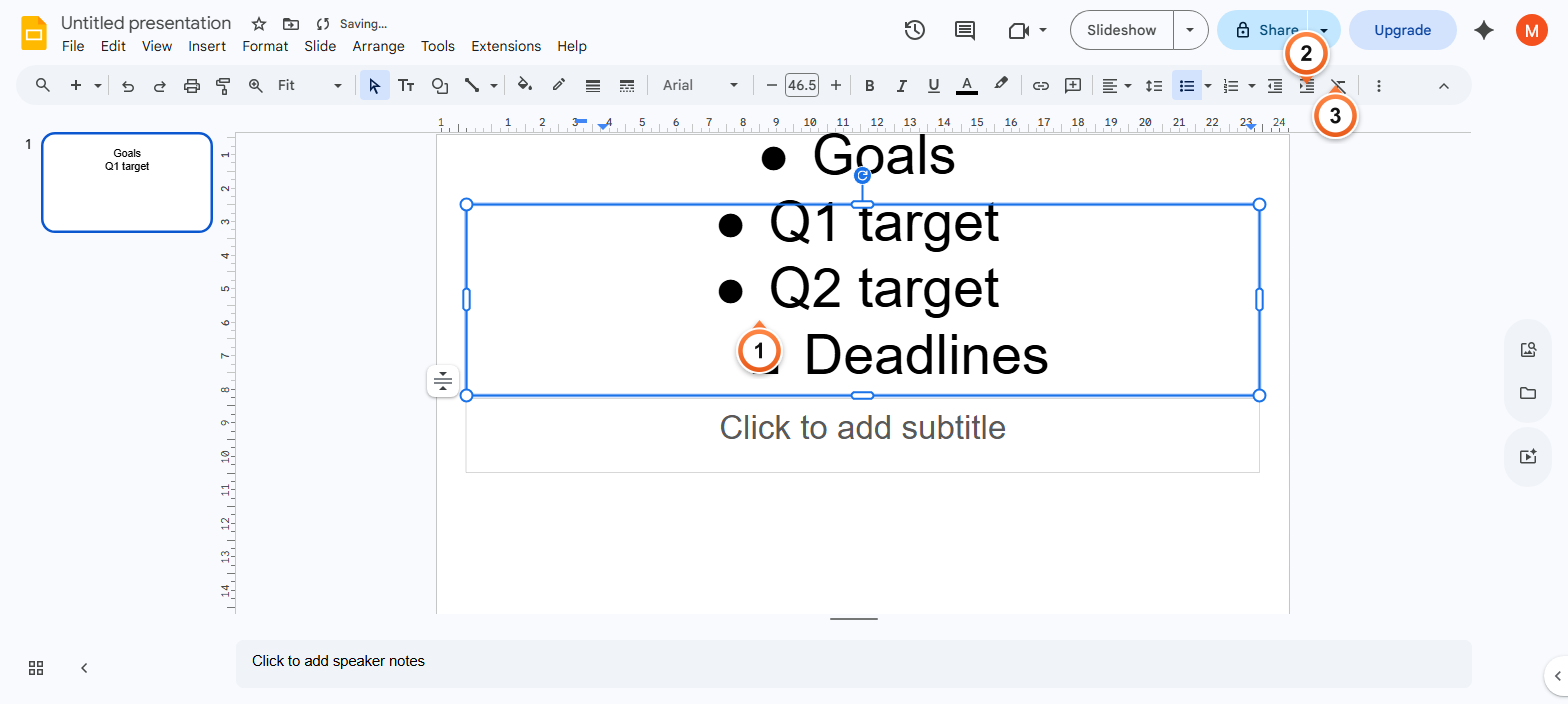
Note: Each Tab indent level uses a different bullet character automatically (disc → circle → square). Press Enter twice in a row to exit the list entirely.
How to change the bullet style in Google Slides?
1. Select the text or list you want to restyle.
2. Click the dropdown arrow next to the Bulleted list button on the toolbar.
3. Pick a style - disc, circle, square, dash, arrow, or check.
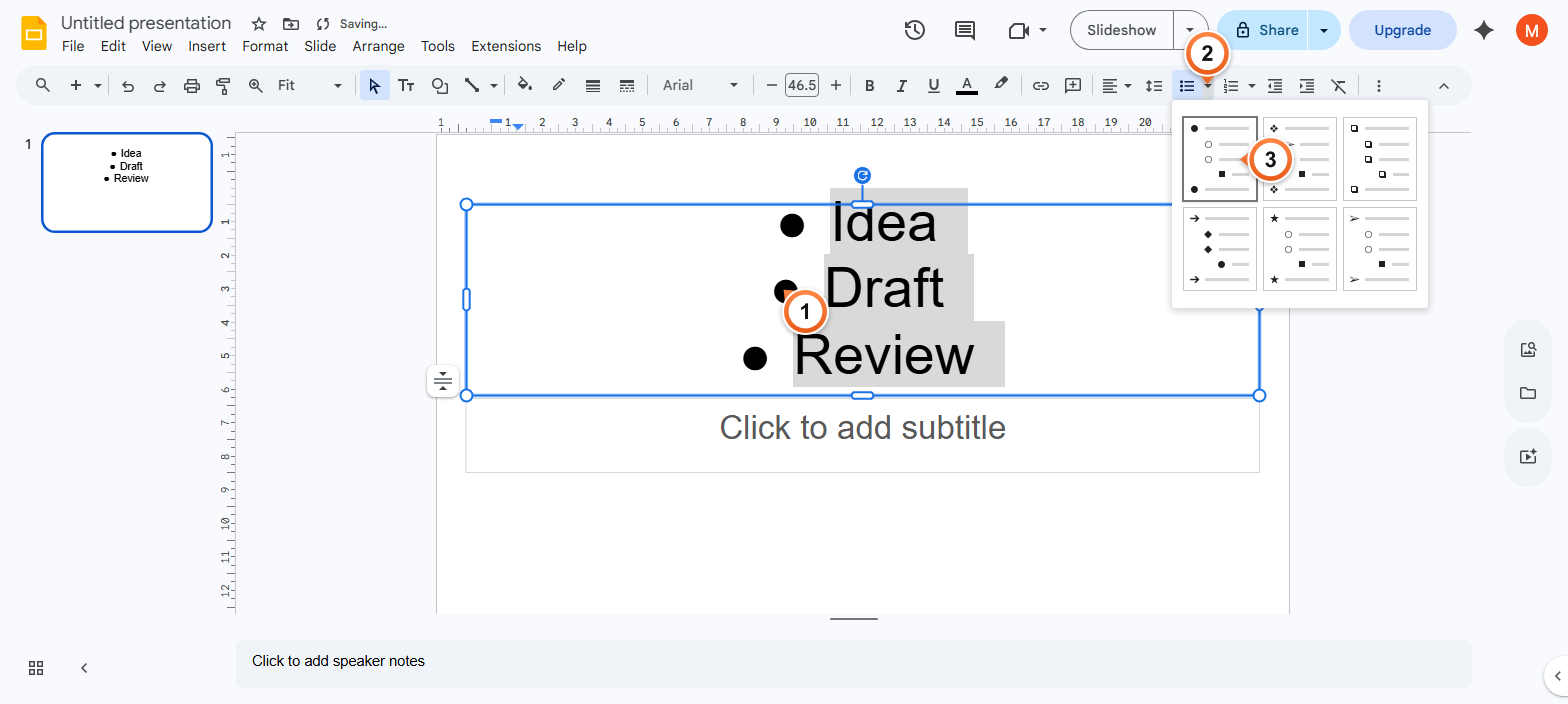
Note: For a numbered list, click the dropdown arrow next to the Numbered list button (immediately to the right) and pick a numbering style. Right-click any list item and select Restart numbering to reset the count mid-list.
Frequently Asked Questions
What is the keyboard shortcut for bullet points in Google Slides?
Ctrl+Shift+8 on Windows and ChromeOS, Cmd+Shift+8 on Mac. The same shortcut toggles the bullets off if pressed again on a bulleted line. For a numbered list, use Ctrl+Shift+7 (or Cmd+Shift+7).
How do I make sub-bullets in Google Slides?
Place your cursor at the start of the line you want to nest, then press Tab. Each Tab level uses a different bullet shape automatically - disc, circle, square. Shift+Tab moves a sub-bullet back to the parent level. The same Tab/Shift+Tab pattern works inside numbered lists too.
Why are my bullet points not aligning correctly?
Two common causes: mixed indent levels (some lines pressed Tab and others didn't) or different list types within the same text box. Select the whole list, click Format > Bullets & numbering > Bulleted list, and pick a single style to reset alignment.
Can I use custom symbols or emojis as bullet markers?
Not directly - Google Slides locks bullet markers to the built-in styles (disc, circle, square, dash, arrow, etc.). Workaround: type the symbol or emoji at the start of each line and skip the Bulleted list button. The lines won't auto-indent on Tab but you get full control over the marker character.
How do I remove bullet points without deleting the text?
Select the bulleted lines and click the Bulleted list button on the toolbar again - it toggles off. Alternatively press Ctrl+Shift+8 (Cmd+Shift+8 on Mac). The text stays put, just without the bullets.
How do I add bullet points to a placeholder vs a text box?
Both work the same way - click inside, select the lines, hit Bulleted list. The difference is that placeholders inherit the master slide's default bullet style, so changes you make to the master apply to every placeholder using that layout. Custom text boxes use whatever style you set on each one.
Can I copy bullet styles from one slide to another?
Yes. Select the text with the bullet style you like, click Paint format (the paint roller icon in the toolbar), then click the destination text. The bullet style + indent levels + font copy across in one step.
Do bullet points export correctly to PowerPoint and PDF?
Yes for both. File > Download > Microsoft PowerPoint preserves bullet shapes and indent levels. PDF export renders them as static text with the bullets baked in. Numbered lists keep their numbering across exports too.
Tired of formatting every slide by hand? Try Slidee - generate a complete presentation with on-brand bullet styling in 30 seconds.