
How to Group Objects in Google Slides (2026)
Group multiple objects in Google Slides into a single unit using Arrange > Group or Ctrl+Alt+G. Move, resize, and copy them together as one. Step-by-step with screenshots.
Grouping turns several objects on a slide - shapes, images, text boxes - into a single unit you can move, resize, copy, or animate as one. Useful for icons stacked on a label, charts with annotations, or any composition where the parts must stay aligned. Group via Arrange > Group, the keyboard shortcut Ctrl+Alt+G, or right-click > Group.
How to group objects in Google Slides?
1. Click the first object, then Shift+click the others to multi-select.
2. Click Arrange in the top menu.
3. Pick Group - the selected objects merge into one bounding box.
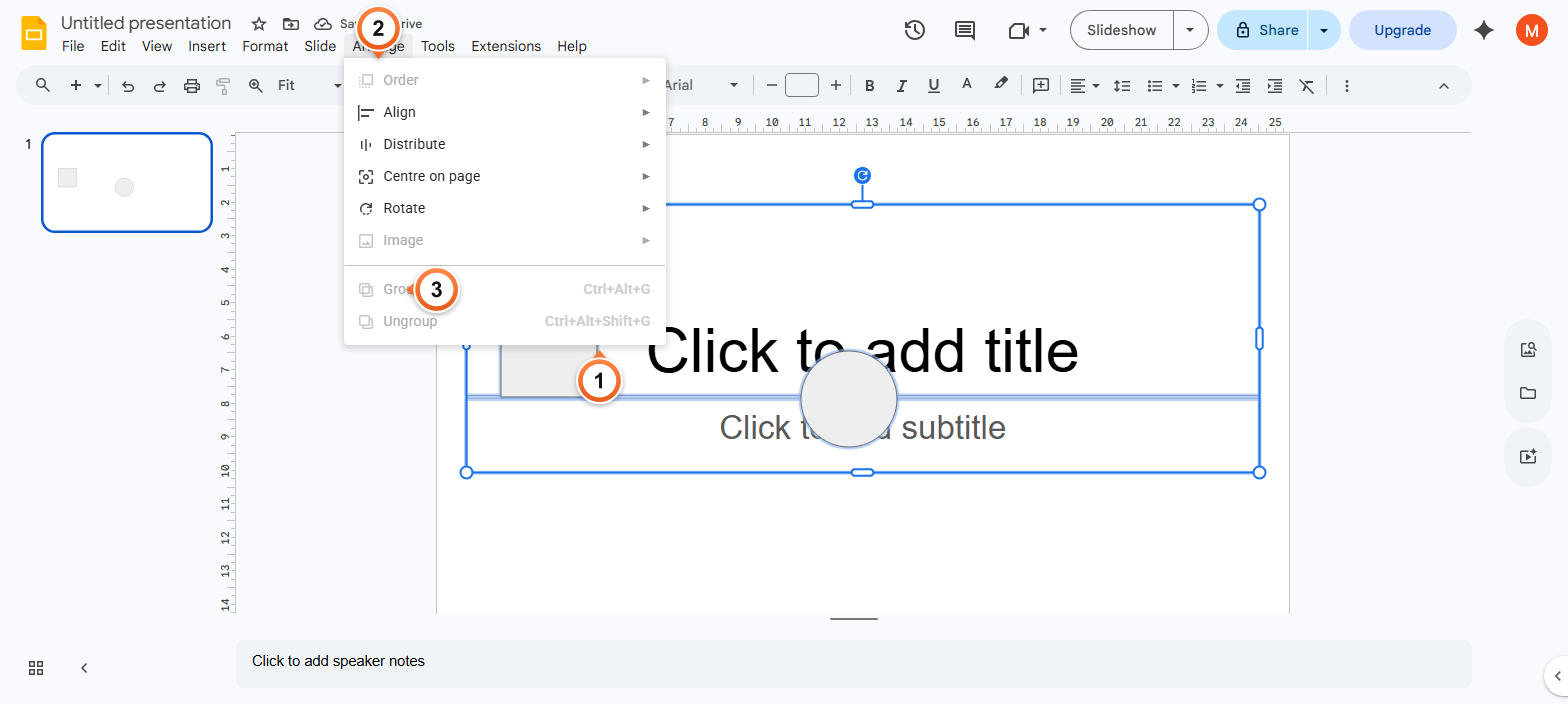
Note: Once grouped, the objects move and resize together. To select a single object inside the group, double-click it - this enters the group, just like double-clicking a folder. Click outside to exit back to group-level selection.
How to group objects with the keyboard shortcut?
1. Click the first object, then Shift+click each additional object.
2. Press Ctrl+Alt+G (Cmd+Alt+G on Mac) to group instantly.
3. The objects now move and resize as one - drag any of them to move the whole group.
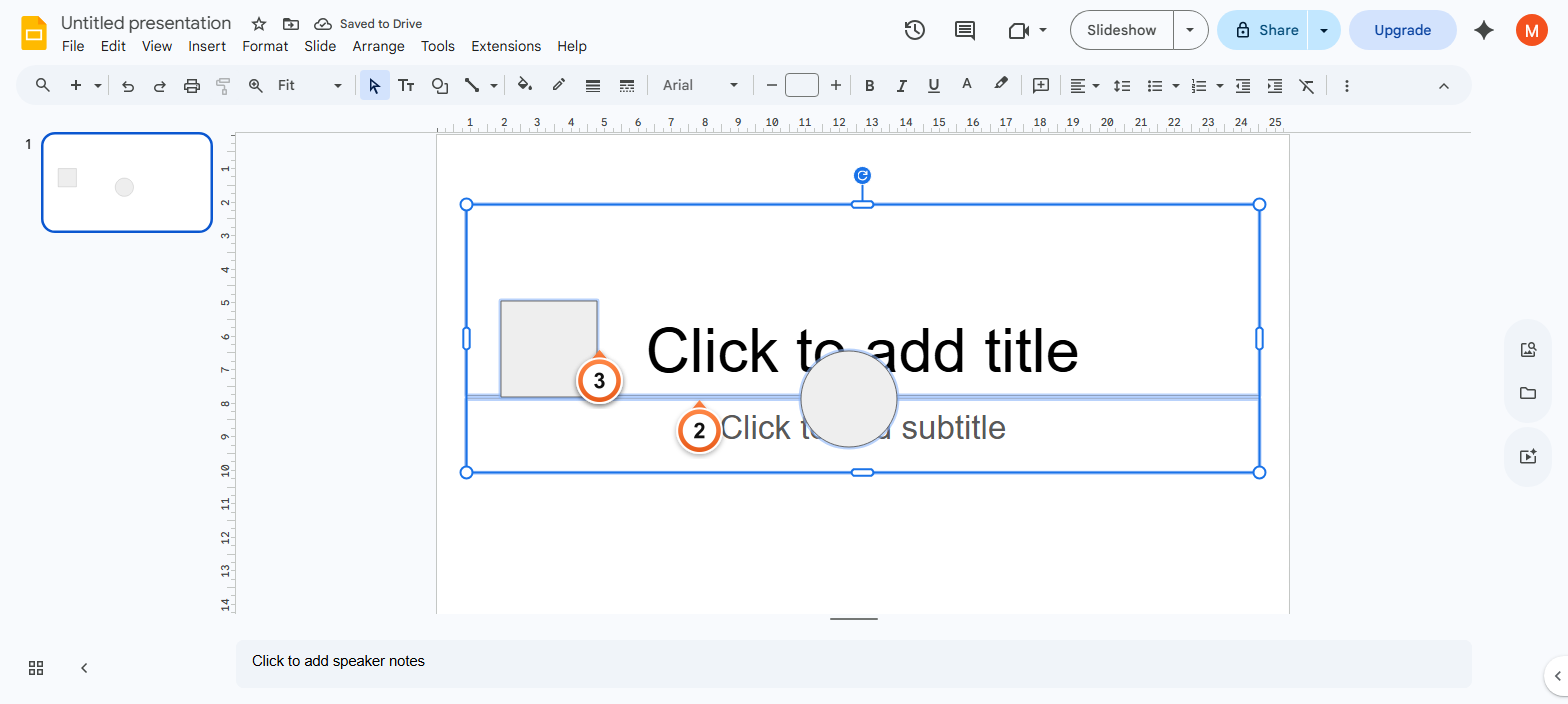
Note: Ctrl+Alt+G = Group. Ctrl+Alt+Shift+G = Ungroup. The shortcut beats the menu for repeated grouping when arranging many objects. Multi-select via Shift-click or by drawing a marquee selection rectangle around them.
How to ungroup objects in Google Slides?
1. Click the grouped object once to select it as a group.
2. Open Arrange in the top menu.
3. Pick Ungroup (or press Ctrl+Alt+Shift+G) - each object becomes individually selectable again.
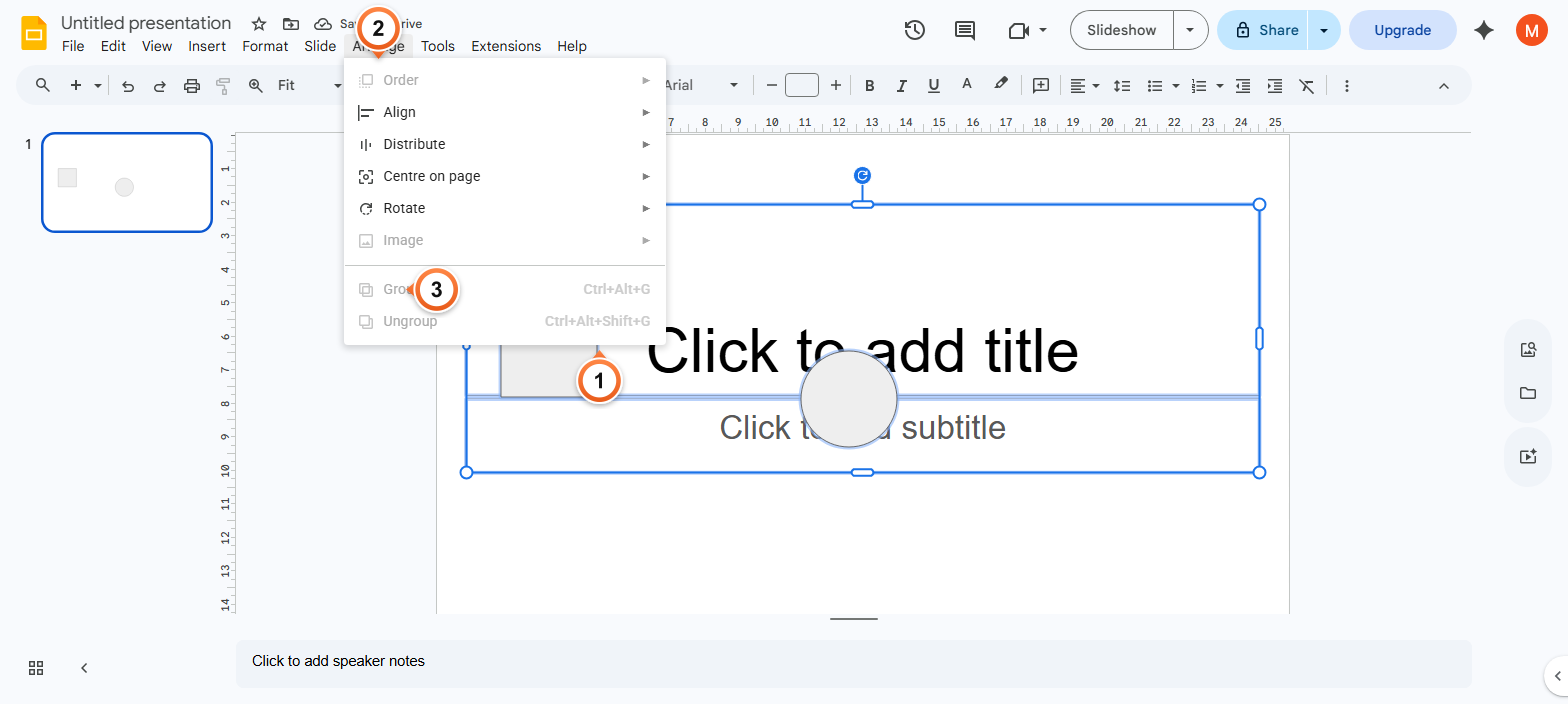
Note: Ungrouping doesn't move or change the objects' positions - they stay where they are, just no longer linked. Right-click the group and pick Ungroup if you prefer the context menu.
Frequently Asked Questions
What's the keyboard shortcut to group objects in Google Slides?
Ctrl+Alt+G on Windows / ChromeOS, Cmd+Alt+G on Mac. To ungroup, add Shift: Ctrl+Alt+Shift+G or Cmd+Alt+Shift+G. The shortcut works on any multi-selection - shapes, images, text boxes, lines - in any combination. PowerPoint users coming from Ctrl+G should remember the extra Alt for Slides.
Why is the Group option greyed out for me?
Three common causes: (1) Only one object is selected - Group needs at least two. Shift-click another. (2) The selection includes a placeholder from the master layout - those can't be grouped. (3) The deck is in view-only mode. Click around to confirm; if Arrange > Group stays greyed, request edit access via Share.
How do I edit a single object inside a group?
Double-click the object directly. You enter the group's edit context, like opening a folder, and that single object becomes selected. Edit it normally - move, resize, change colour, type text. Click outside or press Esc to exit back to group-level selection. To go deeper into nested groups, keep double-clicking.
Can I copy a grouped object to another slide?
Yes - groups behave as one object for copy / paste / duplicate. Click the group, press Ctrl+C, navigate to the target slide, press Ctrl+V. The group keeps its internal structure: it pastes as a group, not as separate objects. Ctrl+D duplicates within the same slide (works on groups too).
Can I group objects across multiple slides?
No - groups exist on a single slide. Each slide has its own canvas, so objects on different slides can't be linked. To repeat the same group on multiple slides, copy it (Ctrl+C), navigate to each slide, and paste (Ctrl+V). Or for true reuse, place the group on the master via Slide > Edit theme so it inherits to every slide using that layout.
Will grouping affect animations applied to individual objects?
Yes - when you group, individual animations on the child objects are removed and replaced with a single animation slot for the group. Apply animation at the group level via Insert > Animation. To animate parts independently while keeping the visual unity, ungroup, animate each, then re-group via Slide Master if needed.
How do I select multiple objects without Shift+click?
Click in an empty area of the canvas, then drag to draw a marquee rectangle. Every object fully inside the rectangle gets selected (objects partially inside are excluded by default). Combine with Shift+click to add or remove individual objects from the marquee selection. Drag works only when no other object is selected first.
Can I lock a group so it doesn't move accidentally?
Google Slides has no native object-locking feature - groups don't get locked. The closest workaround: place the objects on the master via Slide > Edit theme. Master objects don't move when editing individual slides. Or, for purely visual lock, group + send-to-back via Arrange > Order > Send to back so other clicks land on top objects instead.
Want a deck where every visual element is already grouped and aligned? Try Slidee - generate a polished presentation with smart object grouping in 30 seconds.