
How to Duplicate a Slide in Google Slides (2026)
Duplicate a slide in Google Slides with one click, the keyboard shortcut Ctrl+D, or the Slide menu. Step-by-step with screenshots.
Duplicating a slide saves time when you want a near-identical layout - same theme, fonts, and placeholders - with just the content changed. Google Slides has three ways to do it: right-click the thumbnail, use the Slide menu, or hit Ctrl+D. All three create an exact copy directly below the original.
How to duplicate a slide using the Slide menu?
1. Click the slide thumbnail in the filmstrip on the left to select it.
2. Click Slide in the top menu.
3. Pick Duplicate slide - the copy appears directly below the original.
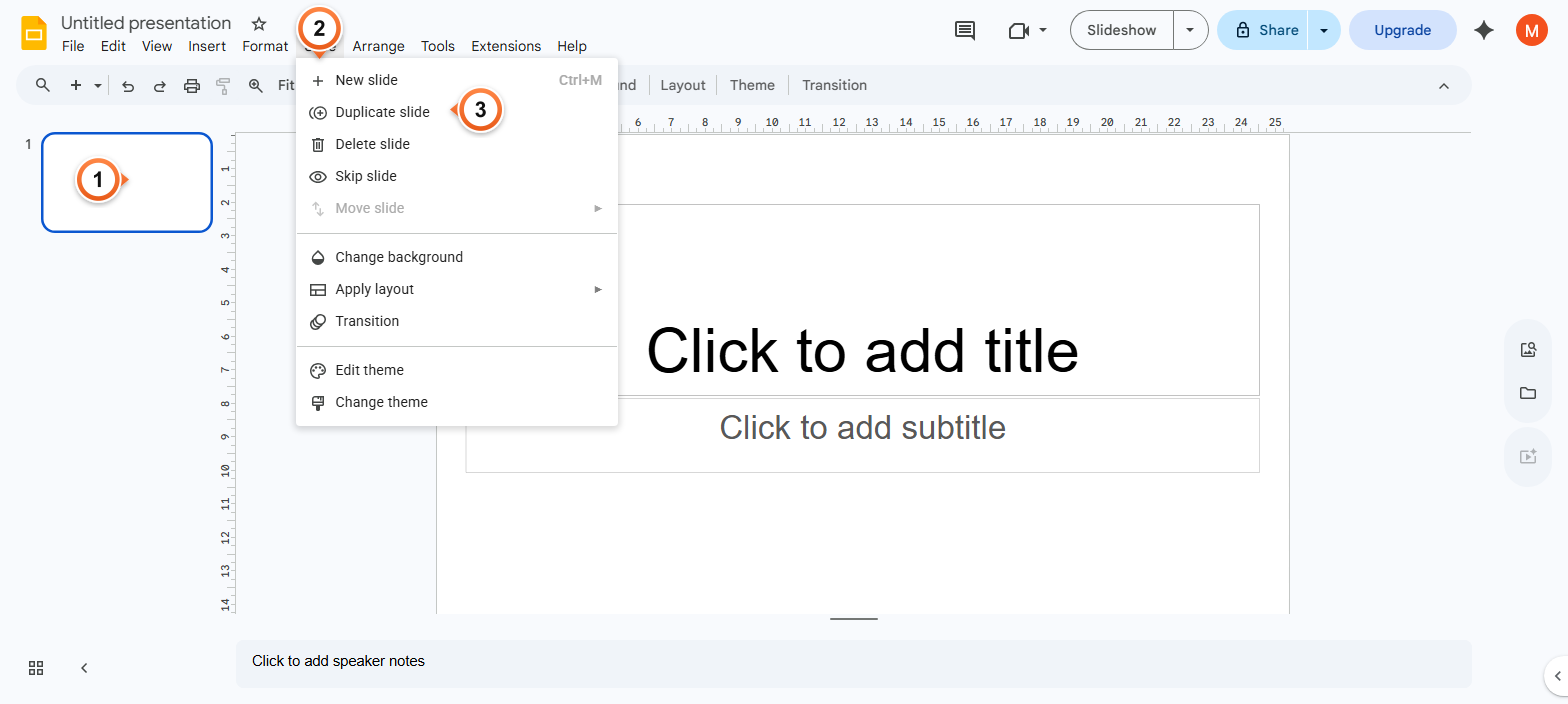
Note: The duplicate inherits everything: layout, theme, content, animations, and speaker notes. Only the slide ID is new, so any links to the original still point at the original.
How to duplicate a slide with the keyboard shortcut?
1. Click the slide thumbnail to select it (or click anywhere on the slide canvas).
2. Press Ctrl+D (Windows/ChromeOS) or Cmd+D (Mac).
3. The duplicate appears in the filmstrip directly below the original.
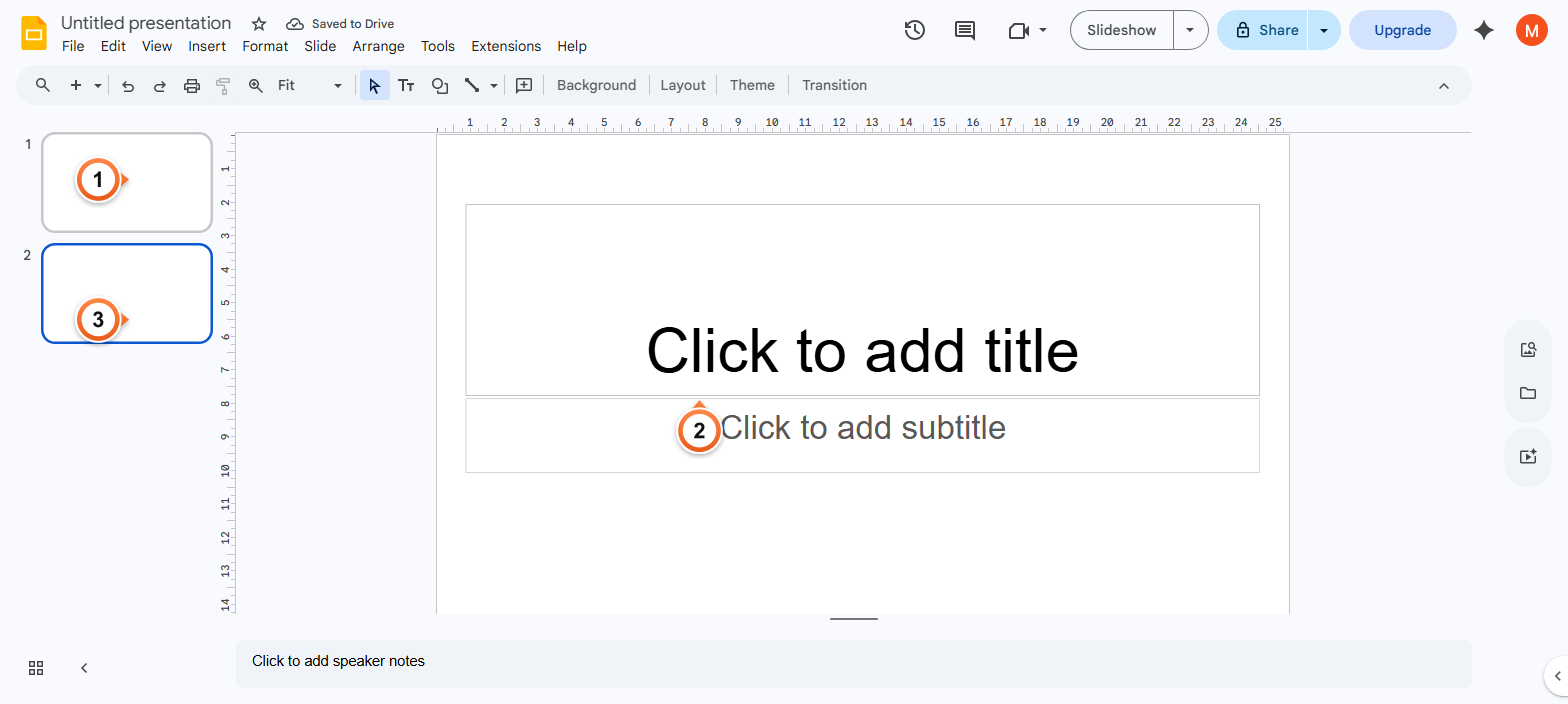
Note: Ctrl+D works whether you're in the filmstrip or the canvas - as long as a slide is selected. To duplicate the duplicate, press Ctrl+D again immediately.
How to duplicate multiple slides at once?
1. Click the first slide thumbnail, then Shift+click the last to select a range (or Ctrl+click for non-adjacent).
2. Right-click any selected thumbnail and pick Duplicate slide.
3. All selected slides are duplicated as a contiguous block right after the last original.
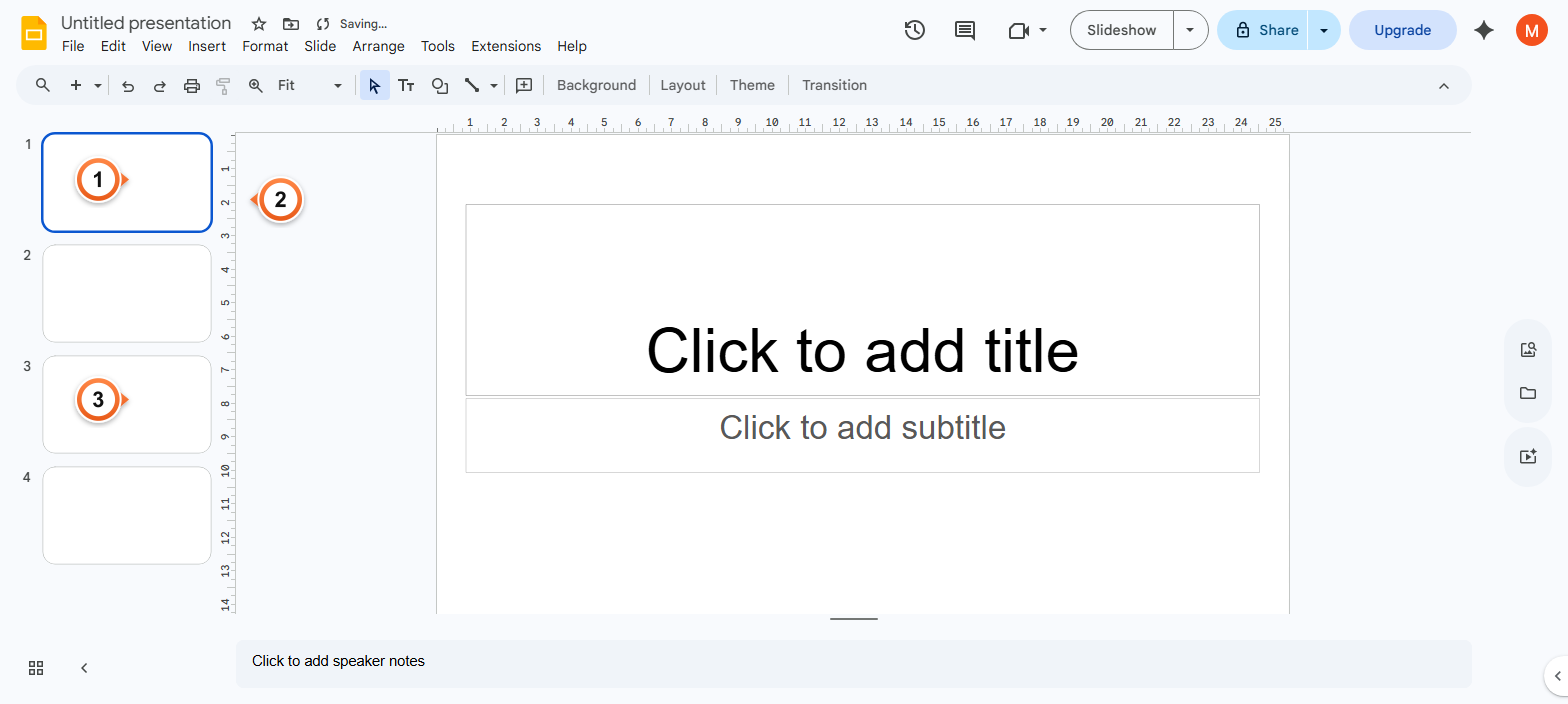
Note: Ctrl+D also works on multi-selected slides - select a range, hit Ctrl+D, the whole batch duplicates in order. Useful when copying a 3-slide template several times to fill out a deck.
Frequently Asked Questions
What's the keyboard shortcut to duplicate a slide in Google Slides?
Ctrl+D on Windows and ChromeOS, Cmd+D on Mac. Works with any slide(s) selected in either the filmstrip or the canvas. Press it again immediately to duplicate the duplicate.
Does duplicating a slide also copy its speaker notes?
Yes - the duplicate is a complete copy: layout, theme, content, animations, transitions, and speaker notes. The only thing that's new is the slide's internal ID, so any in-deck hyperlinks pointing at the original keep pointing at the original (not the duplicate).
How do I duplicate a slide to a different presentation?
Two options. (1) In the source deck, right-click the slide thumbnail and pick Copy slide. Open the destination deck, right-click in the filmstrip, and pick Paste. (2) Open both decks side-by-side in tabs and drag the thumbnail from one filmstrip to the other - works the same way.
Can I duplicate a slide on the Google Slides mobile app?
Yes. Long-press the slide thumbnail in the filmstrip, tap the three-dot menu that appears, and pick Duplicate slide. The shortcut works on iPad keyboards (Cmd+D) but not on phone keyboards. The duplicate behaves identically to the desktop version.
Why is Duplicate slide greyed out in my menu?
Most likely cause: no slide is selected. Click any thumbnail in the filmstrip first - the option enables. Other cause: the deck is opened in view-only mode (you have read access, not edit access). Ask the deck owner for edit access via the Share button. If you want to keep the slide but skip it during playback rather than copy it, see Hide a Slide.
Does duplicating a slide change the slide numbering?
Yes - the duplicate becomes the next slide number, and every slide after it bumps up by one. If your slides reference numbers in the body (like See slide 5 for details), update those references manually after duplicating.
Can I duplicate a slide and place it somewhere else immediately?
The duplicate always lands directly below the original. To move it: drag the duplicate's thumbnail in the filmstrip to the new position, or right-click the thumbnail and pick Move slide > beginning / end / specific position.
Does Ctrl+D work for objects on a slide too?
No - Ctrl+D in Google Slides is wired to slide duplication, not object duplication. To duplicate a shape, image, or text box on the canvas, use Ctrl+C followed by Ctrl+V (or hold Ctrl while dragging the object). The new copy appears slightly offset from the original.
Building a deck full of similar layouts? Try Slidee - generate a complete presentation with consistent styling in 30 seconds.