
How to Hide a Slide in Google Slides (2026)
Hide a slide in Google Slides without deleting it. Use Slide > Skip slide or right-click the thumbnail. Hidden slides keep their content but skip during the slideshow.
Hiding a slide keeps it in the deck but skips it during a slideshow. Useful for backup slides, optional appendix material, or hiding work-in-progress sections from a live presentation. The slide stays editable and visible in the filmstrip - just with a strike-through icon - and reappears the moment you unhide it.
How to hide a slide using the Slide menu?
1. Click the slide thumbnail in the filmstrip on the left to select it.
2. Click Slide in the top menu.
3. Pick Skip slide - the thumbnail dims and gets a strike-through icon.
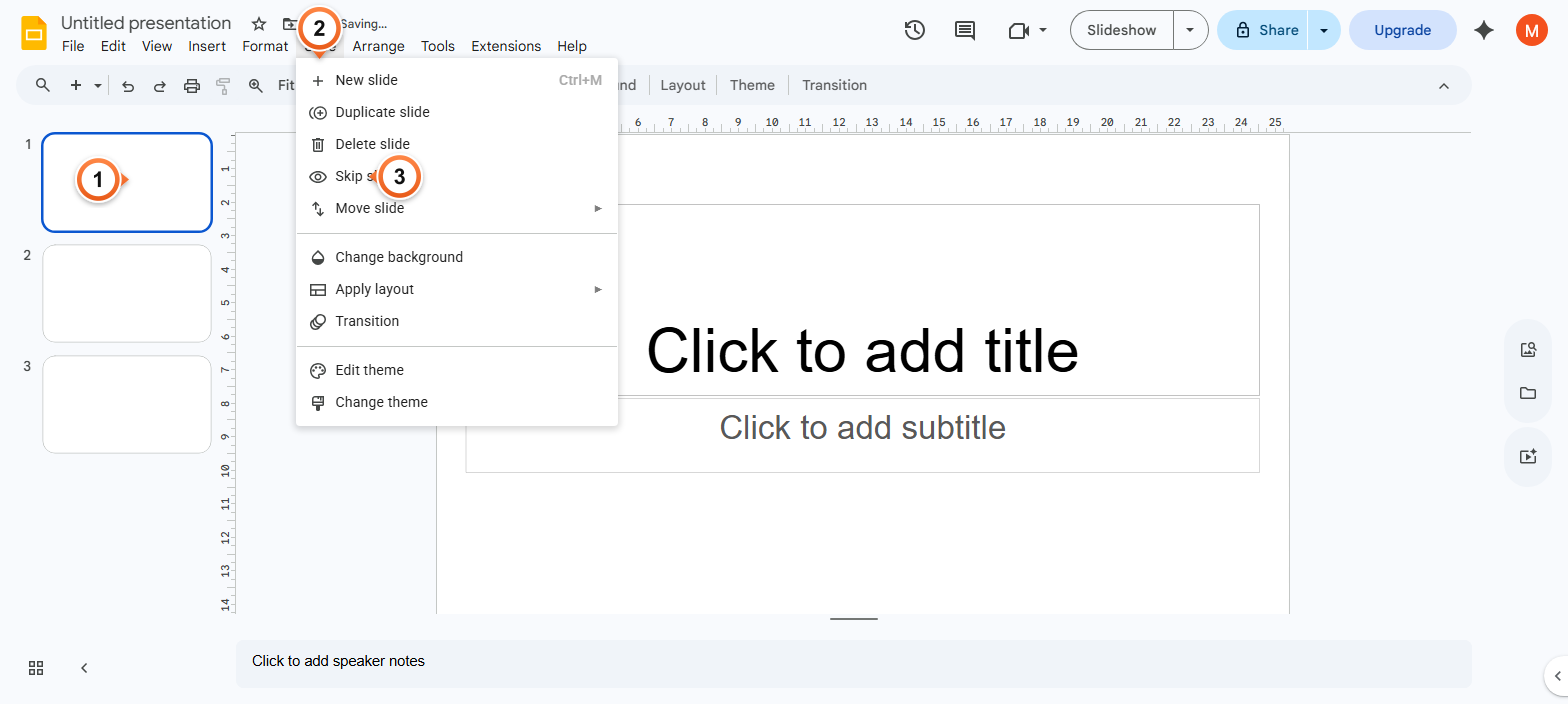
Note: Hidden slides remain in the deck and stay editable. They simply don't appear when you start the slideshow. To unhide, repeat the same steps - the menu item toggles Skip slide off.
How to hide a slide by right-clicking the thumbnail?
1. Right-click the slide thumbnail in the filmstrip.
2. Pick Skip slide from the context menu.
3. The thumbnail shows a small strike-through icon, marking the slide as hidden.
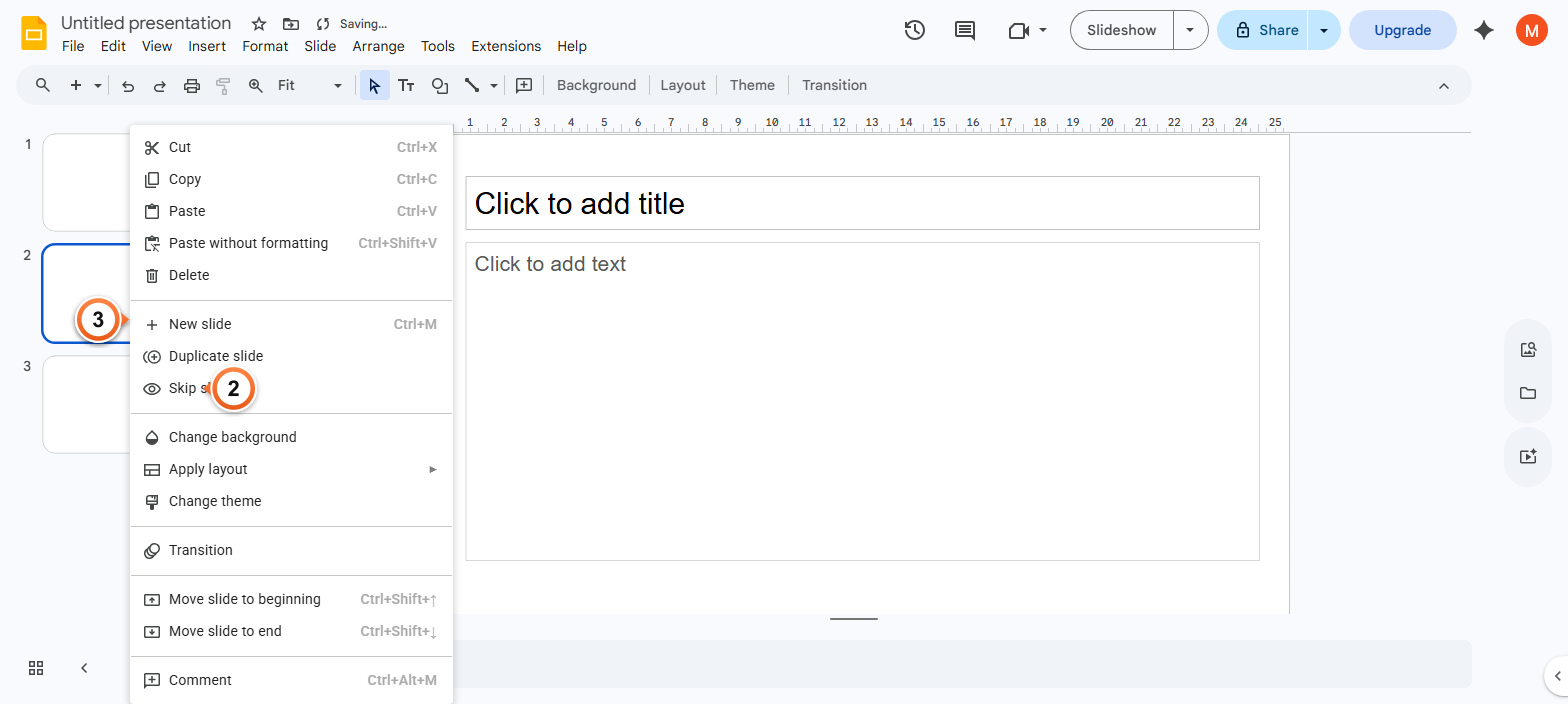
Note: The right-click menu also works on multi-selected slides. Hold Shift to select a range or Ctrl to pick non-adjacent ones, then right-click and pick Skip slide to hide them all in one go.
How to unhide a slide?
1. Click the dimmed thumbnail of the hidden slide in the filmstrip.
2. Open Slide menu (or right-click) and pick Skip slide again to toggle it off.
3. The thumbnail returns to full brightness and the slide will appear in the next slideshow.
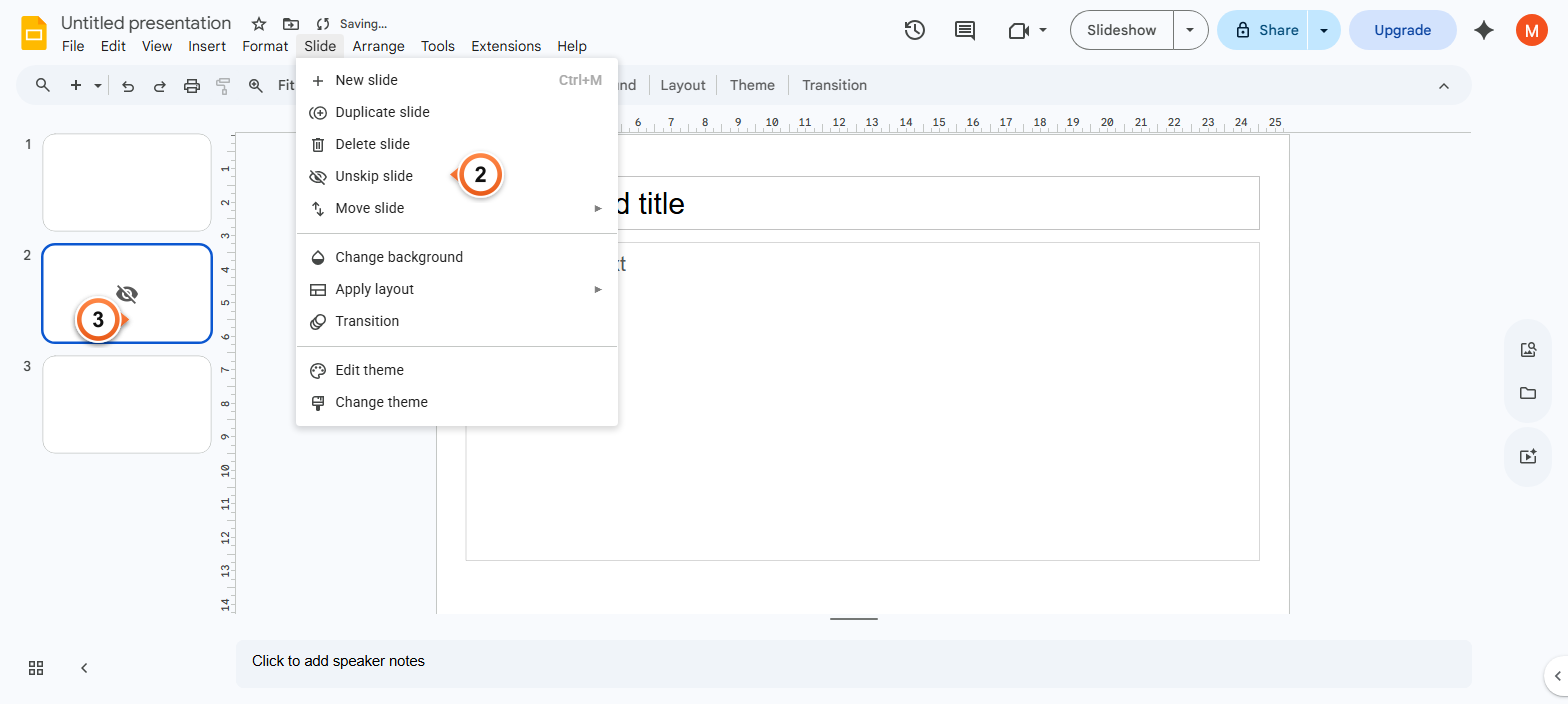
Note: Skip slide is a toggle - the same menu item shows and hides. There's no separate Unhide option to look for.
Frequently Asked Questions
What's the difference between hiding and deleting a slide in Google Slides?
Hiding keeps the slide in the deck but skips it during the slideshow - the content stays editable and you can unhide it any time. Deleting removes the slide entirely; you'd need Ctrl+Z (undo) right away or restore from version history later. Use Skip slide for backup material; use Delete for slides you're sure you don't need.
Will hidden slides export when I download the deck as PDF or PowerPoint?
Yes - File > Download > PDF or PowerPoint includes hidden slides in the output. Skip slide only affects the live slideshow inside Google Slides itself. To exclude hidden slides from a print or PDF, delete or move them to a separate hidden-content deck before exporting.
How can I tell which slides are hidden in my deck?
Hidden slides show a strike-through icon overlaid on the thumbnail in the filmstrip, and the thumbnail itself appears slightly dimmed compared to active slides. The slide number stays visible but appears greyed out. Hover the thumbnail to see a tooltip confirming the hidden state.
Does hiding a slide change the slide numbers?
Slide numbers in the filmstrip stay the same - hidden slides keep their position. But during the actual slideshow, hidden slides are skipped entirely, so the audience sees a continuous sequence (1, 2, 4, 5 with slide 3 hidden). If you display slide numbers on the slides themselves via Insert > Slide numbers, those reflect the original numbering.
Can I hide multiple slides at once?
Yes. Click the first slide in the filmstrip, then Shift+click the last to select a range. For non-adjacent slides, hold Ctrl and click each one individually. Once selected, right-click any of them and pick Skip slide - all selected slides hide in a single action.
Why is Skip slide not working in my presentation?
Two common reasons: (1) you're starting the slideshow with Slideshow > From the beginning - that respects the hidden state. (2) Make sure you actually applied Skip slide; check the thumbnail for the strike-through icon. If you started Presenter view directly to a hidden slide via the URL, that bypasses the skip - hidden slides only auto-skip during sequential playback.
Can collaborators see slides I've hidden?
Yes - hidden slides are visible to anyone with edit, comment, or view access when they open the deck. Skip slide only affects the slideshow playback, not the editor view. To genuinely restrict access to certain slides, you'd need to keep them in a separate deck and only share the link to the public version.
How do I hide a slide on the Google Slides mobile app?
Open the deck in the Slides mobile app, long-press the slide thumbnail in the filmstrip, then tap the three-dot menu and pick Skip slide. The slide dims to confirm. Tap the same option again to unhide. Behaves identically to the desktop version - the hide state syncs across devices in real time.
Want a deck where every slide earns its place? Try Slidee - generate a focused presentation with only the slides you actually need in 30 seconds.