
How to Add Speaker Notes in Google Slides (2026)
Add speaker notes in Google Slides under each slide. Show the notes panel, type your script, and read them while presenting in Presenter view.
Speaker notes sit under each slide and only you see them while presenting. Google Slides has a dedicated notes panel below the canvas - if it's hidden, View > Show speaker notes brings it back. During the slideshow, Presenter view opens a second window with your notes, a timer, and a slide thumbnail strip.
How to show the speaker notes panel in Google Slides?
1. Click View in the top menu.
2. Click Show speaker notes to toggle the panel on.
3. The notes panel appears under the slide canvas with placeholder text Click to add speaker notes.
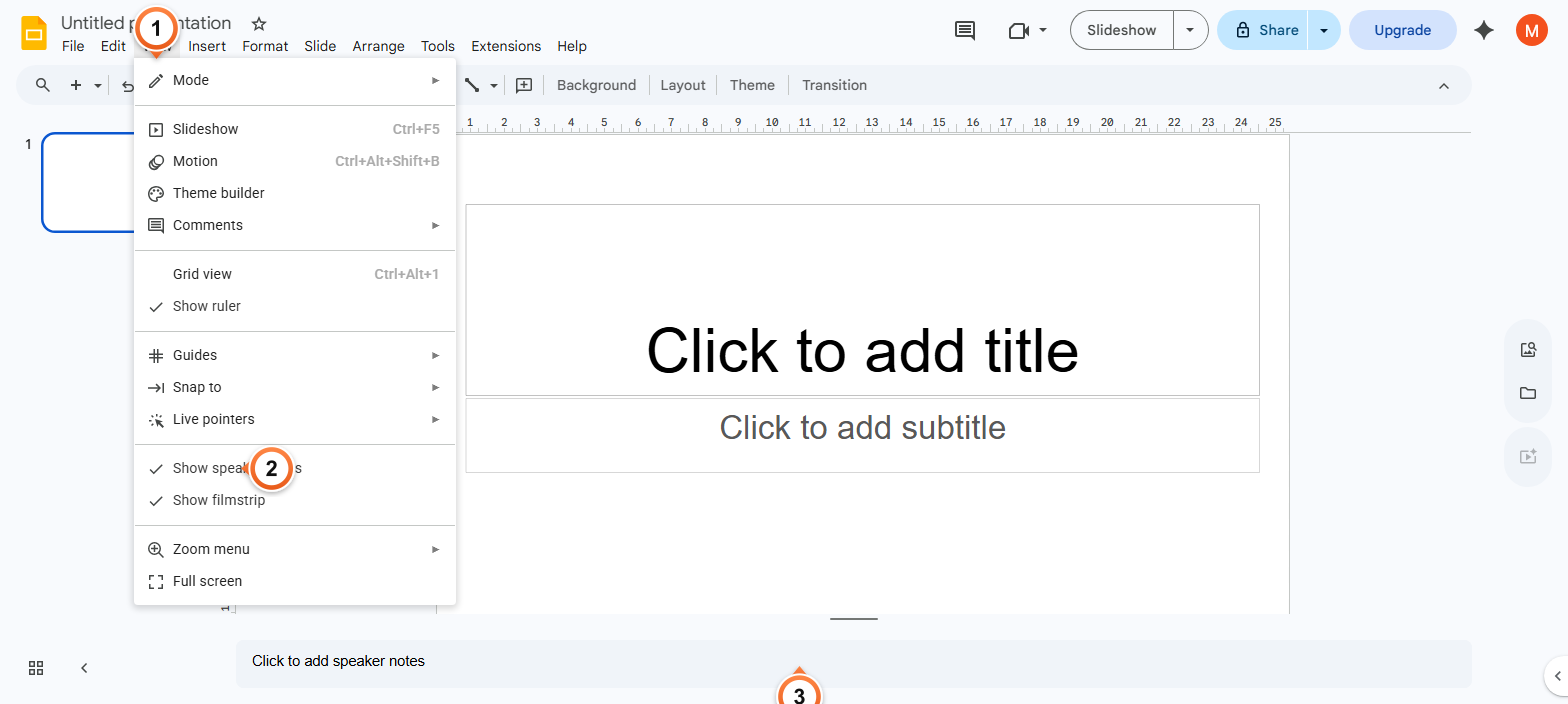
Note: If the notes panel is already visible, the menu item shows a checkmark next to Show speaker notes. Click it again to hide the panel.
How to add notes to a slide?
1. Click inside the Click to add speaker notes area below your slide.
2. Type your script - one note per slide. Slides saves automatically as you type.
3. Repeat per slide - each slide has its own independent notes.
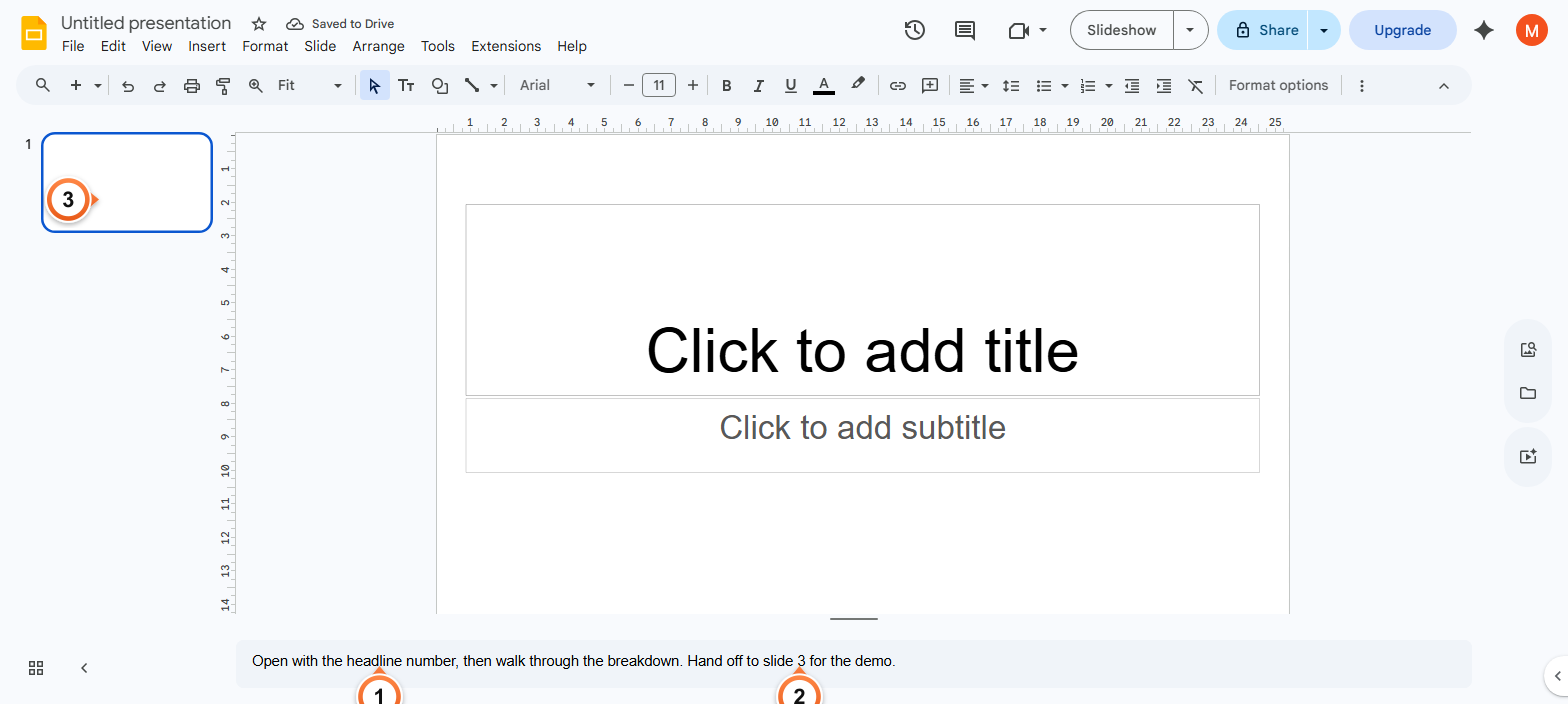
Note: Notes support basic formatting (bold, italic, links) via Ctrl+B / Ctrl+I / Ctrl+K. They don't show on the slide itself - only in Presenter view and on prints with the 1 slide with notes layout.
How to view speaker notes while presenting?
1. Click the dropdown arrow next to the Slideshow button (top-right).
2. Pick Presenter view to start the slideshow with your notes.
3. Your notes appear in a second window alongside the slide preview, a timer, and the next-slide thumbnail.
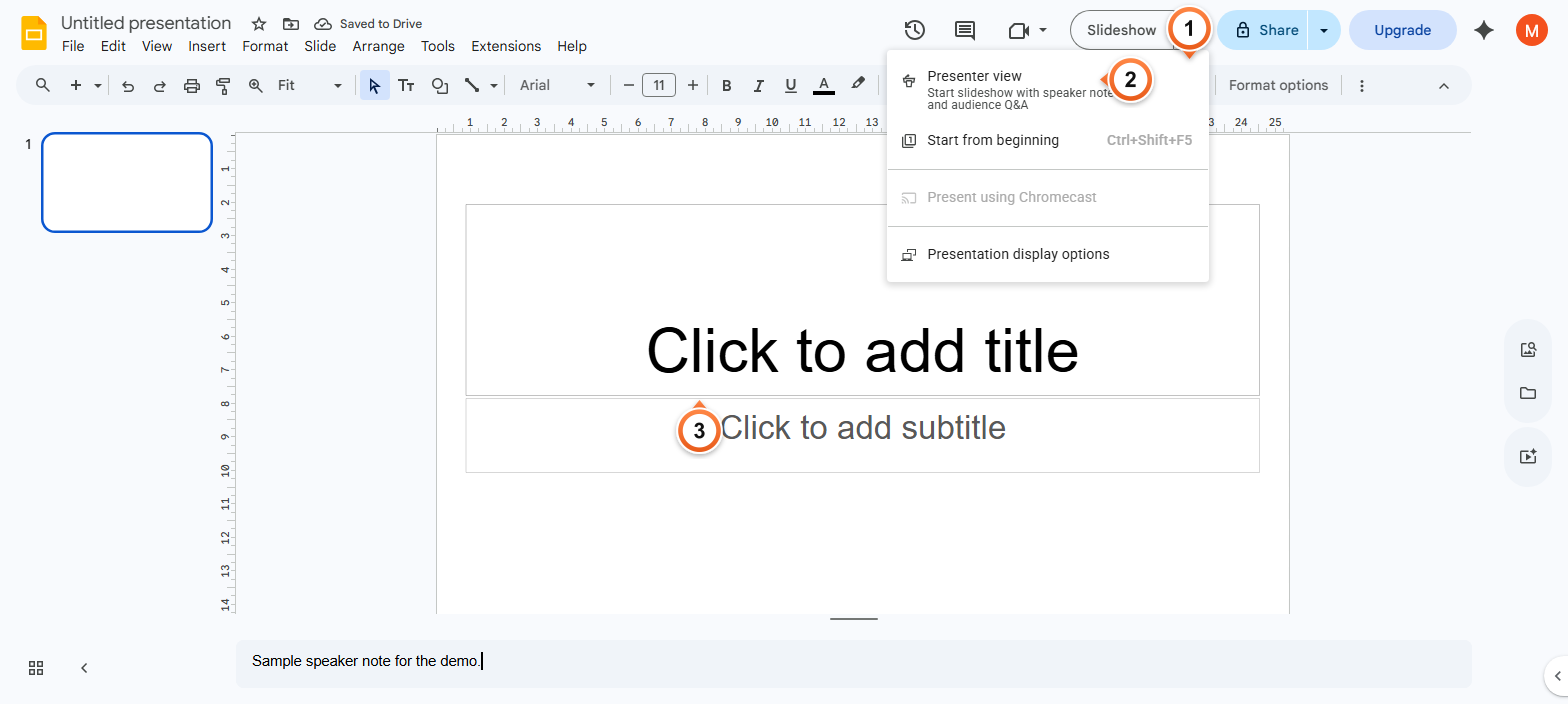
Note: Presenter view works best with two displays - put the slideshow on the projector and Presenter view on your laptop. On a single screen, alt-tab between them.
Frequently Asked Questions
Why are my speaker notes not showing in Google Slides?
Two common causes: the notes panel is hidden (open it via View > Show speaker notes) or you're viewing the deck in slideshow mode rather than Presenter view (Presenter view shows notes; regular Slideshow doesn't). Click the dropdown arrow next to the Slideshow button and pick Presenter view to see notes during the live presentation.
Can I see my speaker notes while presenting on Zoom or Google Meet?
Yes. Start Presenter view (dropdown next to Slideshow > Presenter view). Share only the slideshow window in Zoom or Meet, not the Presenter view window. Your notes stay private; the audience sees only the slide.
How do I print my speaker notes with the slides?
File > Print preview, then pick 1 slide with notes from the layout dropdown at the top. Each printed page shows one slide above its speaker notes. Download as PDF or send to your printer. Full guide: Print Google Slides with Speaker Notes.
Can other collaborators see my speaker notes?
Yes - notes are part of the deck, so anyone with edit or comment access sees and can change them. View-only access also shows the notes when they open the deck. To keep notes private, duplicate the deck and remove notes from the shared copy, or use a separate Doc for personal cues.
How long can a speaker note be in Google Slides?
There's no hard character limit, but the notes panel scrolls if a note exceeds the visible area. For Presenter view readability, aim for 4-6 short bullet lines per slide rather than dense paragraphs - you'll skim them while talking, not read them aloud.
Can I add formatting like bold or links to speaker notes?
Yes. Bold, italic, underline, and links all work in the notes panel via Ctrl+B / Ctrl+I / Ctrl+U / Ctrl+K (Cmd on Mac). Bullet points and numbered lists also work via Ctrl+Shift+8 / Ctrl+Shift+7. Font size is fixed - notes use a single base size that scales in Presenter view based on your settings.
How do I quickly jump between slides while editing notes?
Click any slide thumbnail in the filmstrip on the left - the notes panel switches to that slide's notes. Or press Page Down / Page Up to move through slides while keeping focus in the notes panel. Use Ctrl+F to search across all notes (the find bar searches notes too).
Will speaker notes export to PowerPoint?
Yes. File > Download > Microsoft PowerPoint (.pptx) preserves notes on every slide. PowerPoint shows them in its own notes panel below the slide. PDF export keeps them too if you pick 1 slide with notes layout in Print preview before downloading.
Want a deck where the speaker notes write themselves alongside the slides? Try Slidee - generate a complete presentation with built-in talking points in 30 seconds.