
How to Print Google Slides with Speaker Notes (2026)
Print Google Slides with speaker notes below each slide. Open Print preview, switch to the 1 slide with notes layout, and download as PDF or send to your printer.
Speaker notes are useful only if you can read them while presenting. A printed handout with notes below each slide is the most reliable backup, no laptop battery, no projector cable. Google Slides ships with a Print preview that includes a 1 slide with notes layout. The only thing you have to remember: add at least one slide's notes first, or the layout option stays hidden in the dropdown.
How to open Print preview in Google Slides?
1. Open your deck and make sure at least one slide has speaker notes. The notes panel sits under the slide canvas, the placeholder reads Click to add speaker notes. If you need a walkthrough, see Add Speaker Notes in Google Slides.
2. Click File in the top menu.
3. Scroll to Print settings and preview and click it. The preview screen takes over the editor, with a toolbar of layout and page-range controls along the top.
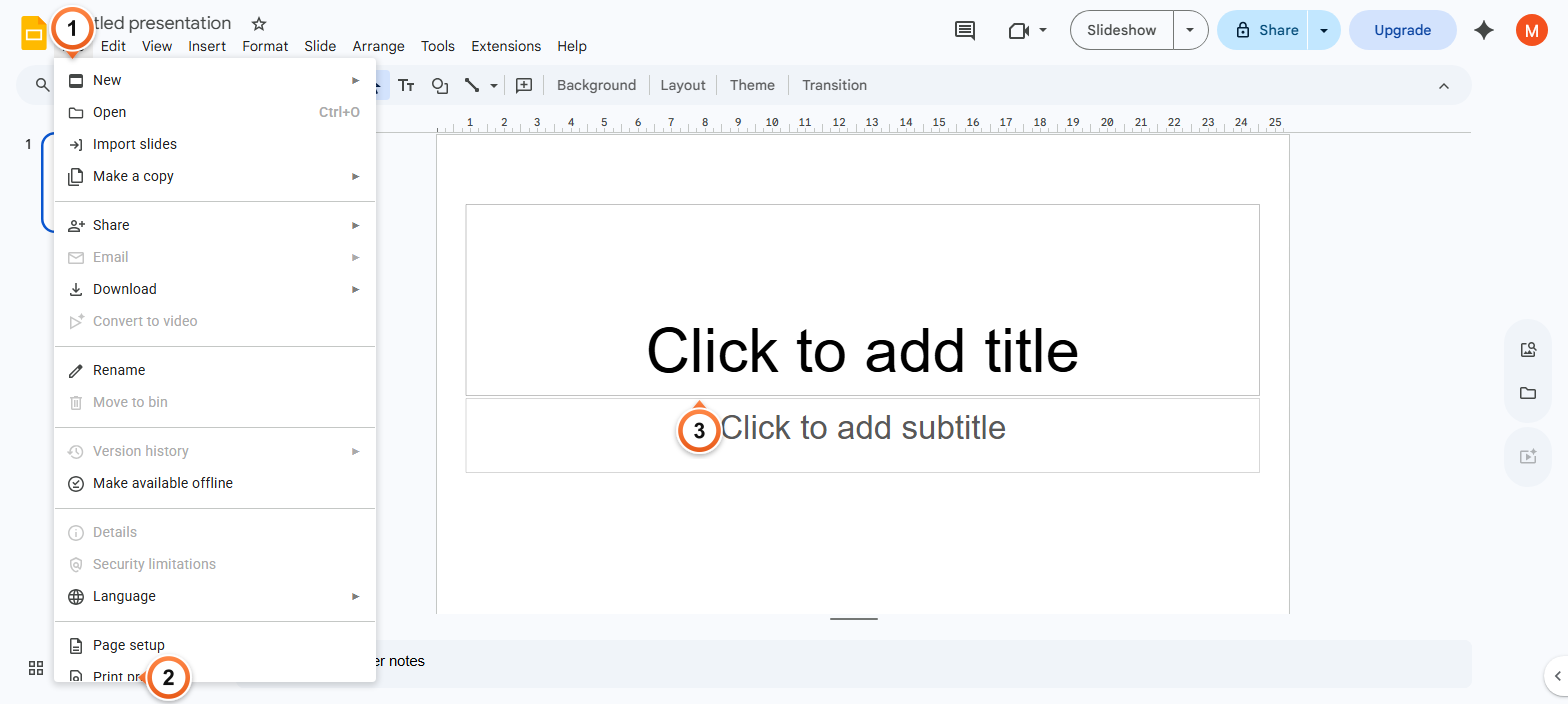
Shortcut: Ctrl+P (Windows/ChromeOS) or Cmd+P (Mac) opens the same preview directly. Skip the File menu entirely.
How to switch the layout to 1 slide with notes?
1. In the preview toolbar, find the layout dropdown. It opens labelled 1 slide without notes by default.
2. Click the dropdown and pick 1 slide with notes from the list.
3. Each preview page now shows one slide above its speaker notes, exactly how it will print.
Don't see 1 slide with notes? It only appears once the deck has at least one speaker note. Add a character to any slide's notes panel, reopen Print preview, and the option appears.
How to download as PDF or send to printer?
1. Scroll through the preview to verify each slide and its notes render the way you want.
2. Click Download as PDF to save a searchable PDF locally. Notes embed below each slide as real text, not images.
3. Or click Print to open the system print dialog. Pick your printer, page range, paper size (Letter or A4), and colour or grayscale. Leave Pages per sheet at 1, anything higher shrinks the layout until the notes are unreadable.
Printing only specific slides: the page-range dropdown sits next to the layout selector. Pick Custom range and enter slide numbers like
3-7or1,4,9to print just those.
Frequently Asked Questions
Why is the 1 slide with notes layout missing from the dropdown?
The deck has no speaker notes yet. Google Slides hides the option until at least one slide has notes. Add a single character to any slide's notes panel and reopen Print preview, the option appears. The other common cause: the deck was imported from an older PowerPoint format that stripped the notes layer, in which case retyping the notes restores the option.
How do I add speaker notes before printing them?
The notes panel sits below the slide canvas, look for Click to add speaker notes. If it's hidden, open it via View > Show speaker notes. Click into the panel for each slide and type. Full walkthrough: Add Speaker Notes in Google Slides. Notes don't appear during the slideshow itself, only in the print preview and in Presenter view.
Can I print only specific slides with their notes?
Yes. In Print preview, click the page-range dropdown next to the layout selector and pick Custom range, then enter slide numbers like 3-7 or 1,4,9. The notes for the selected slides print in the same 1-slide-with-notes layout.
Why does my speaker notes text look small in the printout?
The 1-slide-with-notes layout fits a slide and its notes on a single page, so notes get scaled down to fit. Three fixes: shorten the notes (move long detail to a separate handout), pick a larger paper size in the system dialog (A3 or Tabloid), or download as PDF and print zoomed in from a PDF reader.
Can I customise the font size of speaker notes for printing?
Sort of. Notes inherit the font size you set in the editor's notes panel. Select all notes on a slide, bump the font size to 14-16pt in the toolbar, and the printout reflects the change. There's no global setting that controls notes-only font size across the deck.
How do I print only the speaker notes without the slide thumbnails?
Google Slides doesn't ship a notes-only print layout. Two workarounds: (1) download the deck as Microsoft PowerPoint (File > Download > .pptx), open in PowerPoint, then File > Print > Notes Pages with the slide thumbnail toggled off, or (2) copy each slide's notes into a Google Doc and print from there.
How do I print Google Slides with notes from my phone?
The Slides mobile app supports basic print but not the 1-slide-with-notes layout. Workaround: open the deck in your phone's browser, switch to desktop site mode, then use File > Print preview. The desktop layout works on mobile Safari and Chrome.
Will my speaker notes export to PDF correctly?
Yes. Download as PDF from the Print preview screen embeds notes below each slide as static text, fully searchable in any PDF reader. The PDF respects the 1-slide-with-notes layout you picked, so each page is one slide above its notes.
Can I see speaker notes while presenting on Zoom or Google Meet?
Yes, but that's Presenter view, not printing. Click the dropdown arrow next to the Slideshow button and pick Presenter view. Share only the slideshow window in Zoom or Meet, not the Presenter view window. Notes stay private, the audience sees only the slide.
Want a presentation with smart speaker notes generated automatically? Try Slidee - generate a complete deck with on-brand notes in 30 seconds.