
How to Add an Animation in Google Slides (2026)
Animate text, images, or shapes in Google Slides via Insert > Animation. Pick fade in, fly in, spin, or zoom and trigger on click or auto-advance.
Animations bring objects on a slide to life - text fades in, images zoom out, shapes spin into place. Google Slides offers a focused set of built-in animations: appear, fade, fly in / out, zoom in / out, and spin. Each animation triggers on a click or after a delay, letting you reveal content step by step during the presentation.
How to add an animation to an object in Google Slides?
1. Click the object (text, image, or shape) you want to animate.
2. Click Insert in the top menu, then pick Animation.
3. The Motion panel opens on the right - pick an animation from the dropdown.
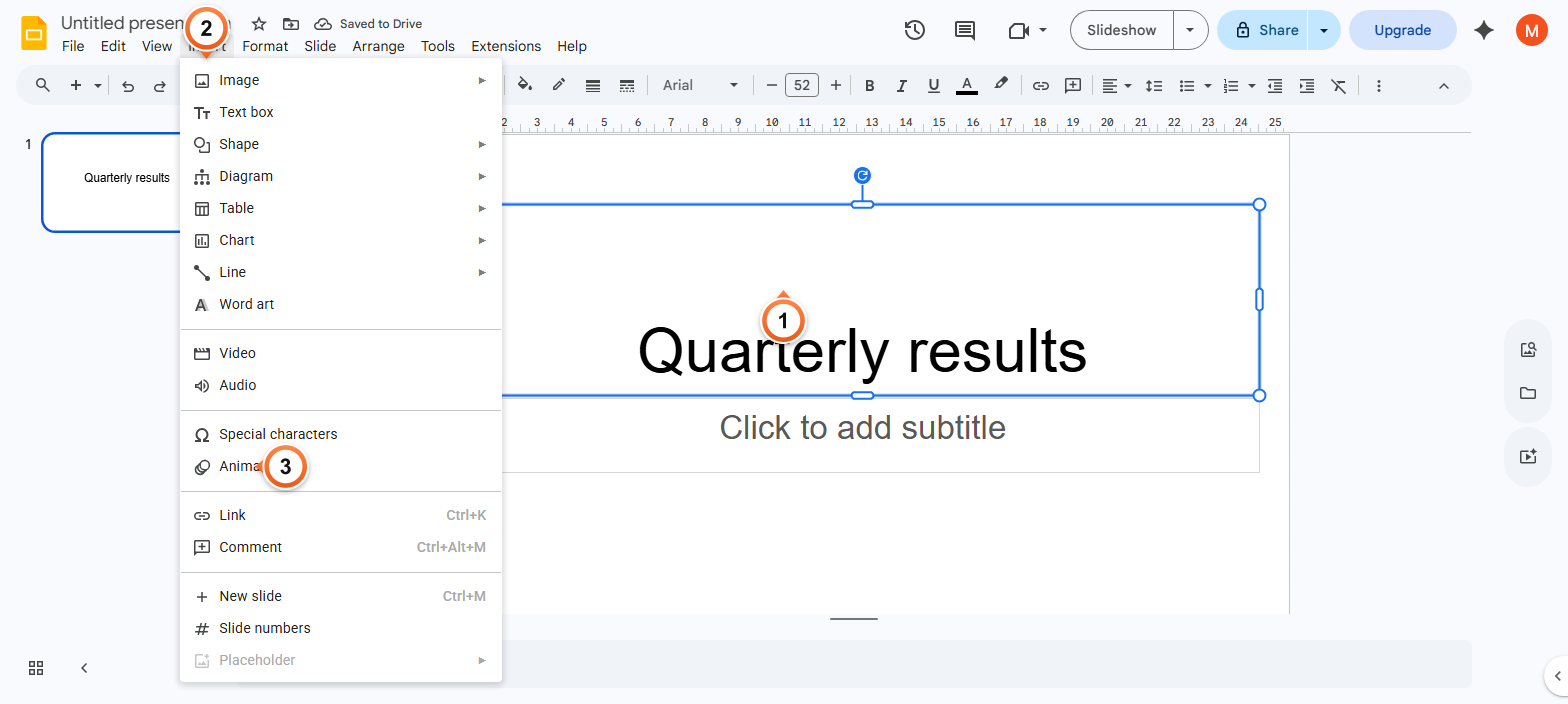
Note: You can also right-click the object and pick Animate, or use Slide > Transition to open the same Motion panel. Animations are listed below transitions in the panel - scroll down if needed.
How to choose an animation type and timing?
1. In the Motion panel, click the animation type dropdown.
2. Pick Appear, Fade in/out, Fly in/out, Zoom in/out, or Spin.
3. Set the trigger: On click (you advance manually) or After previous (auto-plays).
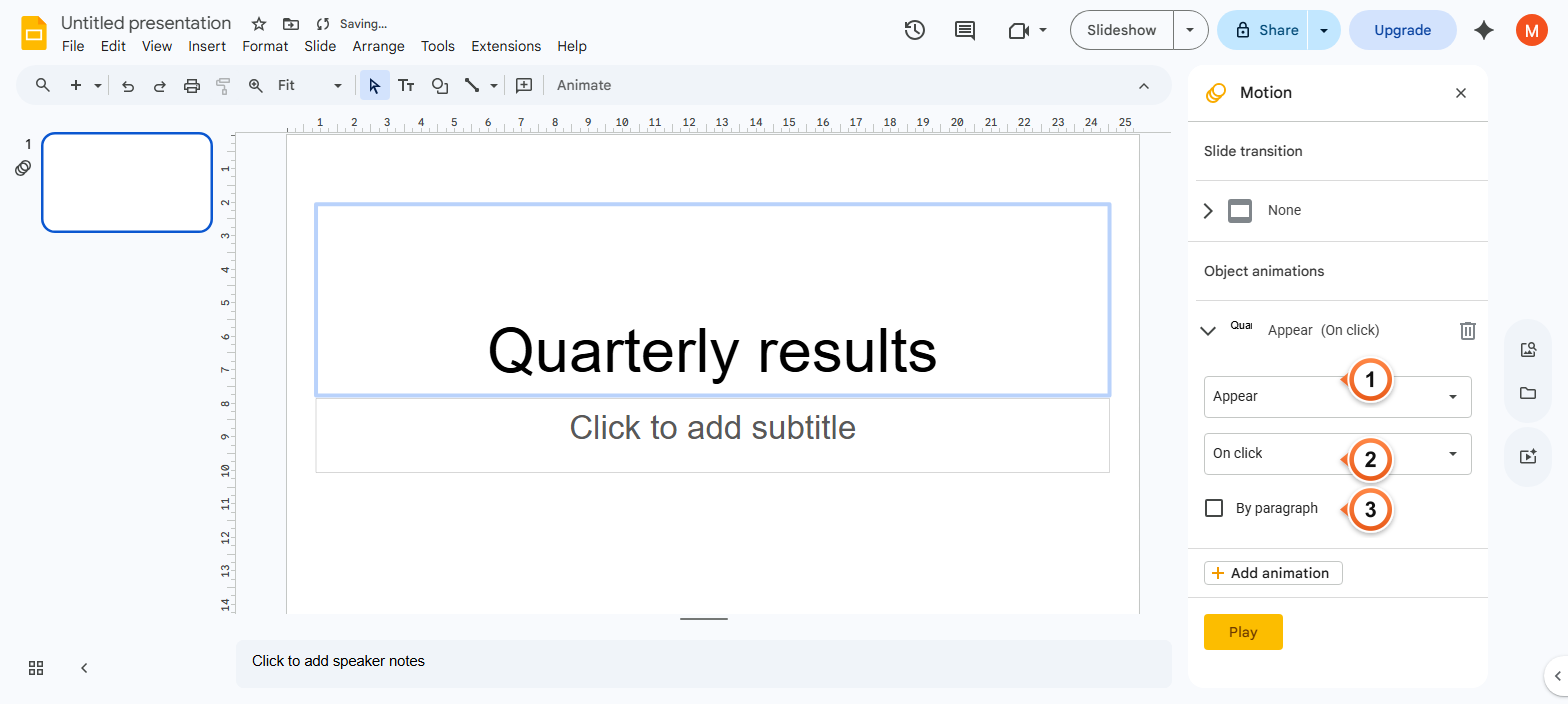
Note: Appear is instant - useful for legal disclaimers that should pop. Fade in is the safe default for body content. Fly in adds direction (from left, right, top, bottom). Zoom and Spin are dramatic - reserve for emphasis.
How to play and remove animations in Google Slides?
1. Click Play at the top of the Motion panel to preview the animation in the editor.
2. To remove, click the animation entry in the panel and press the trash icon that appears.
3. During the slideshow, animations trigger via mouse click, spacebar, or arrow keys.
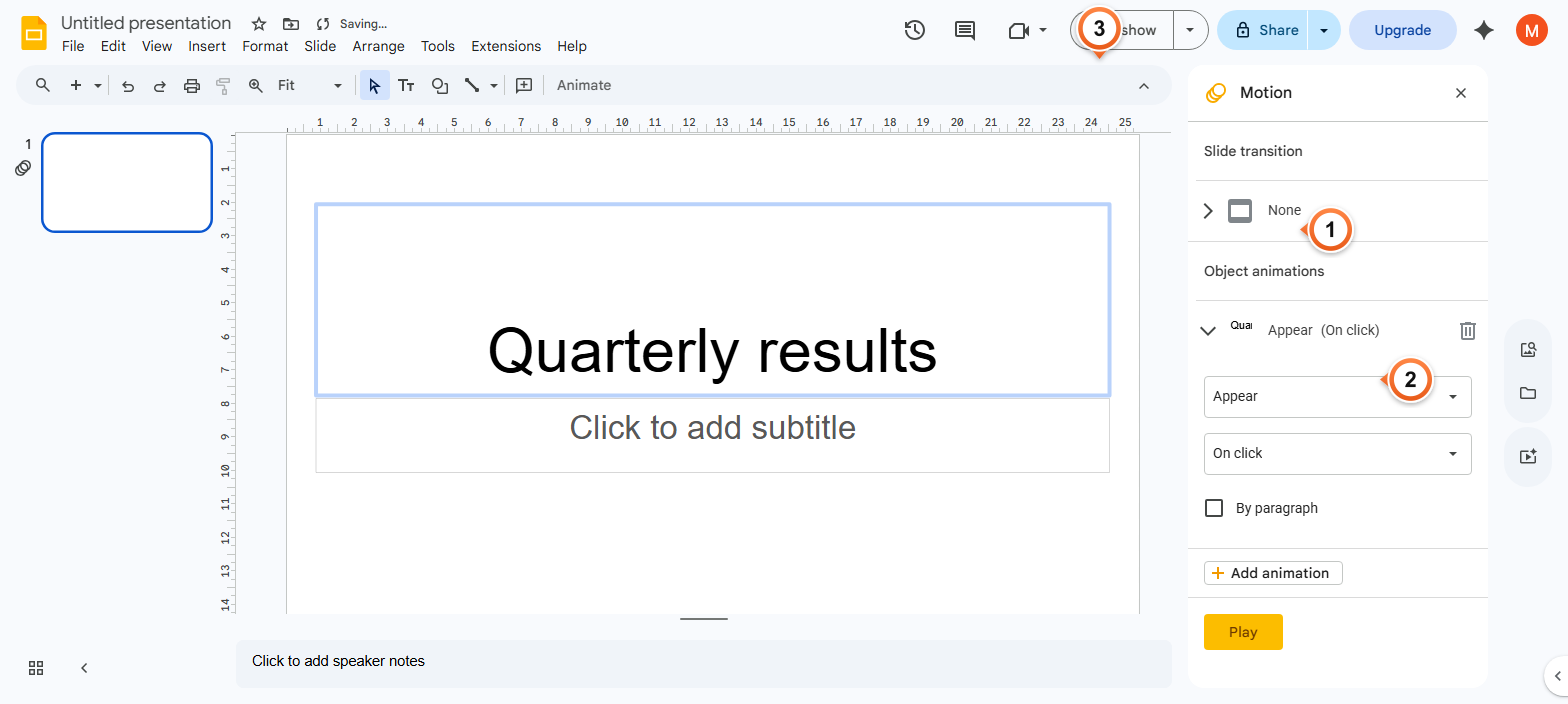
Note: Multiple objects on one slide can be animated independently - each gets its own entry in the Motion panel. Reorder by dragging entries up or down. The animation order is the trigger order during the slideshow.
Frequently Asked Questions
What animations are available in Google Slides?
Eight built-in: Appear, Disappear, Fade in, Fade out, Fly in (from left/right/top/bottom), Fly out, Zoom in, Zoom out, and Spin. There are no custom animation builders or paths - Slides keeps things simple. For complex sequences, chain multiple animations on the same object via the Motion panel.
How do I trigger animations during my Google Slides presentation?
In Slideshow / Presenter view, animations set to On click trigger on mouse click, spacebar, right arrow, or Enter. Animations set to After previous trigger automatically when the previous one ends, no input needed. Mix both: a click animation reveals a header, then auto-played fades reveal supporting bullets. For between-slide effects rather than within-slide ones, see Add a Transition.
Can I animate text one bullet at a time?
Yes. Select the text box, open Insert > Animation, pick Fade in (or any animation), and tick the Paragraph checkbox in the Motion panel. Each bullet now animates independently on its own click. Use this for step-by-step reveals where you want focus on one point at a time during the talk - see Add Bullet Points if you need to set up the bulleted list first.
Why isn't my animation playing in the slideshow?
Three common causes: (1) you're in the editor, not Slideshow / Presenter view - press the Play icon in the Motion panel to preview without leaving the editor. (2) The animation trigger is After previous but no previous animation exists - it never starts. Switch to On click. (3) The object is on the slide master - master objects can't be animated.
How do I remove all animations from a slide?
Open the Motion panel (Insert > Animation or Slide > Transition). Click each animation entry and click the trash icon. There's no Remove all button, so you delete entries one by one. To clean up the entire deck quickly, copy each slide's content to a fresh deck without animations and discard the original.
Can I animate a slide background or layout in Google Slides?
No - animations apply only to inline objects on a slide (text boxes, images, shapes, charts). Backgrounds and layouts are static. To create a moving-background effect, place a video on the slide and send it to the back via Arrange > Order > Send to back. The video plays as a pseudo-background while content layers on top.
Will animations export to PowerPoint or PDF?
PowerPoint export (File > Download > .pptx) preserves all 8 animation types - PowerPoint reads them natively. PDF export strips animations entirely; PDF is a static format. To share a deck with animations preserved, send the .pptx file or the live Google Slides URL with view access.
How many animations can I have on one slide?
Practically unlimited - we've tested 30+ animations on a single slide without performance issues. Beyond that, Slides may stutter on lower-end devices during the slideshow. Best practice: 3-5 animations per slide. Beyond that, the audience loses track of which click triggers what.
Want a deck where animations are already wired up to reveal content cleanly? Try Slidee - generate a complete presentation with smooth animations in 30 seconds.