
How to Add a Transition in Google Slides (2026)
Add a slide transition in Google Slides via Slide > Transition. Pick fade, slide, flip, or cube and apply to one slide or the whole deck.
A transition is the visual effect that plays when you move from one slide to the next during a slideshow. Google Slides offers six built-in transitions: None, Fade, Slide from right, Slide from left, Flip, and Cube. Pick one per slide for variety, or apply the same transition to the entire deck for a polished, consistent feel.
How to add a transition between slides in Google Slides?
1. Click the slide thumbnail you want to transition into.
2. Click Slide in the top menu, then pick Transition.
3. The Motion panel opens on the right - pick a transition from the dropdown.
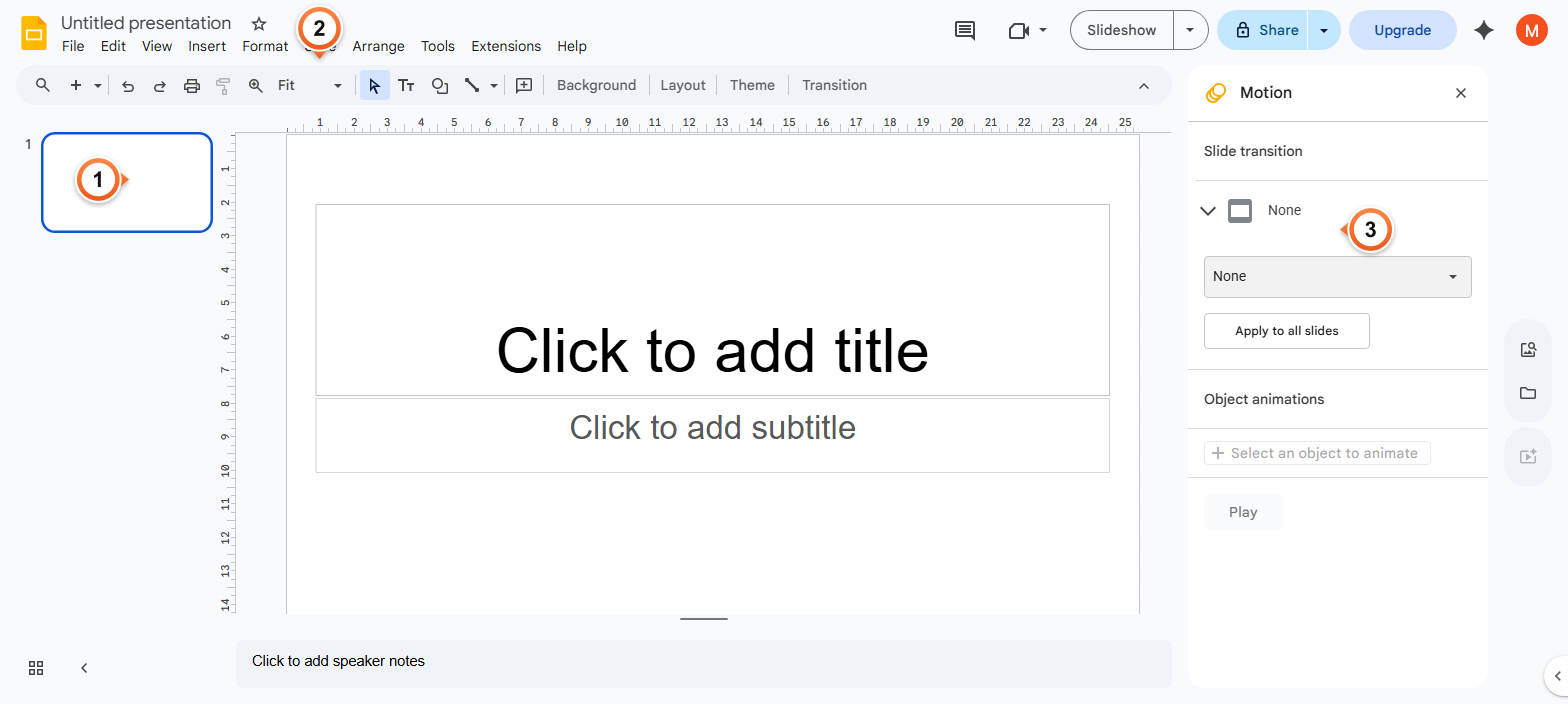
Note: The transition plays when the selected slide appears - so the effect runs into this slide, not out of it. To set the transition for slide 3, click slide 3 first, then change the Motion panel.
How to pick a transition style?
1. In the Motion panel, click the transition dropdown (default: None).
2. Pick from Fade, Slide from right, Slide from left, Flip, or Cube.
3. Adjust the speed slider below the dropdown to control duration (slow to fast).
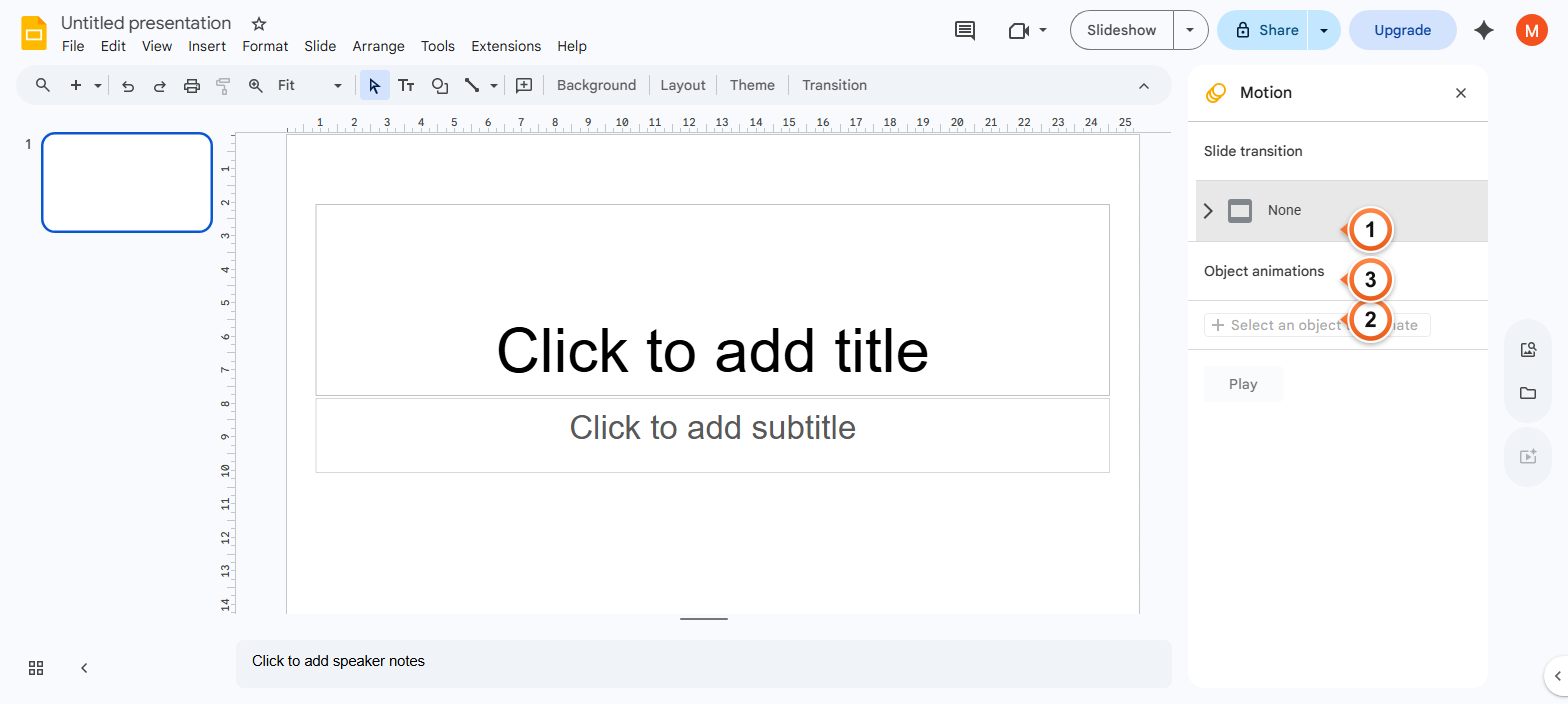
Note: Fade is the safest choice for professional decks. Slide works well for storytelling. Flip and Cube are dramatic - use sparingly so they don't distract from the content. Pick None to remove a transition.
How to apply the same transition to all slides?
1. Pick your transition in the Motion panel.
2. Click Apply to all slides at the bottom of the panel.
3. Every slide in the deck now uses the same transition - the consistency keeps the presentation feeling unified.
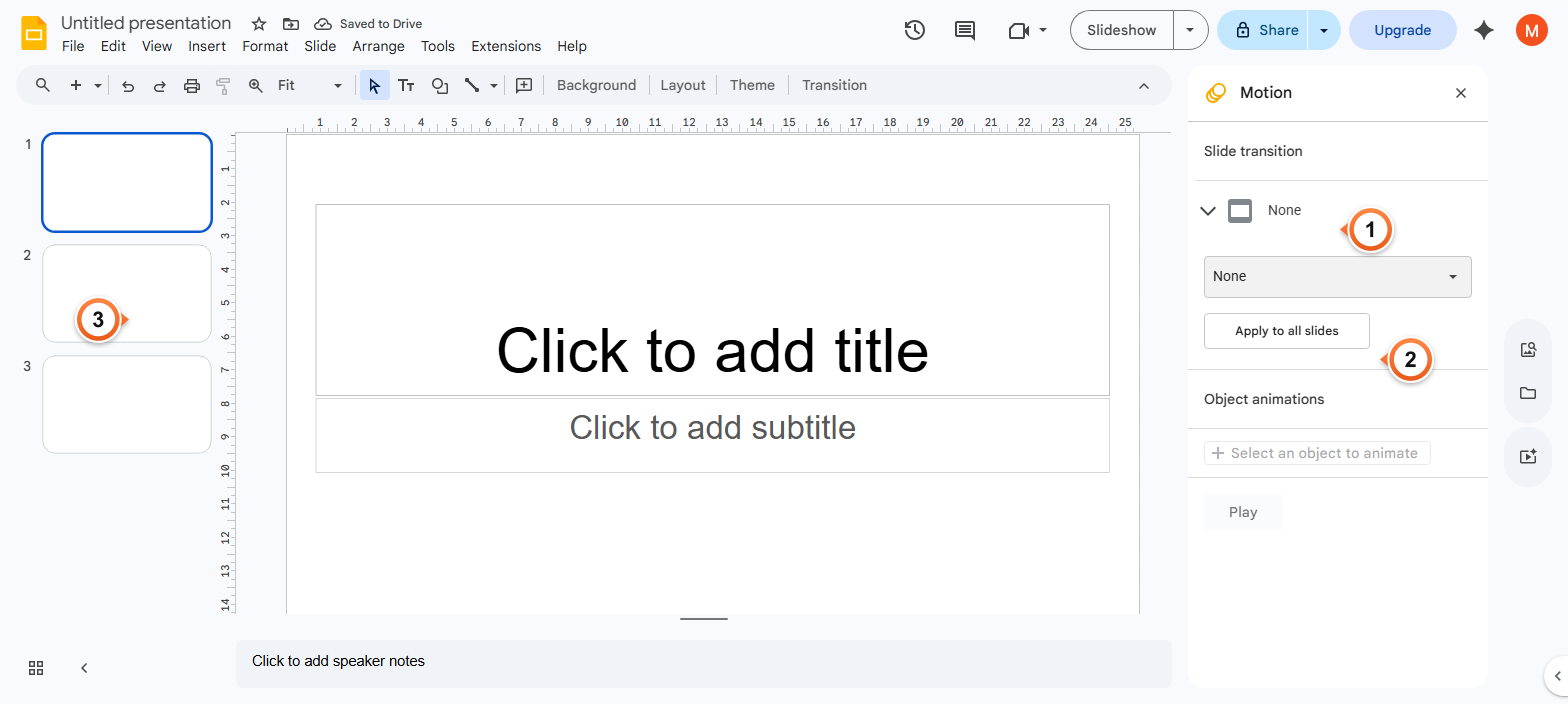
Note: Apply to all slides overwrites any individual transitions you've already set. To keep some slides custom, set those last - or set the deck-wide transition first, then customise individual slides.
Frequently Asked Questions
What's the difference between transitions and animations in Google Slides?
Transitions play when you move between slides - the effect happens at the slide boundary. Animations play within a slide, on individual objects (text, images, shapes), and you trigger them by clicking or via auto-advance. Both live in the Motion panel; transitions at the top, animations below.
How do I remove a transition from a slide?
Open the Motion panel (Slide > Transition), pick None from the dropdown. The slide returns to a hard cut - no animation between slides. To remove transitions from every slide, click Apply to all slides after picking None.
Can I use custom transitions in Google Slides?
No - Slides only offers the six built-in transitions (None, Fade, Slide from right/left, Flip, Cube). There's no plugin system for custom effects. For more elaborate transitions, export the deck to PowerPoint via File > Download > .pptx and use PowerPoint's broader transition library.
Why is my transition not playing during the slideshow?
Three common causes: (1) you're in the editor, not Slideshow / Presenter view - transitions only play during actual presentation. (2) The slide is a hidden / Skipped slide, so it's bypassed. (3) Some browsers block animations on battery-saver mode - try presenting in Chrome or Edge. To preview without starting the slideshow, click the Play icon in the Motion panel.
Does the transition speed matter for presentation flow?
Yes. Slow transitions (more than 1 second) feel sluggish and break audience attention. Fast transitions (around 0.3-0.5 seconds) feel snappy and professional. The Motion panel slider goes from Slow to Fast - aim for the middle for most decks. For a punchy pitch deck, push toward Fast; for a meditation or relaxation deck, Slow can work.
Will transitions export to PDF or PowerPoint?
PDF export strips all transitions - they're a presentation-only effect, not a static print attribute. PPTX export preserves the six transition types: PowerPoint's Fade, Push, and Cover map roughly to Slides' Fade and Slide. Some Slides effects approximate to nearest PowerPoint equivalents - check the result after export.
Can I auto-advance slides with a timer instead of clicking?
Yes - File > Share > Publish to web has an auto-advance setting (every 1, 2, 3, 5, 10, 15, 30, or 60 seconds), useful for kiosk-mode displays. For live presentations, you keep manual control via clicks or arrow keys. The auto-advance + transition combo creates a hands-free presentation when paired with embedded audio - see Loop a Presentation for the full kiosk setup.
Are transitions distracting in business presentations?
Subtle ones (Fade) generally improve flow without distraction. Loud ones (Cube, Flip) can feel gimmicky in formal contexts. The rule of thumb: pick one transition for the whole deck and stick with it - mixed transitions look amateurish. For investor pitches and analytical reports, stick to Fade or None. For storytelling decks, Slide adds visual rhythm.
Want a deck with smooth, on-brand transitions baked in? Try Slidee - generate a complete presentation with consistent transitions in 30 seconds.