
How to Flip an Image in Google Slides (2026)
Flip an image horizontally or vertically in Google Slides. Use Arrange > Rotate > Flip horizontally / vertically to mirror photos and graphics in two clicks.
Flipping an image creates a mirror copy - useful for reversing arrows, fixing mirrored selfies, or balancing a layout where the subject faces the wrong side. Google Slides handles it through Arrange > Rotate, with separate options for horizontal (left-right) and vertical (top-bottom) flips. Both work on photos, illustrations, and any inserted shape.
How to flip an image horizontally in Google Slides?
1. Click the image on the slide to select it.
2. Click Arrange in the top menu.
3. Hover Rotate, then pick Flip horizontally.
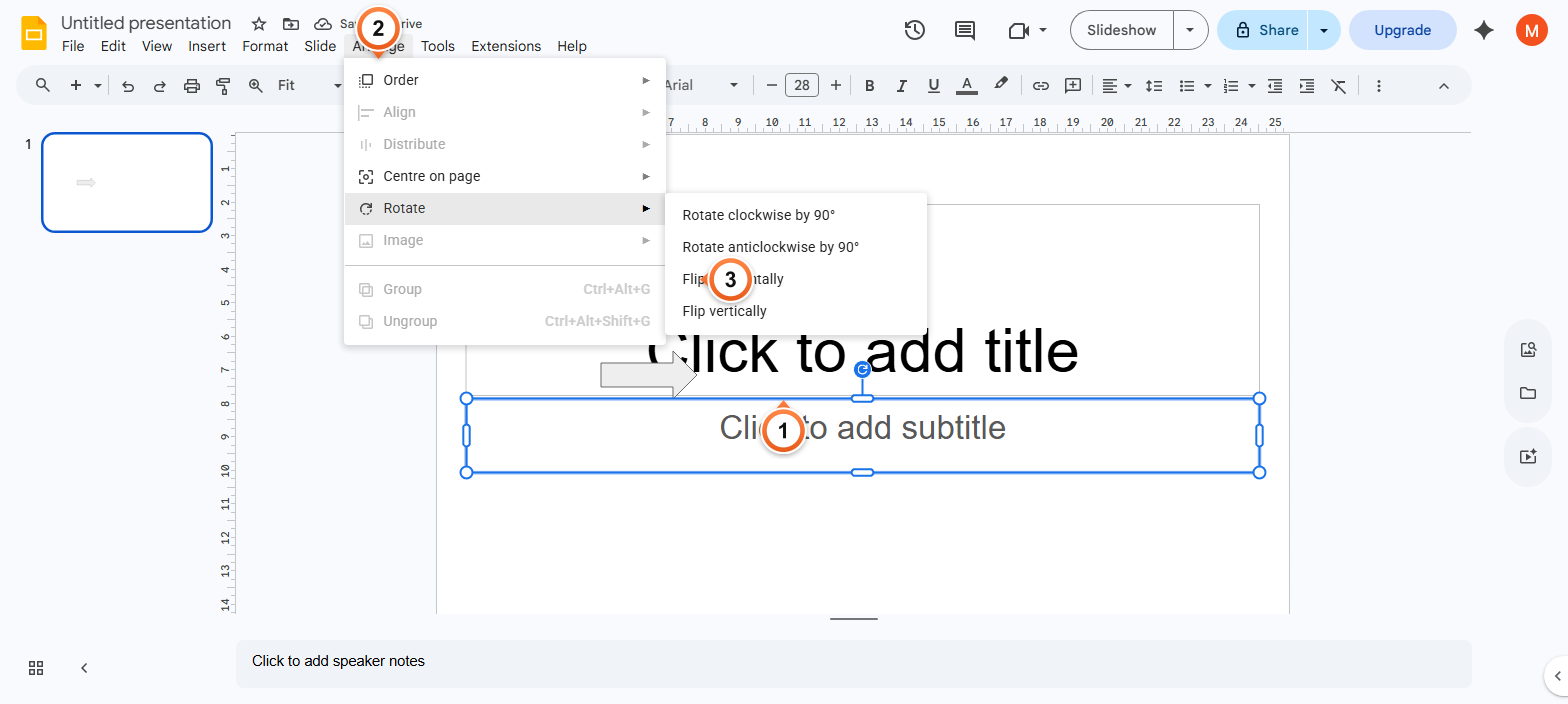
Note: Horizontal flip mirrors left-right - text becomes unreadable but photos work great. Press Ctrl+Z if the result isn't what you wanted; the original returns instantly.
How to flip an image vertically?
1. Select the image on the slide canvas.
2. Open Arrange > Rotate from the top menu.
3. Pick Flip vertically to mirror the image top-to-bottom.
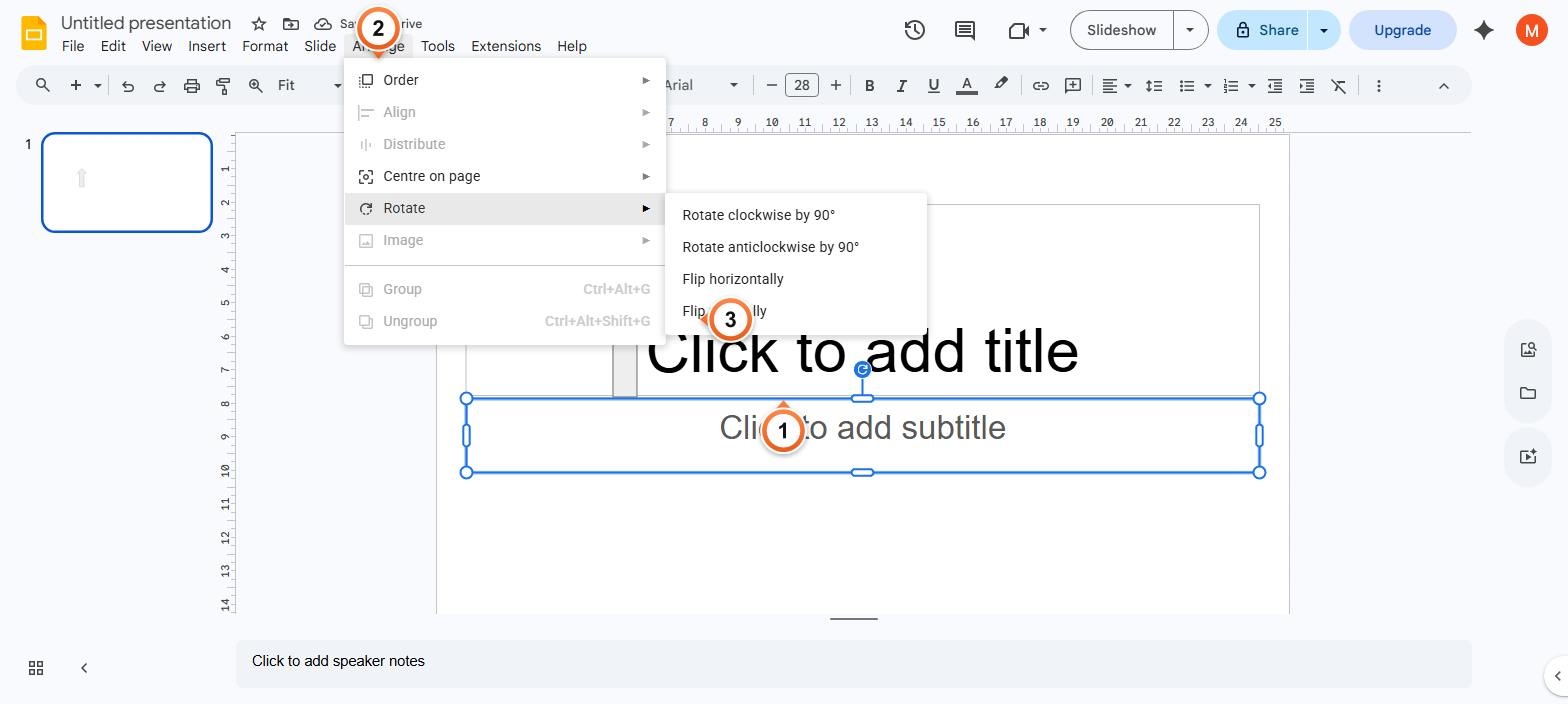
Note: Vertical flip works well for landscape images where you want to reverse the sky-to-ground orientation, or for decorative graphics. Combine horizontal + vertical for a 180-degree flip (same as Rotate 180).
How to flip an image with a right-click shortcut?
1. Right-click the image directly on the canvas.
2. Hover Rotate in the context menu.
3. Pick Flip horizontally or Flip vertically from the submenu.
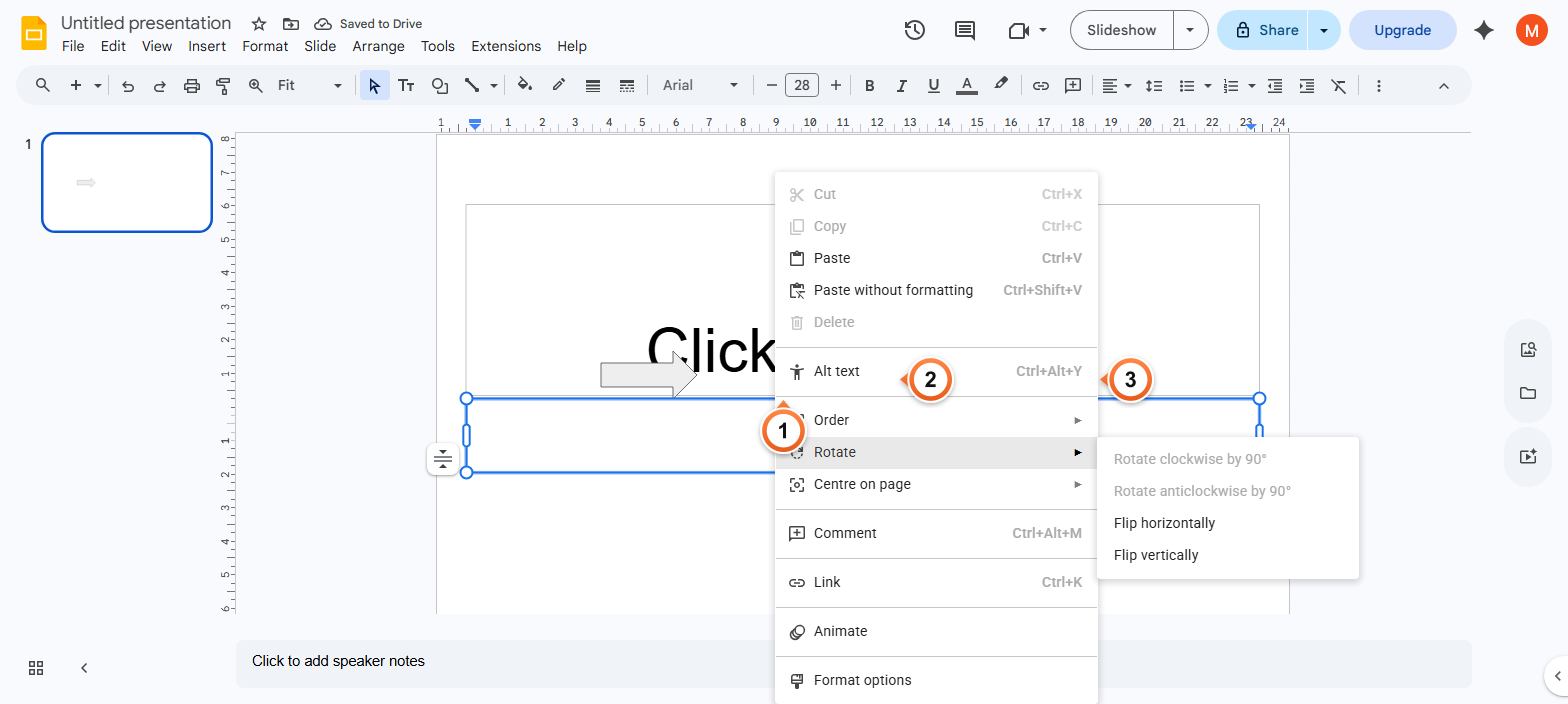
Note: The right-click shortcut is faster when you're already on the canvas - no need to reach the top menu. The same Rotate submenu also has 90 degree clockwise/counter-clockwise rotations if you need a quarter turn instead of a flip.
Frequently Asked Questions
What's the keyboard shortcut to flip an image in Google Slides?
Google Slides doesn't have a built-in keyboard shortcut for Flip horizontally or Flip vertically - both require Arrange > Rotate or right-click > Rotate. If you flip frequently, the fastest workflow is right-click the image and pick from the Rotate submenu. The image stays selected after flipping so you can chain another flip immediately.
Can I flip multiple images at the same time?
Yes. Click the first image, then Shift+click the others to multi-select. Right-click any of them and pick Rotate > Flip horizontally (or vertically) - all selected images flip in place. Useful for symmetrical layouts where you need a row of mirrored icons.
Does flipping an image change its size or aspect ratio?
No. Flip horizontally swaps left-and-right pixels; flip vertically swaps top-and-bottom. The bounding box, position, and aspect ratio all stay identical. The image just appears mirrored along that axis. Combine flip with crop or scale separately if you need to change the dimensions, or with Mask image for a circular flipped photo.
Why does my flipped image still look the same?
Most likely the image is symmetrical - perfectly symmetrical photos (centered face-on portraits, geometric patterns) look identical when flipped. Try flipping with a clearly asymmetric image to verify it's working. Also check you applied the flip to the image and not its container - click directly on the image, not a placeholder around it.
Can I flip a shape, text box, or icon the same way?
Yes - Arrange > Rotate > Flip works on any object: shapes, text boxes, icons, illustrations, even charts. For text boxes, the text itself doesn't flip (it stays readable) but the bounding box and any borders mirror. To get visually flipped text, screenshot it as an image first, then flip the image.
How do I rotate an image instead of flipping it?
Same menu, different option. Arrange > Rotate gives you Rotate 90 degrees clockwise, Rotate 90 degrees counter-clockwise, Flip horizontally, and Flip vertically. For free rotation at any angle, click the image and drag the round rotation handle that appears above its top edge - hold Shift while dragging to snap in 15-degree increments.
Will a flipped image stay flipped when I download the deck as PDF or PPTX?
Yes. Flips and rotations are stored as part of the slide's image transform, so they preserve in PDF, PPTX, and PNG exports. PowerPoint reads them natively. The file size stays the same - flipping doesn't duplicate or re-encode the image.
How do I flip an image on the Google Slides mobile app?
Tap the image to select it, then tap the format icon (paint roller) at the top. Pick Image > Reset image isn't what you want - instead, on iOS/Android open the three-dot menu > Image options. Mobile flip support is limited; for reliable flipping use the web app on a laptop or desktop.
Want a deck where every image lands in the right orientation automatically? Try Slidee - generate a polished presentation with smart image placement in 30 seconds.