
How to Change Background in Google Slides (2026)
Change the slide background in Google Slides. Pick a solid colour, gradient, or image via Slide > Change background. Apply to one slide or the whole deck.
The background sits behind every object on a slide - text, images, shapes layer on top of it. Google Slides lets you set the background to a solid colour, a gradient, or any image (uploaded, from Drive, from Photos, by URL, or via web search). Apply the change to just one slide for accent contrast, or to the whole deck for consistent branding.
How to open the background dialog in Google Slides?
1. Click the slide thumbnail you want to change in the filmstrip on the left.
2. Click Slide in the top menu.
3. Pick Change background to open the dialog.
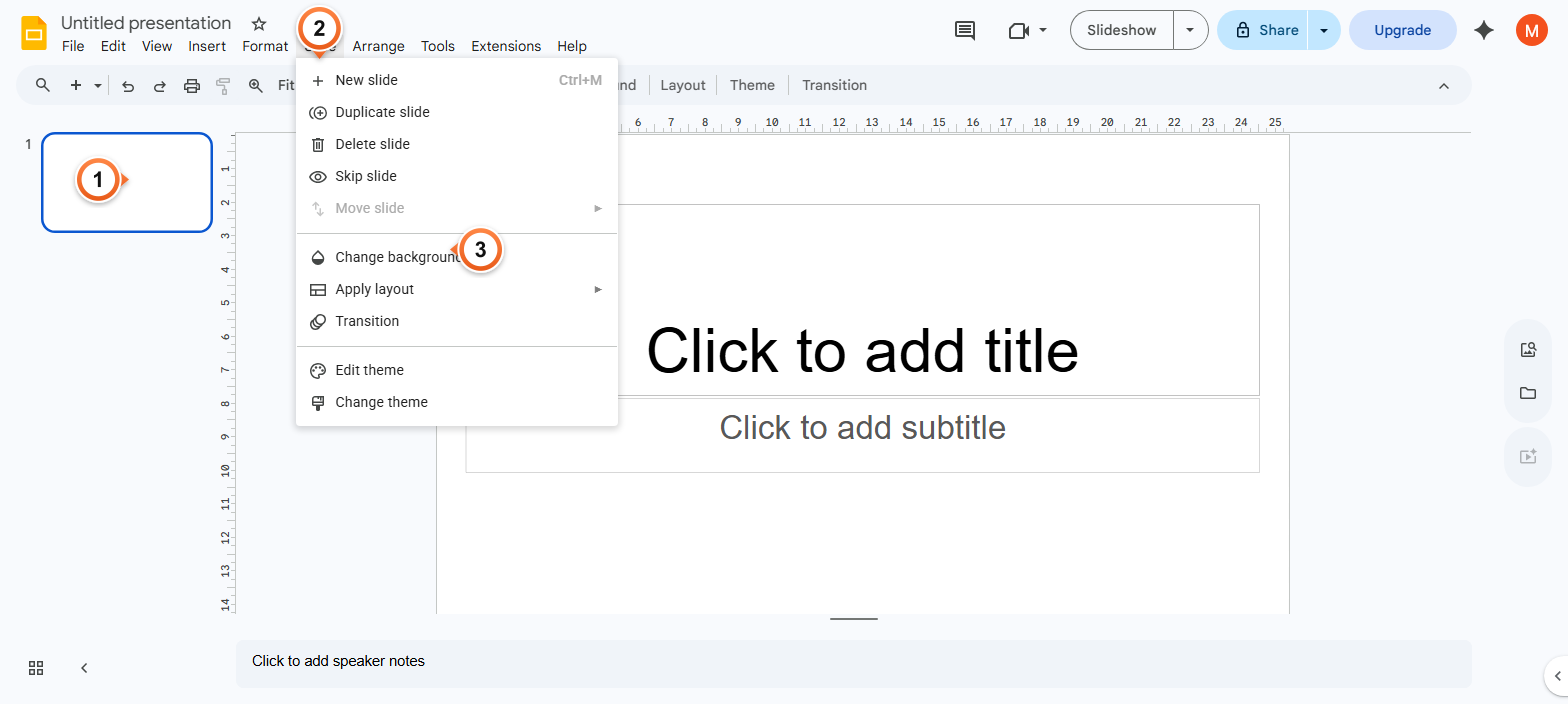
Note: You can also right-click the slide thumbnail and pick Change background from the context menu - same dialog, two paths. The dialog has three options: pick a Colour, choose an Image, or Reset to theme default.
How to set a solid colour or gradient background?
1. In the dialog, click the Colour dropdown.
2. Pick a Solid colour from the swatches, or click Gradient for built-in or custom gradients.
3. Click Done to apply to this slide, or Add to theme to apply to every slide.
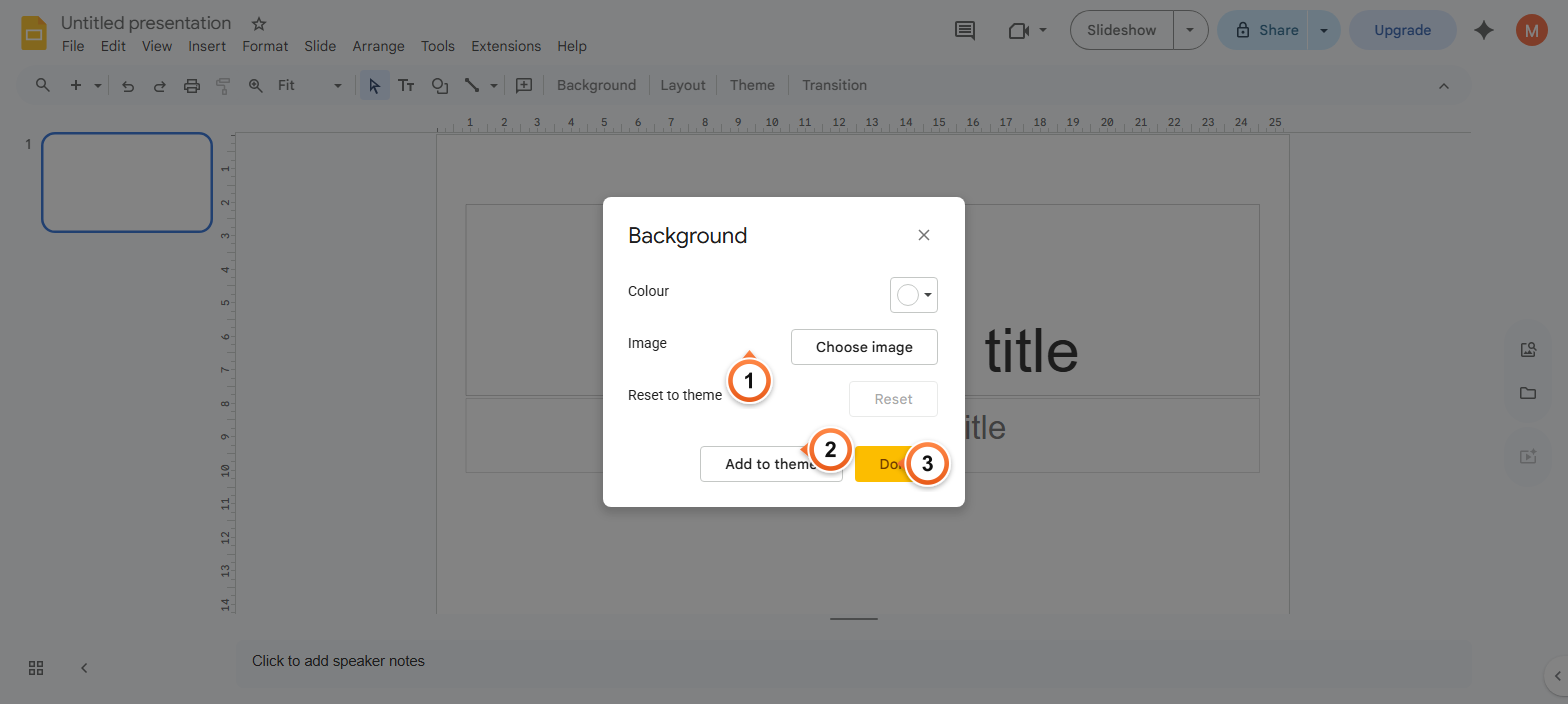
Note: Add to theme updates the master slide so every slide using that layout inherits the new background. Useful for whole-deck rebranding. To revert one slide back to the theme default, open the dialog again and click Reset to theme.
How to use an image as the slide background?
1. Open the background dialog and click Choose image under the Image section.
2. Upload from your computer, pick from Drive / Photos, paste a URL, or search the web.
3. Click Insert, then Done - the image stretches to fill the slide as the background.
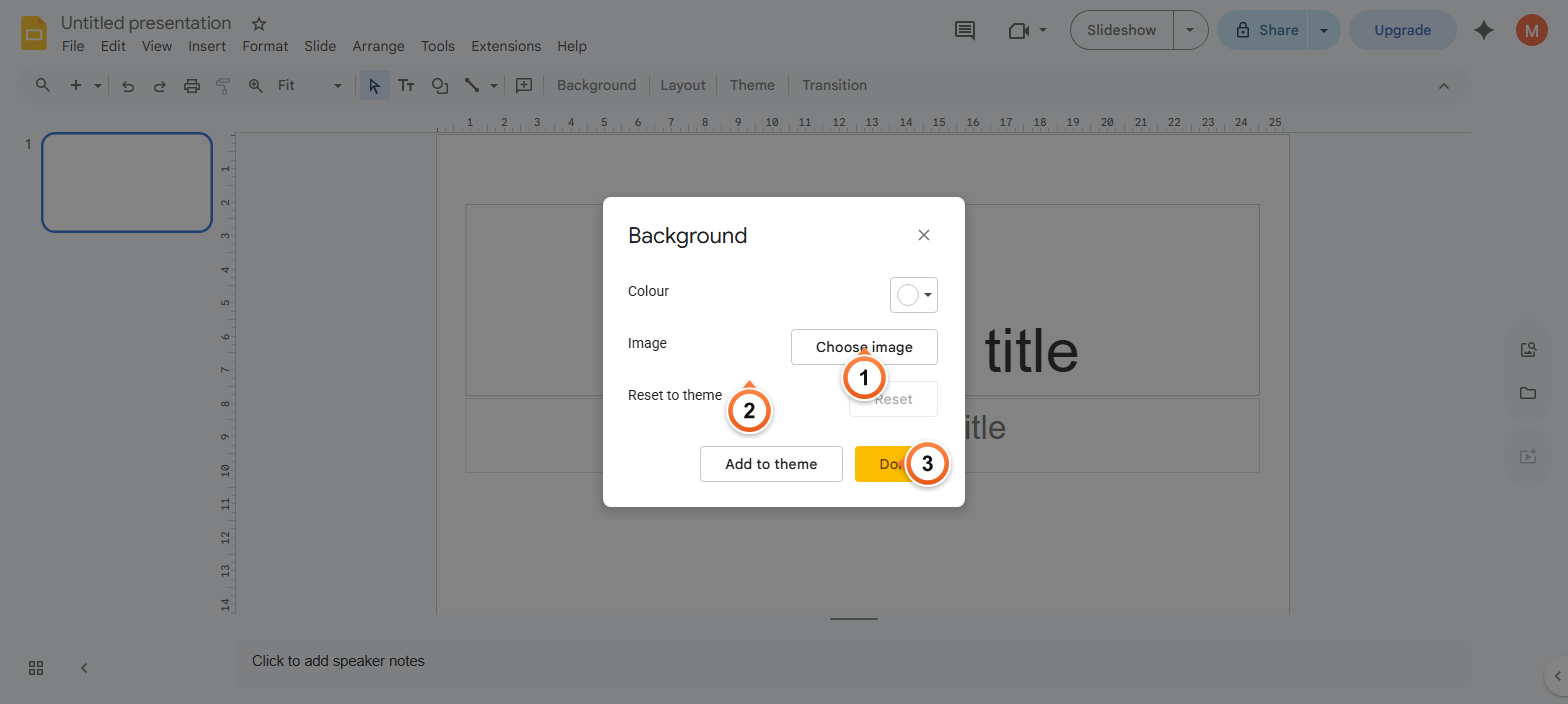
Note: Background images are static - they don't move or get clipped by other objects. For best results, use a high-resolution image (1920 px wide for 16:9 slides). For a faded effect, lower the image's brightness in an editor first, since Slides doesn't dim background images natively.
Frequently Asked Questions
How do I apply a background to all slides at once?
In the Change background dialog, set the colour or image you want, then click Add to theme (older versions: Apply to all) instead of Done. The choice updates the deck's master, so every slide inherits the new background. Slides that override their background individually keep their custom setting until you reset them.
Can I add a transparent or watermark background?
Slides has no native transparent background option, but the work-around is to insert a semi-transparent image as the background. Lower the image's opacity in an editor (or design tool like Figma / Canva) before uploading. For a watermark effect, place the watermark image as the background or insert it as a regular image and set Opacity to ~30% via Format options > Adjustments - see the Make an Image Transparent walkthrough for the exact slider position.
Why is my background image distorted in Google Slides?
Background images stretch to fill the slide's exact dimensions. If your image's aspect ratio doesn't match (e.g., a 4:3 photo on a 16:9 slide), it gets squashed or cropped. To avoid distortion, crop or scale the image to match your slide size first - File > Page setup tells you the exact dimensions in pixels or inches.
How do I remove the background from a single slide?
Open Slide > Change background, click Reset to theme - the slide reverts to whatever the master defines. To make one slide truly white, set its background to white solid colour and click Done (without Add to theme). The other slides stay on their original background.
Can I use a gradient as the background?
Yes. In the Change background dialog, click the Colour dropdown and switch from Solid to Gradient. Slides offers built-in gradients matching the deck theme, plus a Custom option where you control the start and end colours and the gradient direction (linear or radial). Click Done to apply.
Does the background show up in PDF and PowerPoint exports?
Yes. File > Download > PDF preserves the slide background exactly as displayed. PPTX export keeps both colour and image backgrounds. PNG export rasterizes the slide, so the background renders identically. The only export that strips backgrounds is the legacy Slides as plain text, which is rarely used.
How do I change the background colour for the deck theme?
Slide > Edit theme opens the master slide editor. Click the master at the top of the layouts panel, then change its background like a normal slide (Slide > Change background or right-click > Change background). The change cascades to every layout based on the master and every slide using those layouts.
Can I add a video as a slide background?
Not as a true background. Insert > Video places the video as a regular object that you can resize to fill the slide and send to the back via Arrange > Order > Send to back. Other content layers on top, but the video isn't truly behind the slide - it's the bottom layer. For a moving background, this work-around is the closest option.
Want a deck where every slide background is already on-brand? Try Slidee - generate a fully styled presentation with consistent backgrounds and themes in 30 seconds.