
How to Embed a Video in Google Slides (2026)
Embed a YouTube video or upload one from Google Drive into a slide. Step-by-step with playback options, autoplay, mute, and trim controls.
A video makes a presentation feel alive - useful for product demos, training decks, or any slideshow that needs moving visuals. Google Slides supports two methods: pasting a YouTube URL or searching YouTube directly, or inserting a video file from Google Drive. This guide covers both.
How to embed a YouTube video in Google Slides?
1. Click Insert in the top menu.
2. Select Video from the dropdown.
3. Search YouTube or paste a URL on the By URL tab, then click Insert.
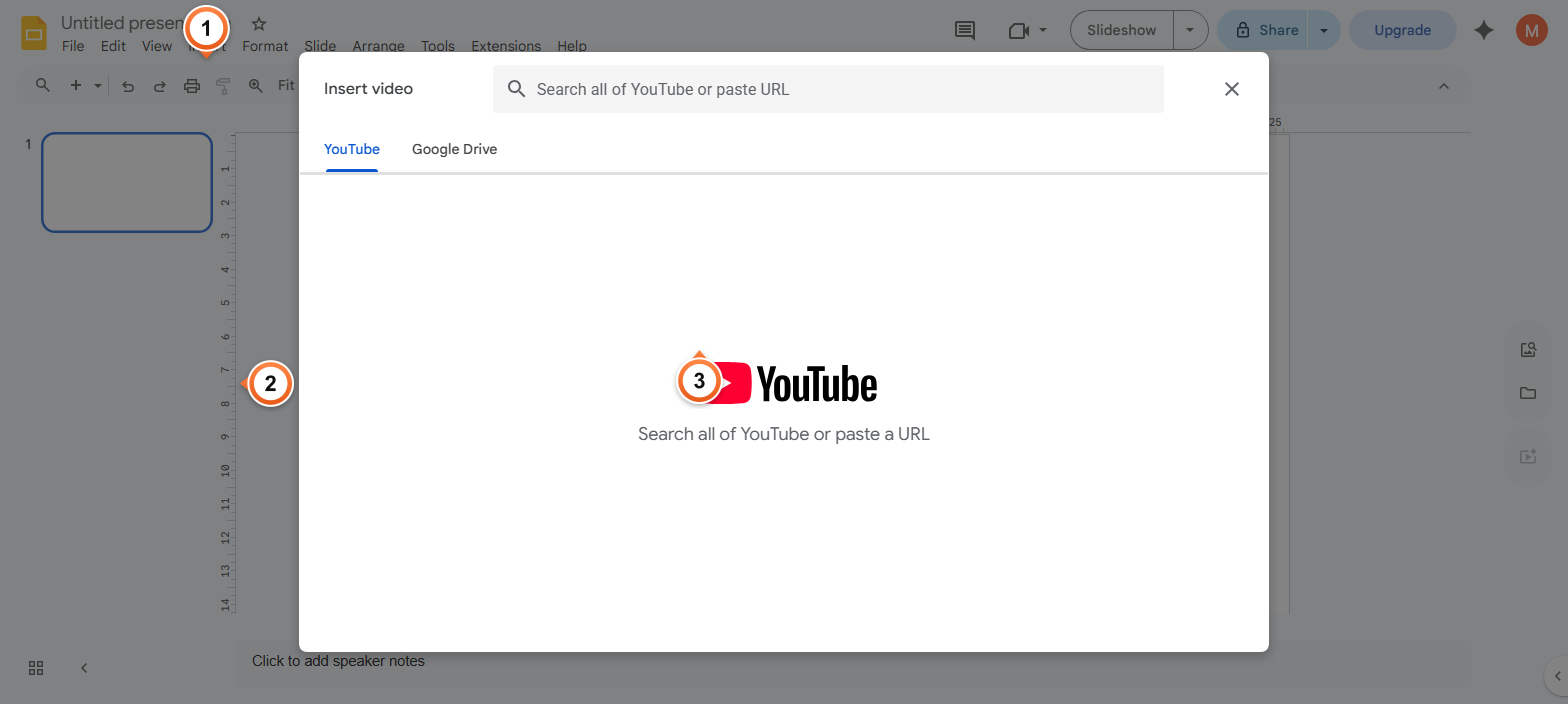
Note: YouTube videos play inside the slide during a presentation. Use the toolbar's Format options to set start/end times if you only want a clip.
How to insert a video from Google Drive?
1. Click Insert > Video to open the picker.
2. Switch to the Google Drive tab.
3. Click your video file, then click Insert at the bottom-right.
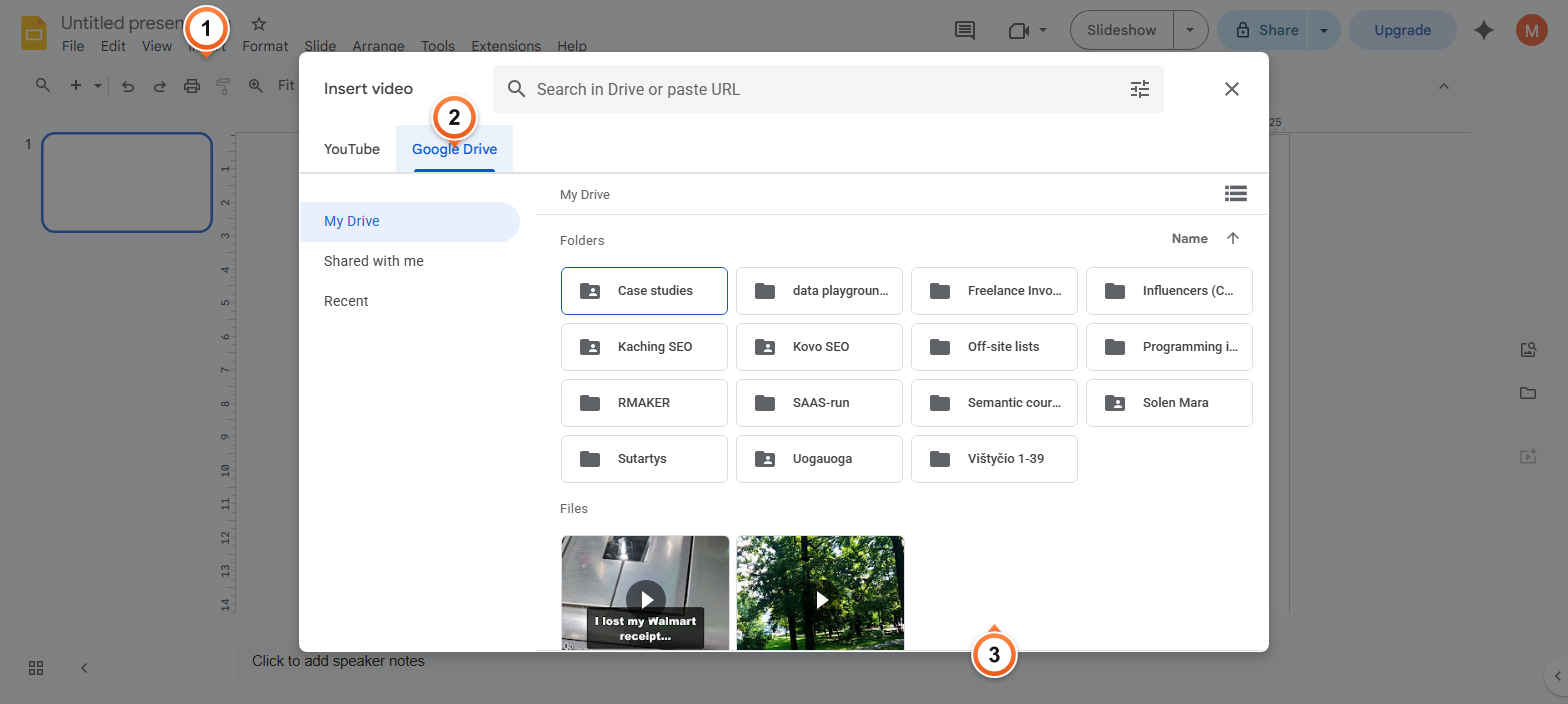
Note: Google Slides supports MP4, WebM, MOV, AVI, MPEG, and FLV video files in Drive. Files must be uploaded to Drive before they appear here.
How to adjust video playback options?
1. Click the video on the slide to select it.
2. Click Format options in the toolbar.
3. Toggle Auto-play when presenting, Mute audio, or set Start time and End time to trim.
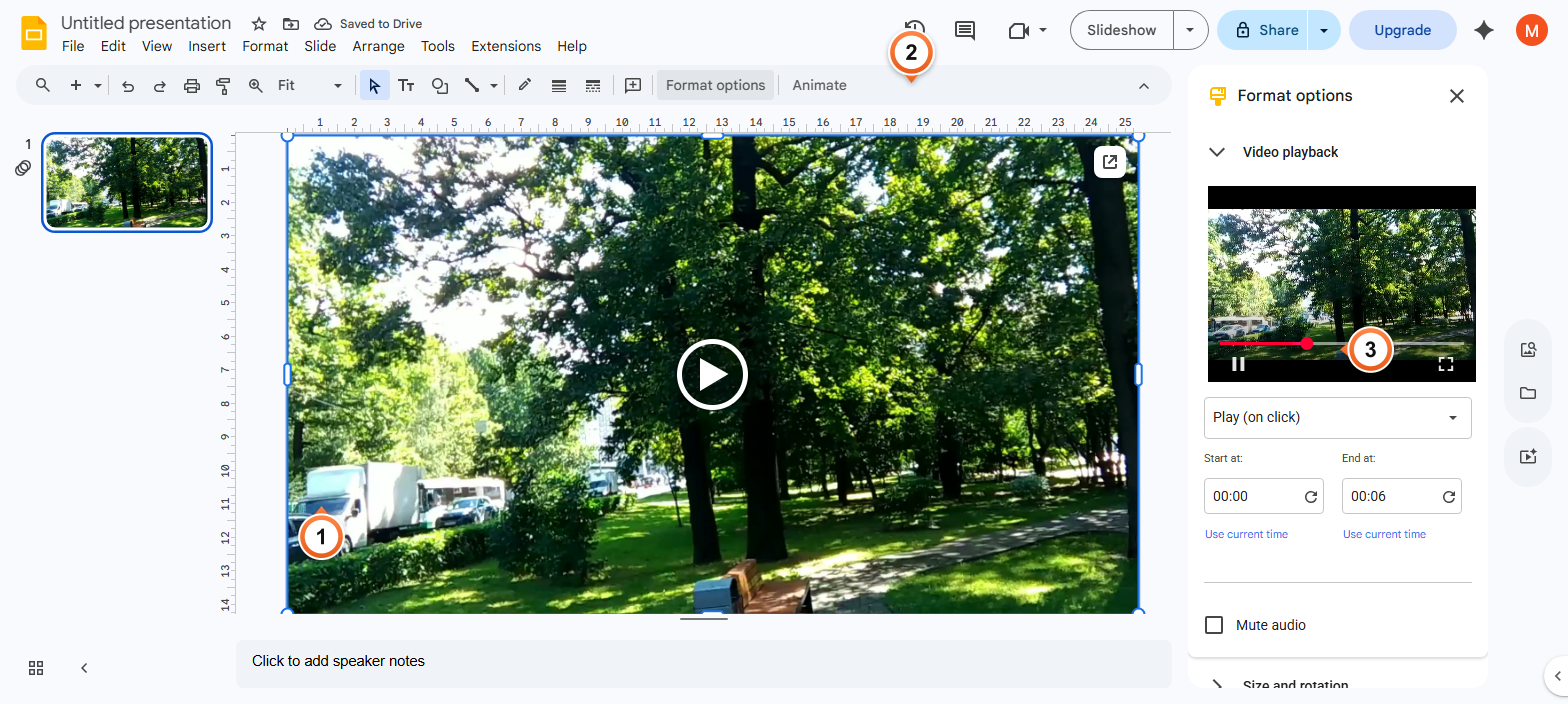
Note: To loop a video continuously, right-click the video on the slide and choose Loop video. Loop is not in the Format options panel.
Frequently Asked Questions
Why won't my embedded video play in Google Slides?
Videos play only in present mode, not while editing. If a video still won't play during a presentation, check three things: the YouTube video is set to public or unlisted (private videos block playback for other viewers), the file in Drive is shared with whoever opens the deck, and your browser allows autoplay (Chrome and Safari block autoplay with sound until you click somewhere on the page).
What video file formats does Google Slides support?
For files inserted from Drive, Google Slides supports MP4, WebM, MOV, AVI, MPEG, and FLV. MP4 is the most reliable format and gives the smallest file size. For YouTube embeds, any public or unlisted YouTube video works regardless of original format - YouTube handles the encoding.
Can I trim a video inside Google Slides?
Partially. You can set Start time and End time fields in Format options to play only a portion of the video without modifying the source. The video still loads fully but skips to the start time and stops at the end time. To actually cut the video shorter, edit it in a video editor first, then upload the trimmed version.
How do I make a video autoplay in Google Slides?
Click the video, open Format options, and check Auto-play when presenting. The video starts as soon as the slide appears in present mode. Note that browsers may block autoplay with sound until you interact with the page - clicking once anywhere after starting the presentation releases the block.
How do I loop a video in Google Slides?
Right-click the video on the slide and choose Loop video. The option only appears in the right-click menu, not in the Format options panel. Looping works for both YouTube and Drive videos and is independent of the Auto-play setting.
Can I record my own video and add it directly?
Google Slides has no built-in recording feature. Record your video with another tool - your phone, OBS, Loom, QuickTime, or any screen recorder - export as MP4, upload to Drive, then insert via the Google Drive tab in Insert > Video.
Why is my YouTube video showing a thumbnail instead of playing?
The thumbnail-only view is normal in editing mode - videos only play when you start a presentation. Click Slideshow at the top right (or press Ctrl+F5) to enter present mode, then click the video or wait for autoplay if enabled.
How do I make an embedded video full screen?
During a presentation, click the video, then click the full-screen icon in the bottom-right of the player controls. To make the video occupy the full slide, select it in editing mode and drag the corner handles outward - Google Slides preserves the aspect ratio if you hold Shift while resizing. To use the video as a pseudo-background, place it under other content - see Change Background in Google Slides for the layering approach.
Want a presentation that builds itself with on-brand visuals already wired in? Try Slidee - generate a complete deck in 30 seconds.