
How to Make Google Slides Vertical (2026)
Make Google Slides vertical (portrait) in three steps. Open Page setup, switch to Custom size, and enter height-over-width dimensions. Step-by-step with screenshots.
A vertical Google Slides deck suits printable handouts, infographics, mobile-first content, and posters. The setting lives in File > Page setup. There's no toggle for portrait - instead you switch to Custom size and enter dimensions where the height is greater than the width.
How to open Page setup in Google Slides?
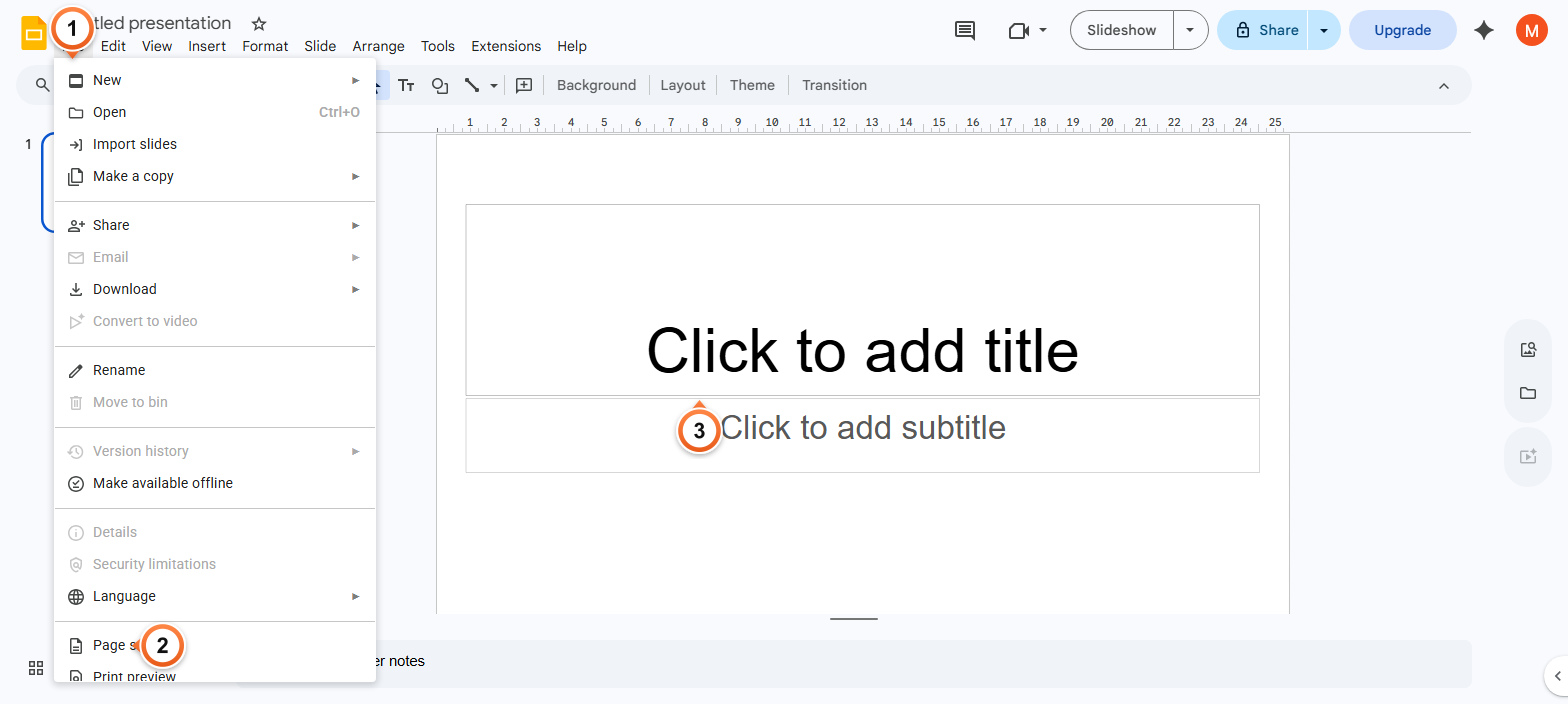
1. Click File in the top menu.
2. Scroll to the bottom and click Page setup.
3. The Page setup dialog opens in the centre of the screen.
Note: Page setup applies to the entire deck. You cannot have some slides widescreen and others portrait - orientation is a deck-wide setting.
How to change Google Slides to portrait orientation?
1. Click the size dropdown (default: Widescreen 16:9).
2. Select Custom from the list.
3. Enter a height greater than the width (e.g. 7.5 × 10 in), then click Apply.
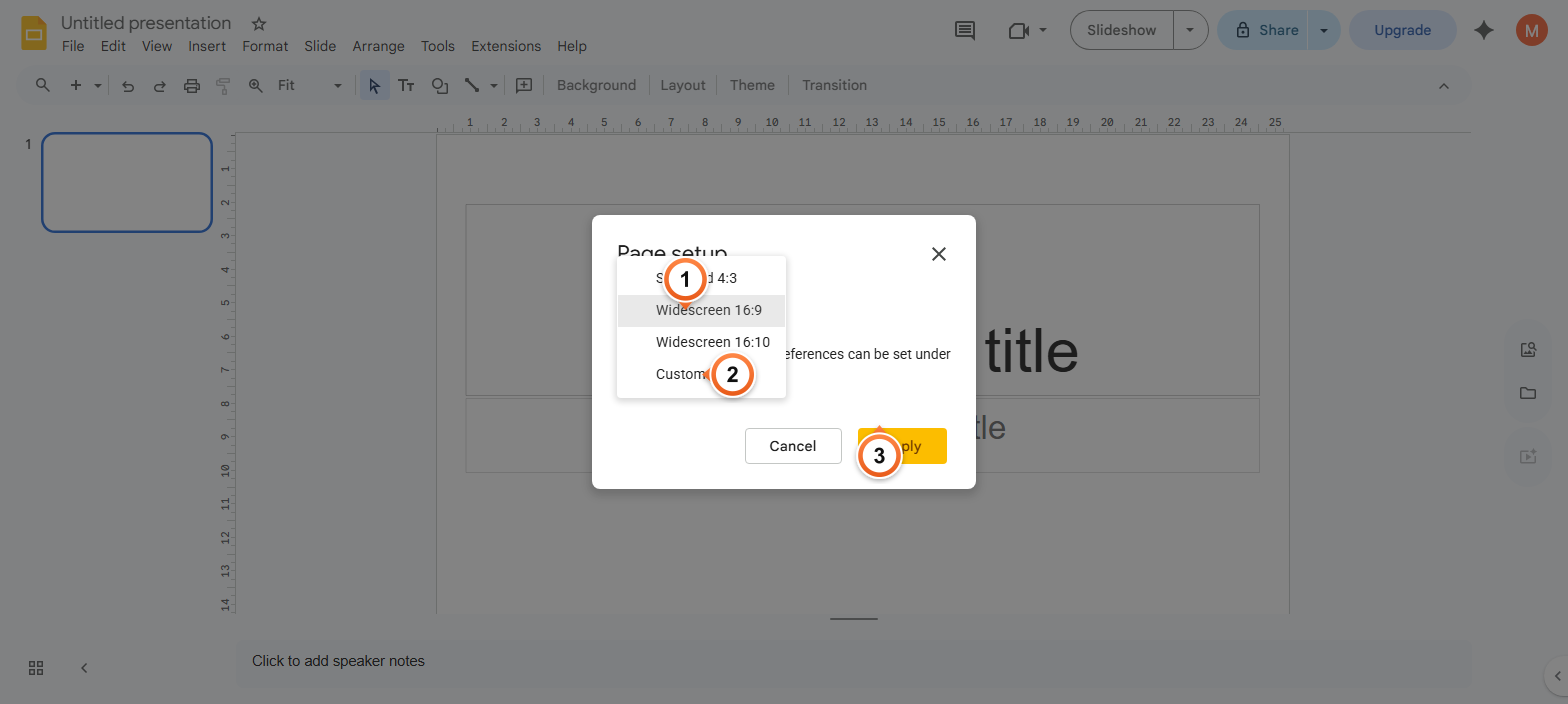
Note: Common portrait sizes: 7.5 × 10 in (standard portrait), 8.5 × 11 in (US Letter), 8.27 × 11.69 in (A4), 8.5 × 14 in (Legal). Supported units: in, cm, pt, px.
How to set a custom slide size in Google Slides?
1. In Page setup, select Custom from the size dropdown.
2. Type the width value, then the unit (in, cm, pt, px).
3. Type the height value and click Apply.
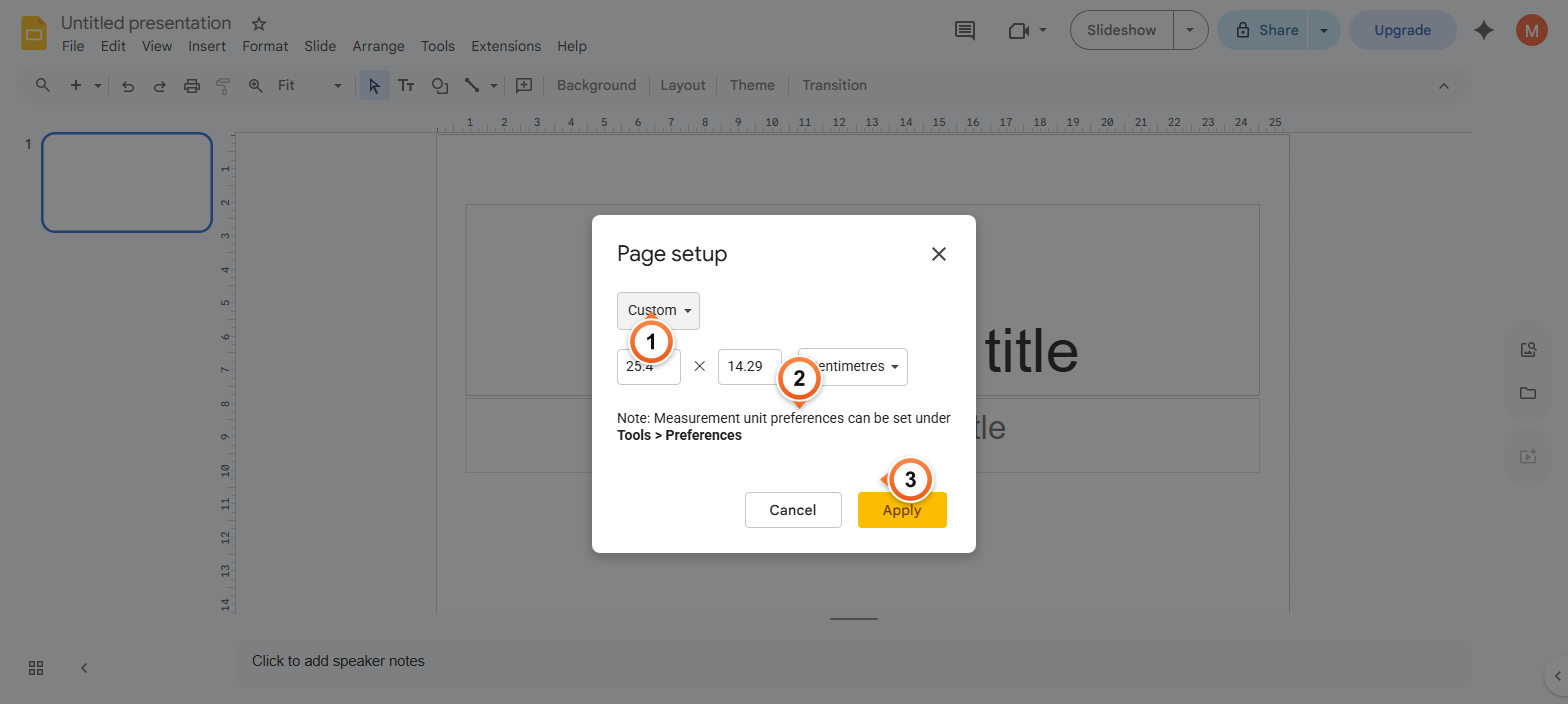
Note: Existing slide content does not auto-resize when you change dimensions. You may need to reposition text boxes and images after applying a new size.
Frequently Asked Questions
Can I make individual slides vertical while others stay widescreen?
No. Page setup applies to the whole deck - every slide uses the same dimensions. If you need mixed orientations, the workaround is to insert horizontal images or shapes inside a vertical layout and rotate them, or split the content across two separate decks.
What is the standard vertical slide size in Google Slides?
There's no single standard. The most common choices are: 7.5 × 10 inches for printable letter-style portrait, 8.5 × 11 inches for full US Letter, 8.27 × 11.69 inches for A4 portrait, and 8.5 × 14 inches for Legal. Pick the size that matches where the deck will be viewed or printed.
How do I make Google Slides 4:5 for Instagram or social media?
In File > Page setup, switch to Custom and enter 8 × 10 inches (or 1080 × 1350 px) for a 4:5 ratio. For Instagram Stories or Reels, use 9:16 - enter 9 × 16 inches or 1080 × 1920 px. Full guide on every preset and custom dimension option: Change Slide Size in Google Slides.
Why is my existing content cut off after changing to vertical?
Google Slides does not reflow content when you resize the canvas. Text boxes, images, and shapes keep their original positions, so anything beyond the new edge gets clipped. Drag elements back into the visible area or scale them down after applying the new size.
What units can I use for custom dimensions?
Inches (in), centimetres (cm), points (pt), and pixels (px). Type the number followed by the unit abbreviation in the field - Google Slides converts internally. The default unit is inches.
Will my vertical deck export correctly to PowerPoint or PDF?
Yes for both. PowerPoint preserves the custom dimensions when you do File > Download > Microsoft PowerPoint (.pptx). PDF export (File > Download > PDF) renders each slide at the exact size you set, which is the easiest way to print a vertical deck on paper.
Can I use vertical orientation for a presentation that I'll project?
Technically yes, but most projectors and large screens are landscape. A vertical deck shown on a landscape display will have black bars on the sides. Vertical works best for printed handouts, mobile viewing, social media, and tablet kiosks held in portrait orientation.
Why doesn't Google Slides have a simple 'rotate to portrait' button?
Google designed Page setup as a single-source-of-truth for canvas dimensions rather than a rotation toggle. This avoids ambiguity about whether content should rotate with the canvas. The Custom dimension approach keeps content position stable while letting you choose any aspect ratio.
Want vertical decks generated automatically with on-brand layouts? Try Slidee - pick the orientation, get a complete presentation in 30 seconds.