
How to Change Slide Size in Google Slides (2026)
Change the slide size in Google Slides via File > Page setup. Switch between Widescreen 16:9, Standard 4:3, or Custom dimensions for any deck.
Google Slides defaults to widescreen 16:9 - the right ratio for most modern displays. To switch to the legacy 4:3 standard for older projectors, or pick a custom size for vertical posters, social-media decks, or printed handouts, open File > Page setup. The dialog accepts pixels, points, inches, or centimetres, so you can match any output medium exactly.
How to open Page setup in Google Slides?
1. Click File in the top menu.
2. Pick Page setup from the dropdown.
3. The Page setup dialog opens with the current size displayed in a dropdown.
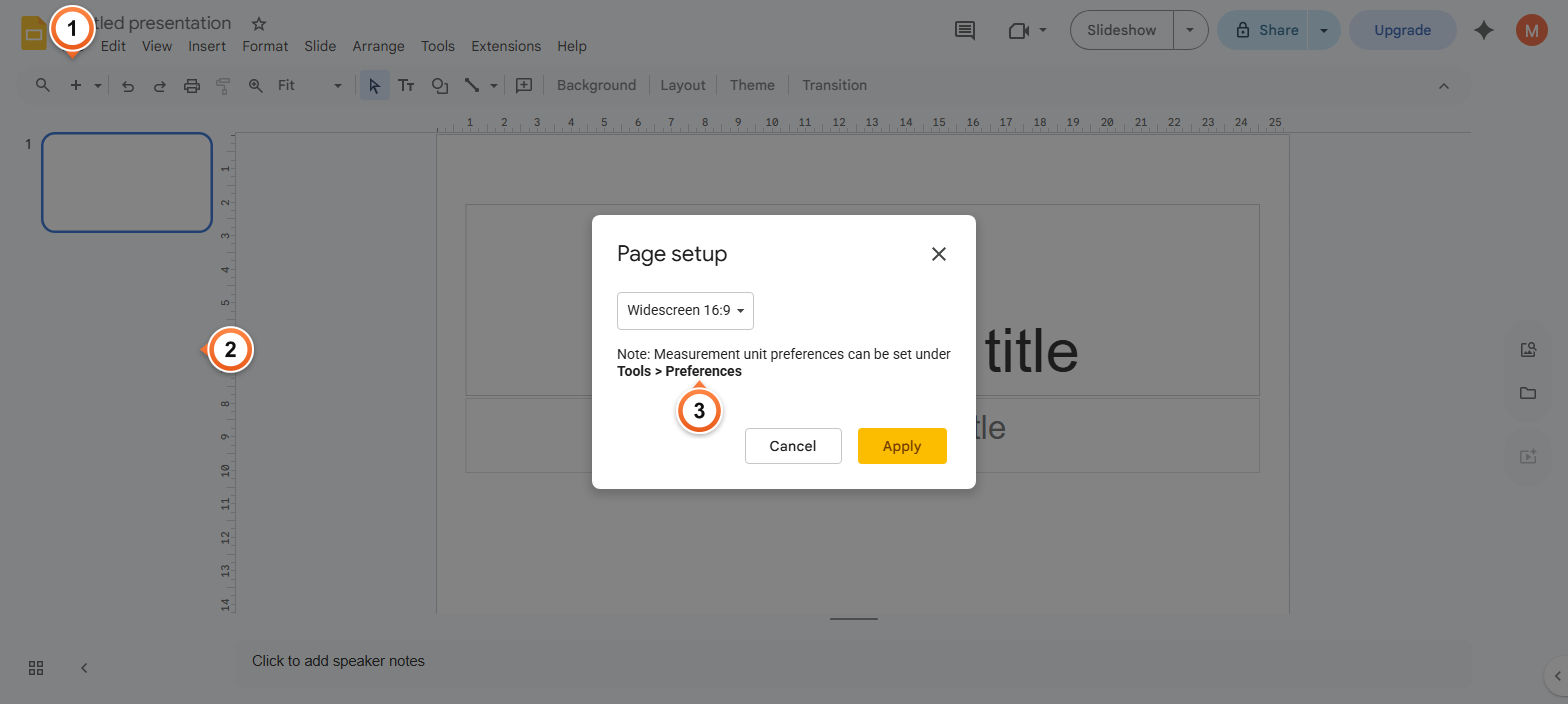
Note: Page setup applies to the entire deck - every slide takes the new dimensions. Existing content gets resized proportionally to fit, but anchored elements may need manual adjustment after a major ratio change.
How to switch between 16:9, 4:3, and custom slide sizes?
1. In the Page setup dialog, click the size dropdown showing Widescreen.
2. Pick Standard 4:3, Widescreen 16:9, Widescreen 16:10, or Custom.
3. Click Apply to resize every slide in the deck.
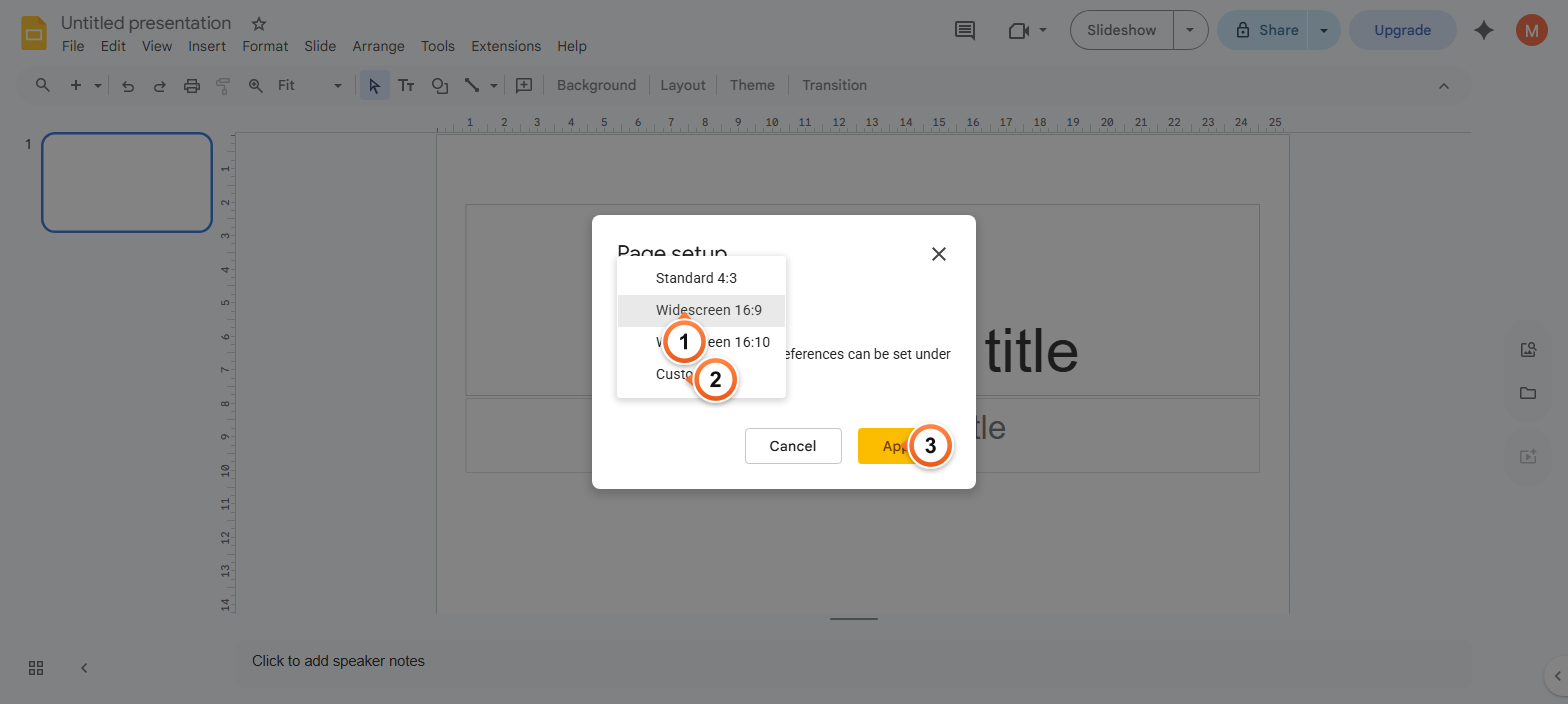
Note: 16:9 matches modern laptops, TVs, and projectors - the safest default. 4:3 suits old projectors and Boardroom-style monitors. 16:10 matches many MacBook screens. Pick Custom for vertical 9:16 social media decks, square 1:1 Instagram posts, or print handout dimensions.
How to set a custom slide size in Google Slides?
1. In the Page setup dropdown, pick Custom at the bottom of the list.
2. Enter your Width and Height values. Switch units to Inches, Centimeters, Points, or Pixels as needed.
3. Click Apply - the deck resizes to your custom dimensions.
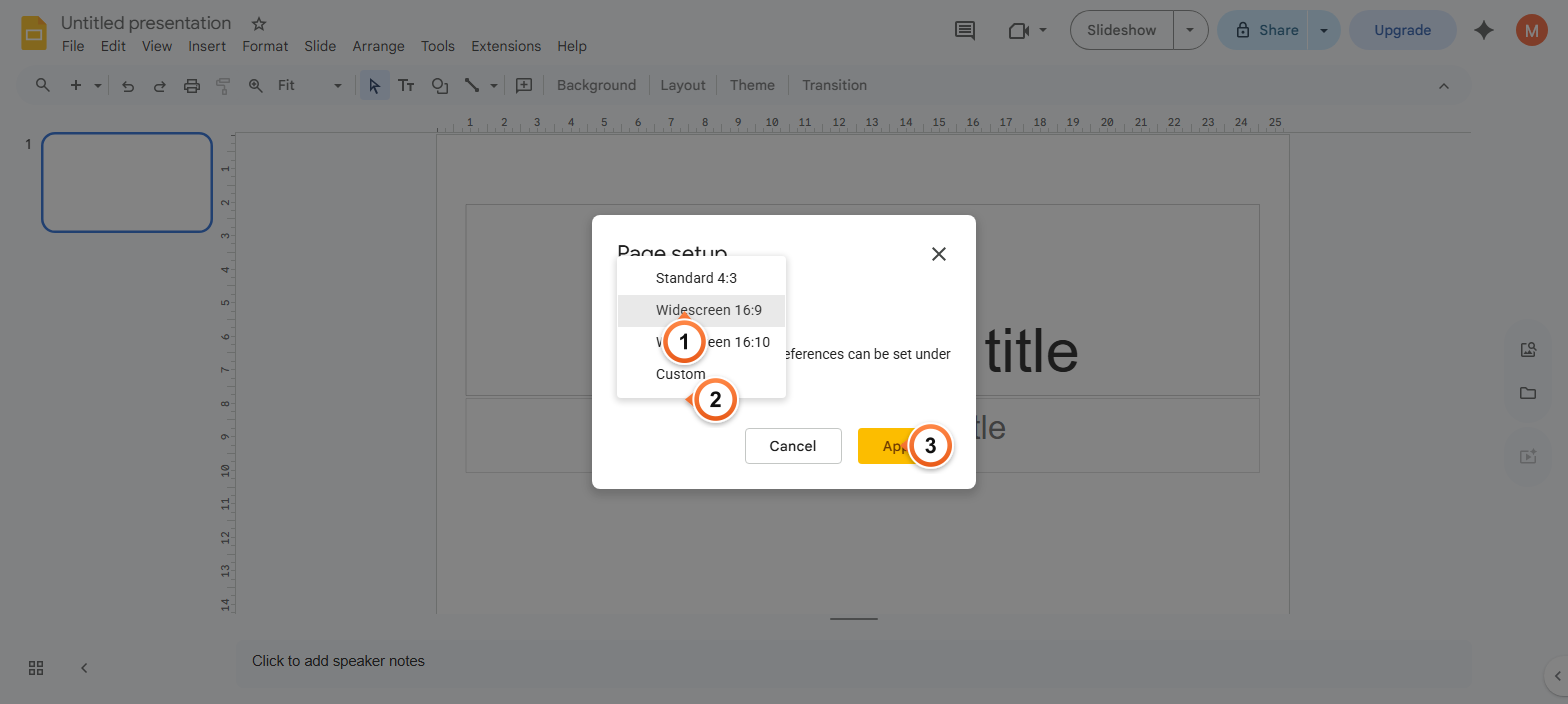
Note: For vertical / portrait decks, set Width = 7.5 in (19 cm) and Height = 13.333 in (33.87 cm) to keep the same area as 16:9 widescreen. For Instagram square, use 7.5 × 7.5 in. For A4 print, use 8.27 × 11.69 in.
Frequently Asked Questions
What's the default slide size in Google Slides?
10 inches wide by 5.625 inches tall (25.4 cm × 14.29 cm) - this is the Widescreen 16:9 ratio that matches modern laptops, projectors, and TVs. New decks always start with this size unless you create from a custom template that overrides it. Open File > Page setup to confirm or change.
How do I make a portrait / vertical Google Slides deck?
File > Page setup > Custom, then swap the width and height values: 5.625 in wide by 10 in tall (or 19 cm × 33.87 cm). The slides flip to portrait orientation, perfect for printable posters, single-page reports, or vertical social-media content. Full walkthrough with screenshots: Make Google Slides Vertical.
Will changing slide size affect existing content?
Yes - all slides resize proportionally to fit the new dimensions. Text and images keep their relative positions but their absolute scale changes. Major ratio swaps (e.g., 16:9 to 9:16) often need manual adjustment - text boxes that fit horizontally won't fit vertically. Always check each slide after resizing.
What slide size should I use for printing?
For US Letter handouts, use Custom 8.5 × 11 in. For A4, use 8.27 × 11.69 in. For half-page handouts, use 5.5 × 8.5 in. To print as a poster, scale up proportionally - Slides supports up to 25 in × 25 in. For most live presentations, leave the size as Widescreen 16:9 and pick the print layout in File > Print preview instead.
How do I make square slides for Instagram or LinkedIn?
File > Page setup > Custom, set both Width and Height to 7.5 in (or 19 cm, 1080 px). Square 1:1 slides export cleanly to PNG via File > Download > PNG image, ready for Instagram posts or LinkedIn carousels. For vertical Stories or Reels, use 9:16 (e.g., 5.625 × 10 in) instead.
Can I have different slide sizes within the same presentation?
No - Google Slides applies one size to the entire deck. Every slide shares the same dimensions. To present mixed sizes, build separate decks for each format and link between them with Insert > Link or share the URLs side-by-side. This matches PowerPoint and Keynote behaviour, where slide size is a deck-level property.
What's the maximum slide size in Google Slides?
Slides accepts custom dimensions up to about 50 in (127 cm) per side - enough for poster-sized layouts. The minimum is around 0.5 in. If you need larger output, design at full proportional size and scale up at print time, or break the design across multiple slides and tile-print after PDF export.
How do I export a custom-sized deck as PNG or PDF?
File > Download > PNG image (current slide) or PDF document (whole deck). The export uses the slide's actual pixel dimensions, so a custom 1920 × 1080 deck exports at exactly 1920 × 1080 PNG. PDF preserves the aspect ratio per page. Useful for social-media graphics, posters, or any output where exact pixel dimensions matter.
Want a deck that auto-sizes to your output medium? Try Slidee - generate widescreen, square, or vertical presentations with one click in 30 seconds.