
How to Add Slide Numbers in Google Slides (2026)
Add slide numbers in Google Slides via Insert > Slide numbers. Apply to every slide or skip the title slide. Step-by-step with screenshots.
Slide numbers help your audience track progress and reference specific points during Q&A ("as I mentioned on slide 8..."). Google Slides places them in the bottom-right corner by default, with an option to skip the title slide. The numbers update automatically when you add, remove, or reorder slides.
How to add slide numbers in Google Slides?
1. Click Insert in the top menu.
2. Pick Slide numbers - the dialog opens with On / Off toggles.
3. Switch to On, then click Apply to all to number every slide.
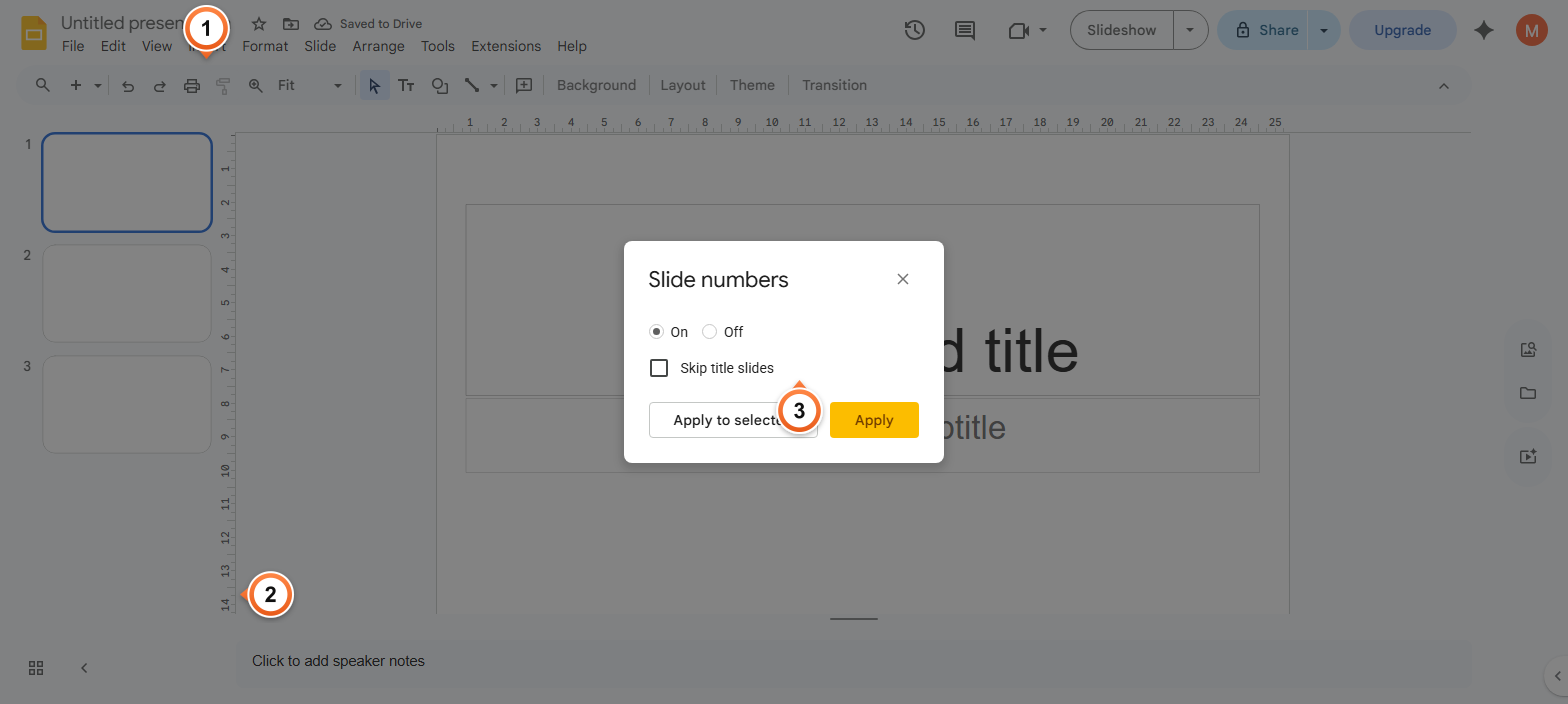
Note: Slide numbers appear in the bottom-right corner of each slide by default. To move them, click the number on the slide canvas (which selects the text box) and drag to a new position. Each slide's number can be repositioned independently.
How to skip the title slide?
1. Open Insert > Slide numbers as before.
2. Tick the Skip title slides checkbox before applying.
3. Click Apply to all - title slides stay unnumbered, content slides start at 1 (or 2, depending on count).
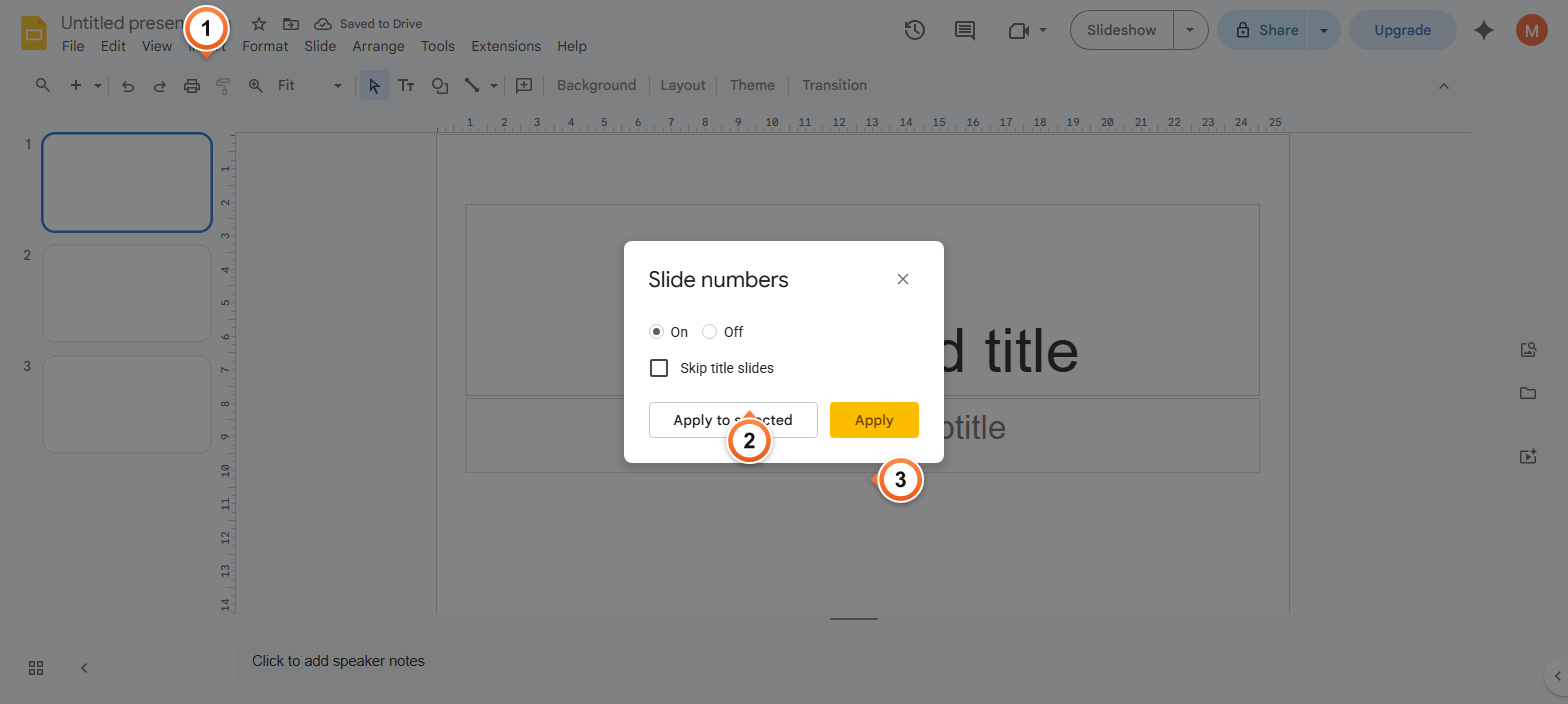
Note: Skip title slides detects layouts named Title slide or Section header. Custom layouts may not be skipped automatically - in that case, just delete the number text box from individual slides after applying.
How to remove or reformat slide numbers?
1. Open Insert > Slide numbers and switch the toggle to Off.
2. Click Apply to all - all slide-number text boxes disappear.
3. To restyle (font, size, colour), click the number on a slide and use the toolbar - changes apply per-slide unless you edit the master layout.
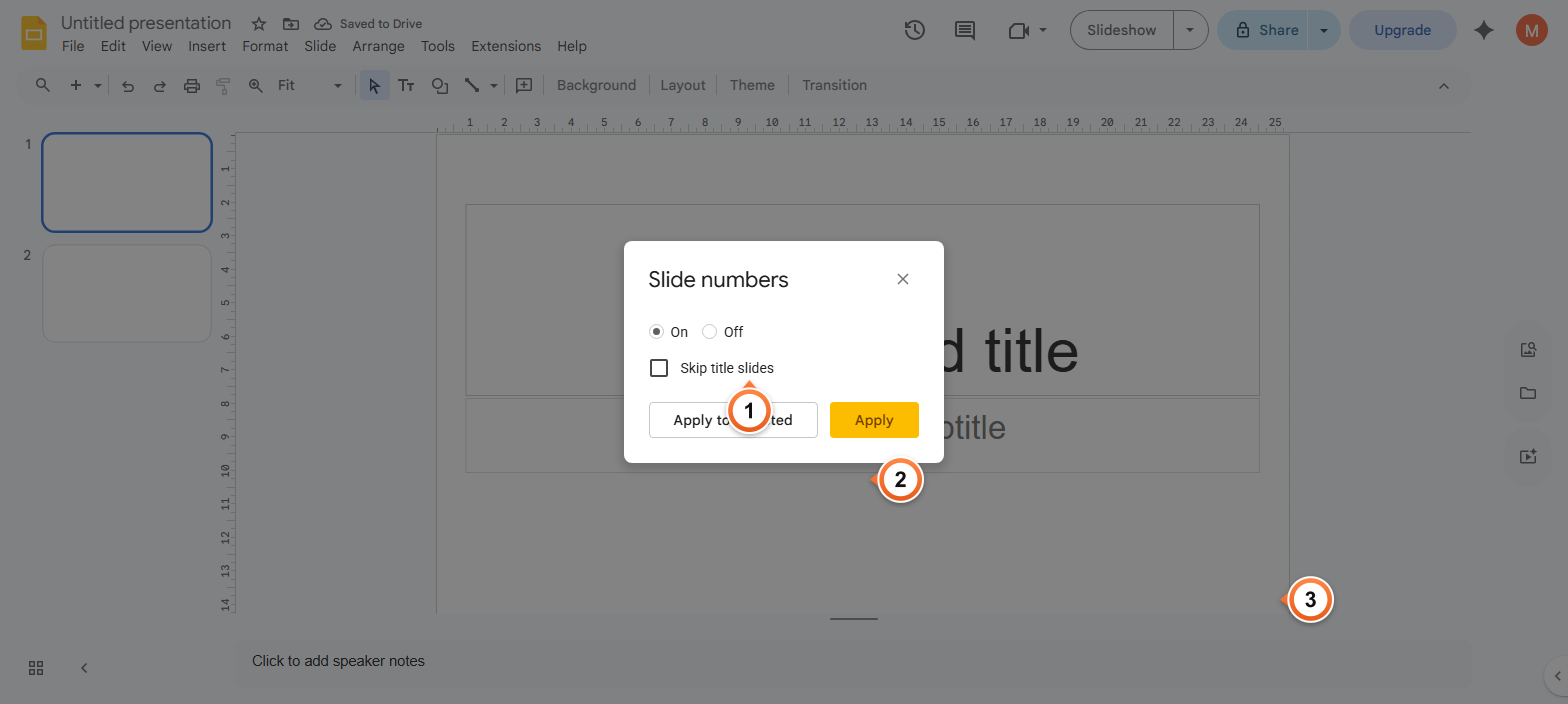
Note: For deck-wide style consistency, edit the slide master via Slide > Edit theme. The slide number placeholder lives on the master - change its font, colour, and position once and every slide inherits the styling.
Frequently Asked Questions
Where do slide numbers appear in Google Slides?
Default position is the bottom-right corner of each slide, in a small text box with the slide's number. The text box is part of the slide and can be moved, resized, or styled independently. To change the default position for the whole deck, edit the master layout via Slide > Edit theme.
Why are my slide numbers not showing?
Two common causes: (1) the number box is positioned outside the visible slide area - check by clicking around the bottom edge to find it. (2) The slide layout overrides the number placeholder. Try Insert > Slide numbers > On > Apply to all to force-add. If still missing, the deck's master may have removed the placeholder - re-add it via Slide > Edit theme.
Can I start slide numbers from a number other than 1?
Not directly - Slides starts numbering at 1 (or 2 if Skip title slides is on). The workaround: add a regular text box with the desired starting number, position it where slide numbers normally appear, and disable the auto Slide numbers feature. Manual numbers don't auto-update if you add or reorder slides, though.
How do I add slide numbers to specific slides only?
Insert > Slide numbers always applies to all slides via Apply to all. To exclude specific slides, apply globally first, then click the number text box on the slides you want to exclude and press Delete. The remaining slides keep their numbers - the auto-numbering remains correct (slides without numbers are simply skipped visually).
Will slide numbers stay correct if I reorder slides?
Yes - the numbering is dynamic. Reorder slides via the filmstrip (drag a thumbnail to a new position) and every visible number updates immediately to match the new order. The number reflects the current position, not the original creation order.
Can I show total slide count, like "3 of 10"?
Not natively - Slides only shows the current number, not totals. The workaround: insert a regular text box on the master layout with the total (e.g., " of 10") next to the slide number placeholder. You'll need to update the static total manually whenever you add or remove slides.
How do I customise the font and colour of slide numbers?
Click the number on any slide - it selects the text box. Use the toolbar to change font, size, colour, alignment. To apply the same style to every slide, do this on the master via Slide > Edit theme - the number placeholder there controls the default for all slides.
Will slide numbers export to PDF and PowerPoint?
Yes for both. PDF preserves the numbers as static text - if you also want speaker notes alongside each slide, see Print Google Slides with Speaker Notes. PowerPoint export keeps the auto-numbering feature - PowerPoint has its own slide numbering that uses the same placeholder. Numbers stay in sync if you reorder slides in PowerPoint after import.
Want a deck with numbered, branded, and consistently styled slides out of the box? Try Slidee - generate a complete presentation with built-in slide numbering in 30 seconds.