
How to Add Audio to Google Slides (2026)
Add audio to Google Slides in three steps. Insert MP3 or WAV from Drive, set autoplay or loop, and hide the speaker icon. Step-by-step with screenshots.
Audio turns a static deck into a self-running presentation - useful for kiosks, async webinars, or any slideshow that needs to talk back. This guide shows how to insert an MP3 or WAV from Drive, control playback, and place the speaker icon.
How to insert audio in Google Slides?
1. Click Insert in the top menu.
2. Select Audio from the dropdown.
3. Choose your MP3 or WAV file from Drive and click Insert.
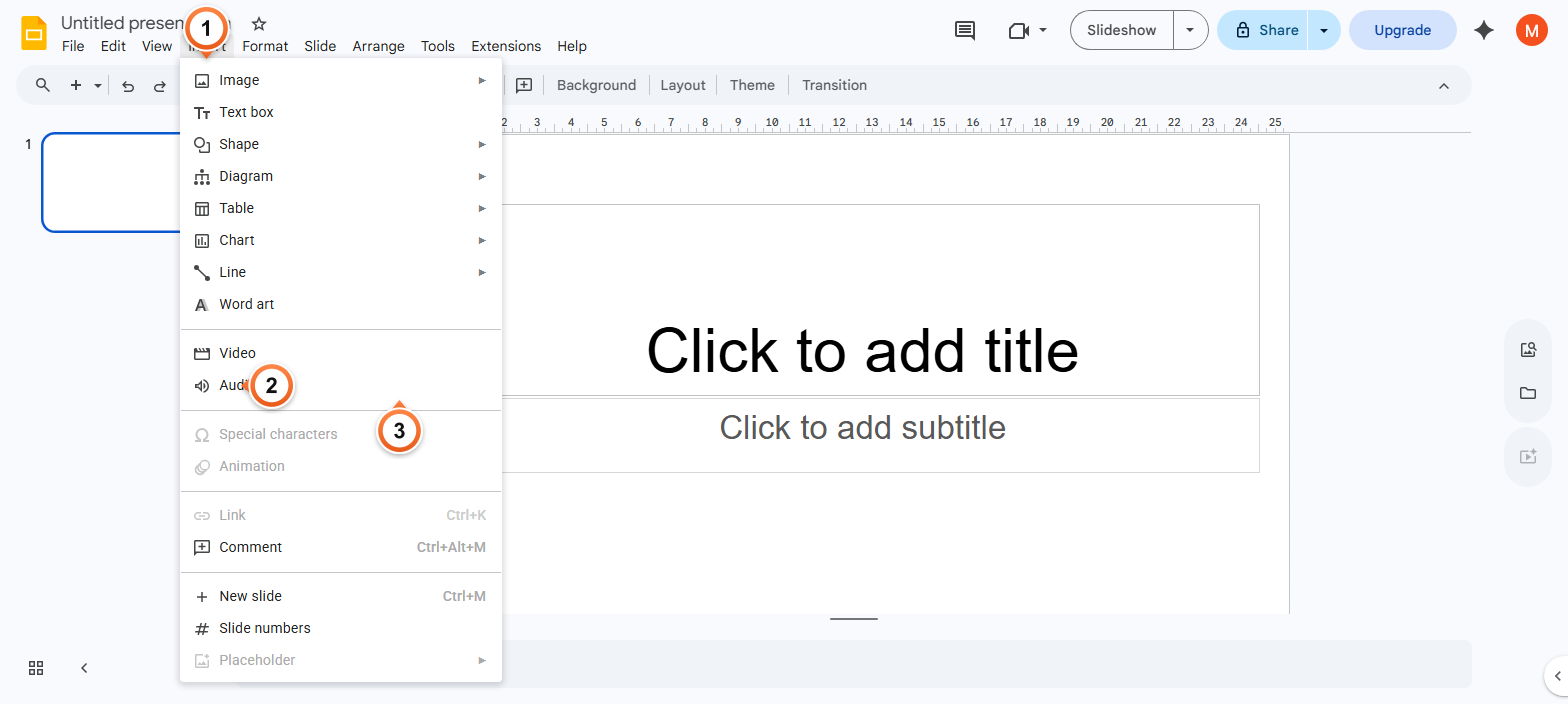
Note: The file must already be in Google Drive. Google Slides does not allow direct uploads from your computer - drag the file into Drive first, then insert it.
How to control audio playback options?
1. Click the speaker icon on the slide to select it.
2. Click Format options in the toolbar.
3. Set Start playing to Automatically or On click, then toggle Loop audio, Stop on slide change, or Hide icon when presenting.
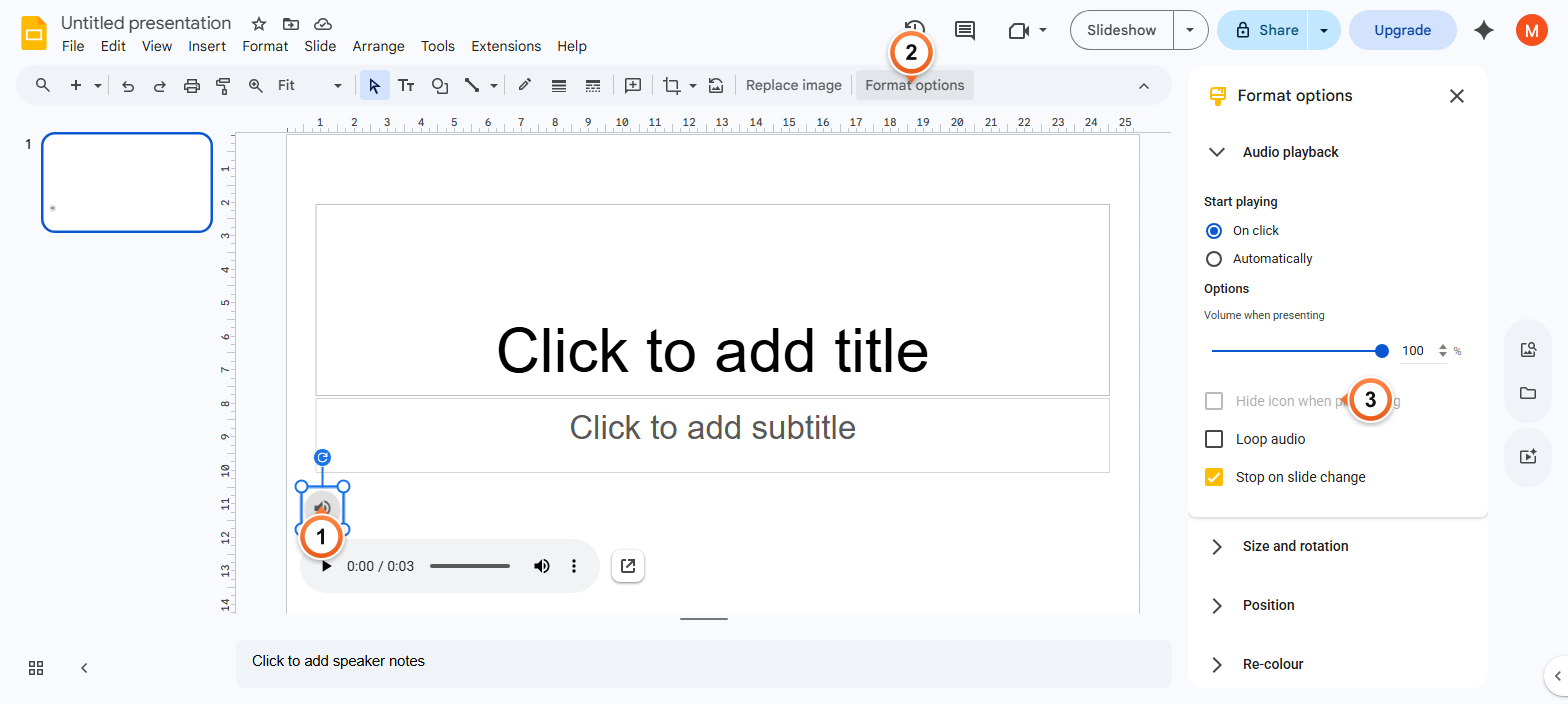
Note: To play audio across multiple slides, leave Stop on slide change unchecked. To make the audio loop continuously, enable Loop audio.
How to position and hide the audio icon?
1. Click and drag the speaker icon to any spot on the slide.
2. Resize the icon by dragging a corner handle.
3. Enable Hide icon when presenting for a clean slide.
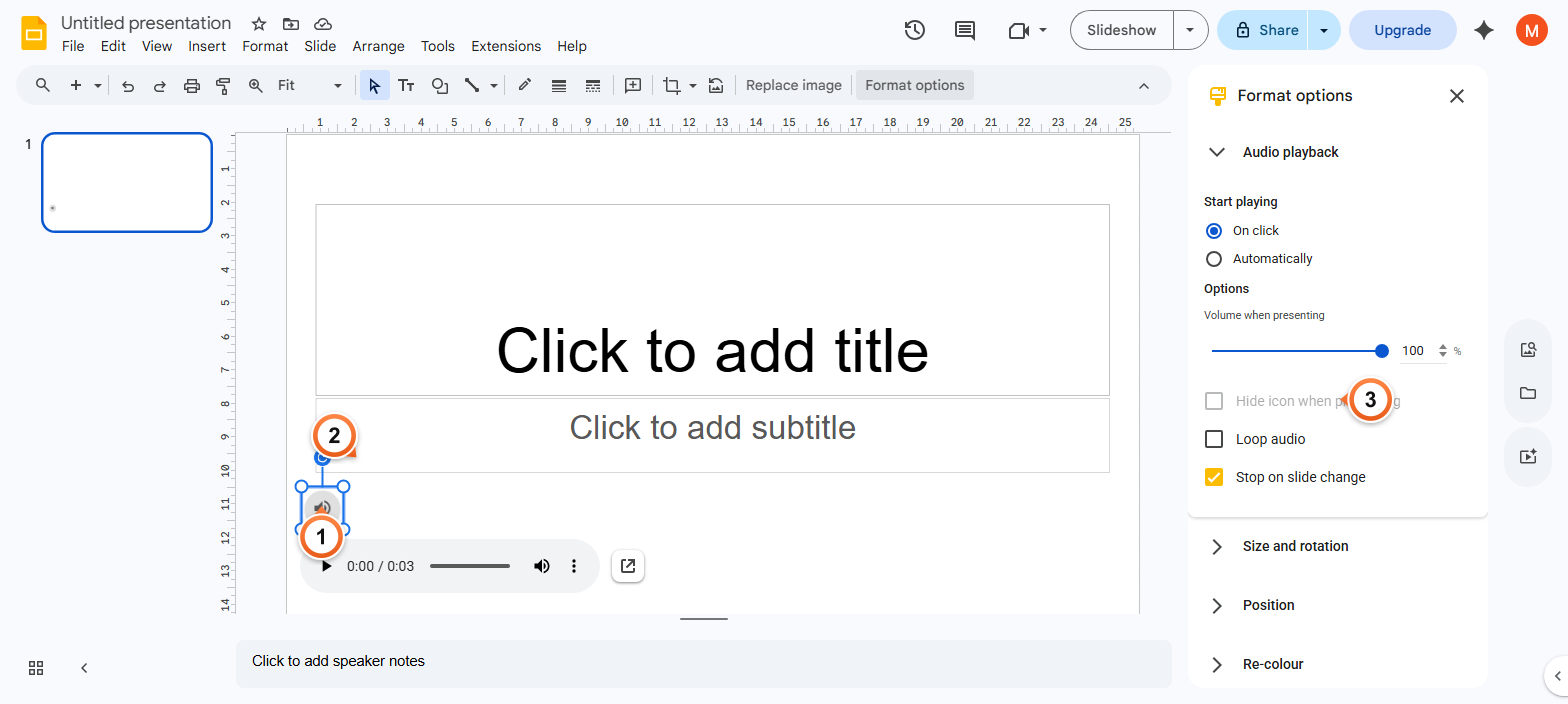
Note: Hide icon only works when Start playing is set to Automatically. If playback is set to On click, viewers need the icon visible to trigger it.
Frequently Asked Questions
Why won't my audio play in Google Slides?
Audio plays only in present mode, not while editing. If it still won't play, check three things: the file format is MP3 or WAV (other formats are unsupported), the file is in Drive and shared with whoever views the deck, and your browser allows autoplay. Chrome and Safari block autoplay with sound until the user clicks somewhere on the page, so press space or click once after entering present mode.
What audio file formats does Google Slides support?
Google Slides supports two formats: MP3 and WAV. MP3 is the better default for most presentations because file sizes are smaller (use 128 kbps for music, 96 kbps for speech). WAV is lossless and produces larger files - reserve it for short sound effects or critical-quality audio.
Can I add a YouTube song as audio?
Not directly. The Insert > Audio menu only accepts files from Drive. To use a YouTube song, either insert the YouTube video (Insert > Video) and let it play in the background, or download the audio as MP3 if the song is public domain or you own it, then upload that to Drive.
How do I make audio play across multiple slides?
Click the speaker icon, open Format options, and uncheck Stop on slide change. The audio continues playing as you navigate through subsequent slides until it ends or you return to the audio's slide.
Can I autoplay music when the presentation starts?
Yes - set Start playing to Automatically on the first slide's audio. One caveat: most browsers block autoplay with sound until the user interacts with the page. Click once anywhere after entering present mode to release the autoplay block. Combine with Loop a Presentation for hands-free kiosk playback.
How do I hide the speaker icon during the presentation?
Click the speaker icon, open Format options, and enable Hide icon when presenting. This only works if playback is set to Automatically - otherwise viewers can't see what to click.
Can I record audio directly in Google Slides?
Not natively. Google Slides has no built-in recording feature. To add narration, record audio in a separate tool (Online Voice Recorder, GarageBand, Audacity), export as MP3, upload to Drive, and insert via Insert > Audio. Add one audio file per slide for slide-by-slide narration.
Where can I find royalty-free music for Google Slides?
Common free sources: YouTube Audio Library (download MP3s, upload to Drive), Pixabay Music, Free Music Archive, and Bensound. Always check the licence - some require attribution, and tracks meant for personal use may not be suitable for commercial presentations.
Want a presentation that writes itself? Try Slidee - generate a complete deck with on-brand styling and optional voiceover in 30 seconds.