
How to Add a Hyperlink in Google Slides (2026)
Add a clickable hyperlink in Google Slides using Insert > Link or Ctrl+K. Link to web pages, other slides, or email addresses. Step-by-step with screenshots.
A hyperlink turns selected text or a shape into a clickable jump-point. Google Slides supports three link targets: web URLs, other slides in the deck, and email addresses. The same Insert > Link dialog handles all three - pick the kind of target, paste or search, and the text becomes blue and underlined while staying fully editable.
How to add a hyperlink to text in Google Slides?
1. Select the text you want to link by dragging across it.
2. Press Ctrl+K (Cmd+K on Mac) - or pick Insert > Link from the top menu.
3. Paste the URL in the dialog and click Apply - the text turns blue and underlined.
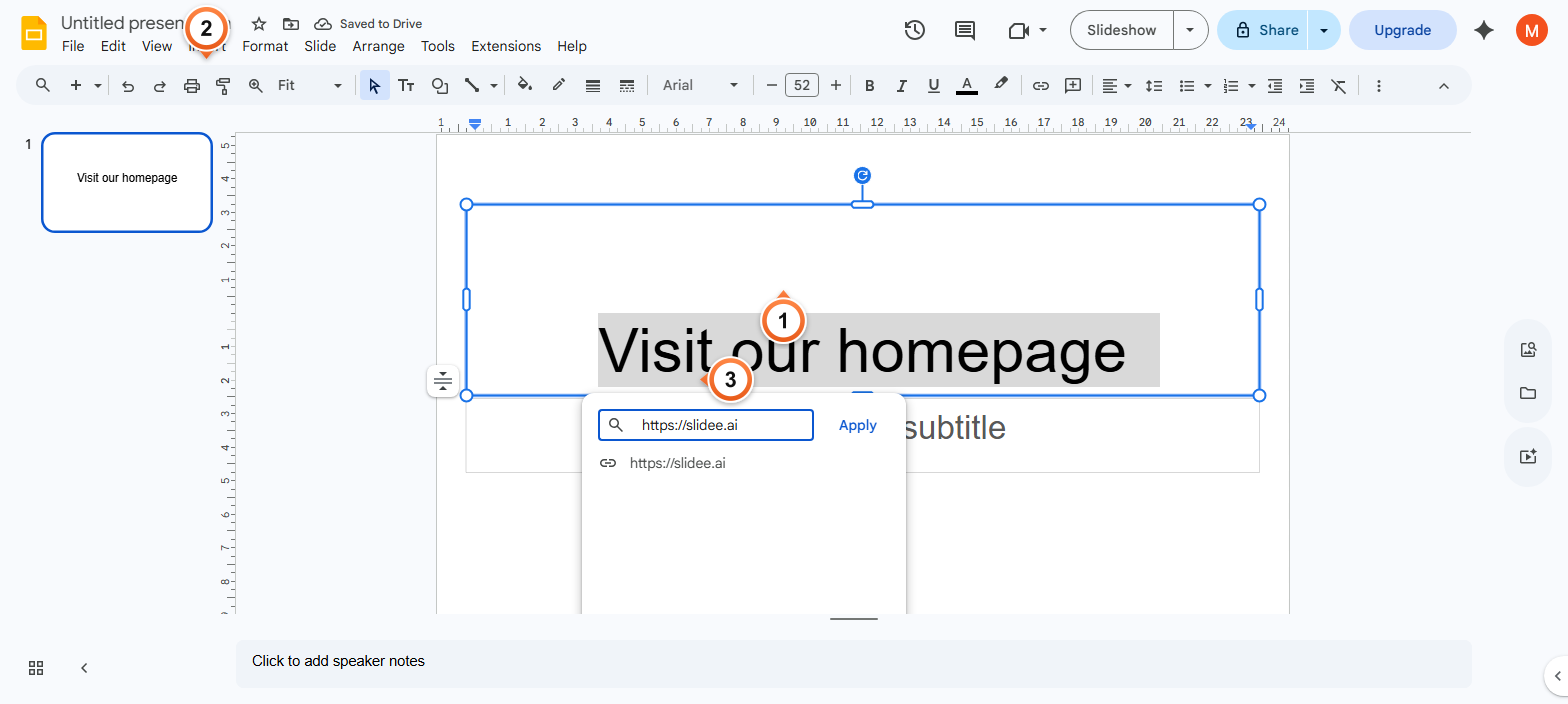
Note: Ctrl+K is the universal shortcut across Slides, Docs, Sheets, and most editors. The link dialog also supports search - type a few words from a public webpage and pick from the matched results.
How to link to another slide in the same deck?
1. Select the text or shape you want to make clickable.
2. Press Ctrl+K to open the link dialog.
3. Click Slides in this presentation and pick the target slide from the list.
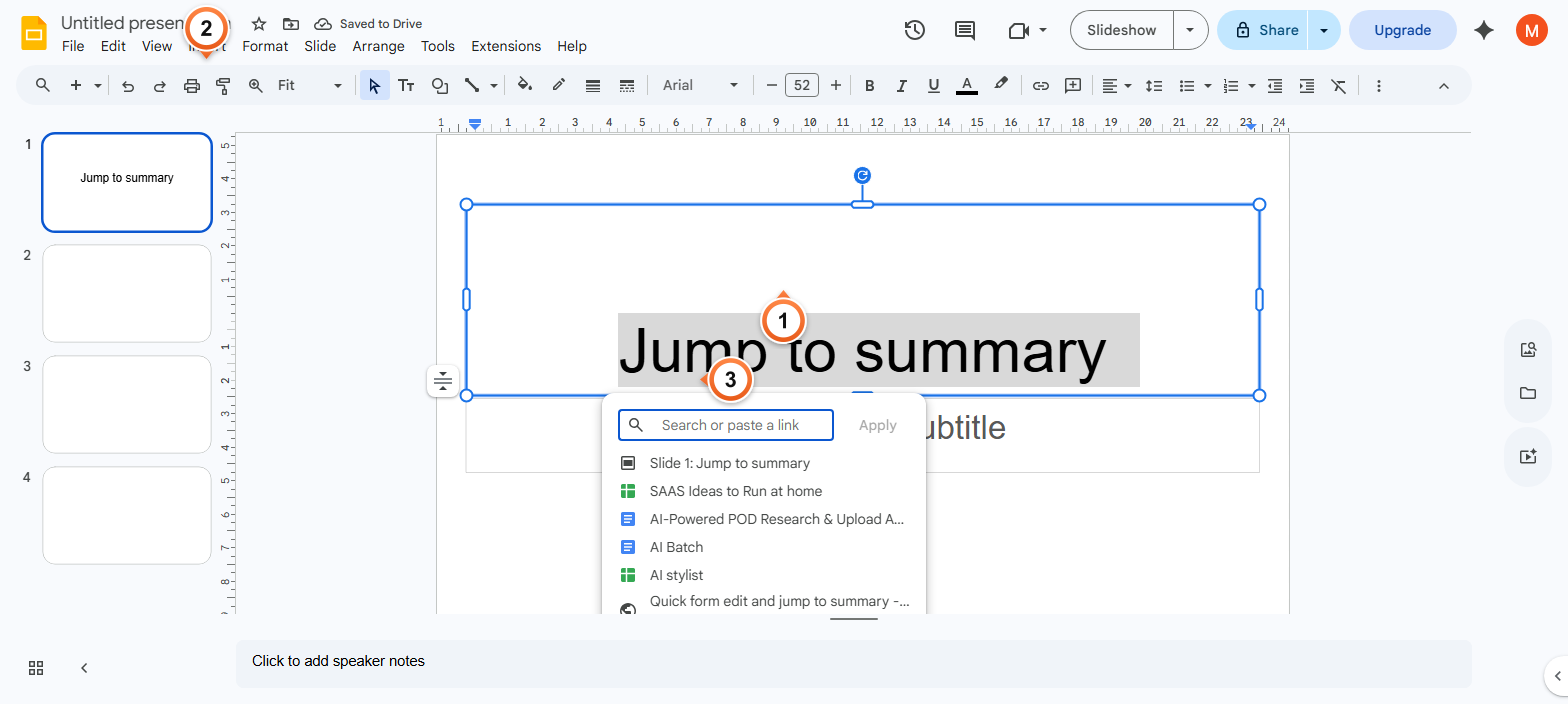
Note: Internal links are perfect for table-of-contents slides, navigational menus, or branching presentations. The link survives if you reorder slides - it's bound to the slide ID, not its position.
How to remove or edit a hyperlink?
1. Click the linked text - a small popup appears below showing the current URL.
2. Click the pencil icon to edit, or the broken-chain icon to remove the link.
3. Confirm changes - the text styling reverts to plain when the link is removed.
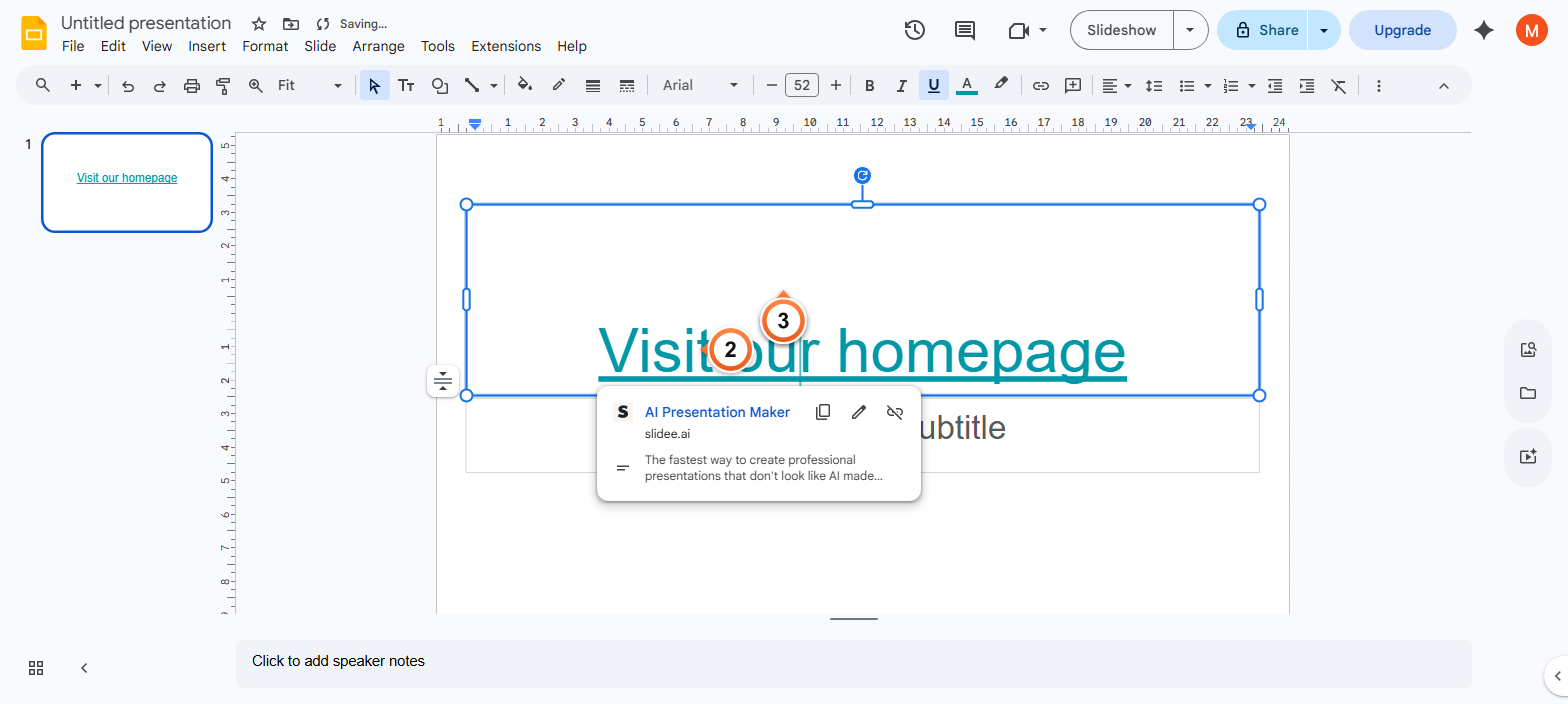
Note: You can also right-click the linked text and pick Remove link or Edit link from the context menu. The keyboard shortcut Ctrl+Alt+R removes a link from selected text without opening any dialog.
Frequently Asked Questions
What's the keyboard shortcut to add a hyperlink in Google Slides?
Ctrl+K on Windows and ChromeOS, Cmd+K on Mac. Works whether you have text selected (turns it into a link) or just have your cursor placed (inserts a new link with the URL as the visible text). Same shortcut works in Docs, Sheets, and Forms - it's universal across the Workspace suite.
Can I link to a specific slide instead of a website?
Yes. After Ctrl+K, click Slides in this presentation in the dialog and pick the target slide from the list. The link is bound to the slide's internal ID, so it keeps working if you reorder slides. Useful for table-of-contents pages, menu screens, or branching tutorials where users pick their own path.
Why doesn't my hyperlink work in presentation mode?
Hyperlinks only become clickable in Slideshow / Presenter view, not in the editor (where Ctrl+click opens the link, plain click positions the cursor). Start the slideshow with Ctrl+F5 (Cmd+Enter on Mac), then a single click on the linked text or shape opens the URL in a new tab. If still not working, check the link target via the popup - empty or malformed URLs silently fail.
Can I add a hyperlink to a shape or image, not just text?
Yes. Click the shape or image to select it, then press Ctrl+K. The whole object becomes clickable - the entire bounding box, not just the visible artwork. During the slideshow, the cursor changes to a pointer when hovering over a linked object. Use this for clickable buttons, navigation arrows, or interactive deck menus. To create a clickable text-only callout, insert a Text box first and then link it.
How do I add an email link in Google Slides?
Select the text, press Ctrl+K, and paste mailto:address@example.com in the URL field. Some browsers also accept the bare email address - Slides auto-detects it and adds the mailto: prefix. Clicking the link in Slideshow opens the user's default mail client with the recipient pre-filled.
Will my hyperlinks export to PDF or PowerPoint?
Yes. File > Download > PDF preserves clickable links - they remain blue and clickable in the exported PDF, opening in the default browser. PPTX export also keeps the link metadata so PowerPoint reads them natively. Both web links and internal slide links are preserved.
Can I make my hyperlink open in a new tab?
Hyperlinks in presented Google Slides always open in a new browser tab by default - so the slideshow stays intact in the original tab. There is no per-link setting to override this. In exported PDF / PPTX, the new-tab behaviour depends on the viewing app (most PDF readers and PowerPoint also default to new windows).
How do I link a button or table of contents to specific slides?
Build the table of contents on slide 1: list the section names as text or shapes. For each entry, select it, press Ctrl+K, click Slides in this presentation, and pick the corresponding slide. Repeat for each entry. Audience members starting from slide 1 in Presenter mode can jump directly to any section by clicking its entry.
Need a deck with smart cross-references built in? Try Slidee - generate a complete presentation with linked slides and an interactive table of contents in 30 seconds.