
How to Draw on Google Slides (2026)
Draw on Google Slides with the scribble tool, add lines and arrows for diagrams, and use the pen tool while presenting. Step-by-step with screenshots.
Drawing on Google Slides is useful for diagrams, annotations, signatures, or quick sketches during a presentation. The Scribble tool draws freehand. The Line submenu has straight lines, arrows, curves, and connectors. The Pen tool (live in slideshow mode) lets you annotate on top of a slide while presenting.
How to draw on Google Slides with the scribble tool?
1. Click Insert in the top menu.
2. Hover Line to open the submenu, then click Scribble.
3. The cursor turns into a crosshair - click and drag to draw freehand on the slide.
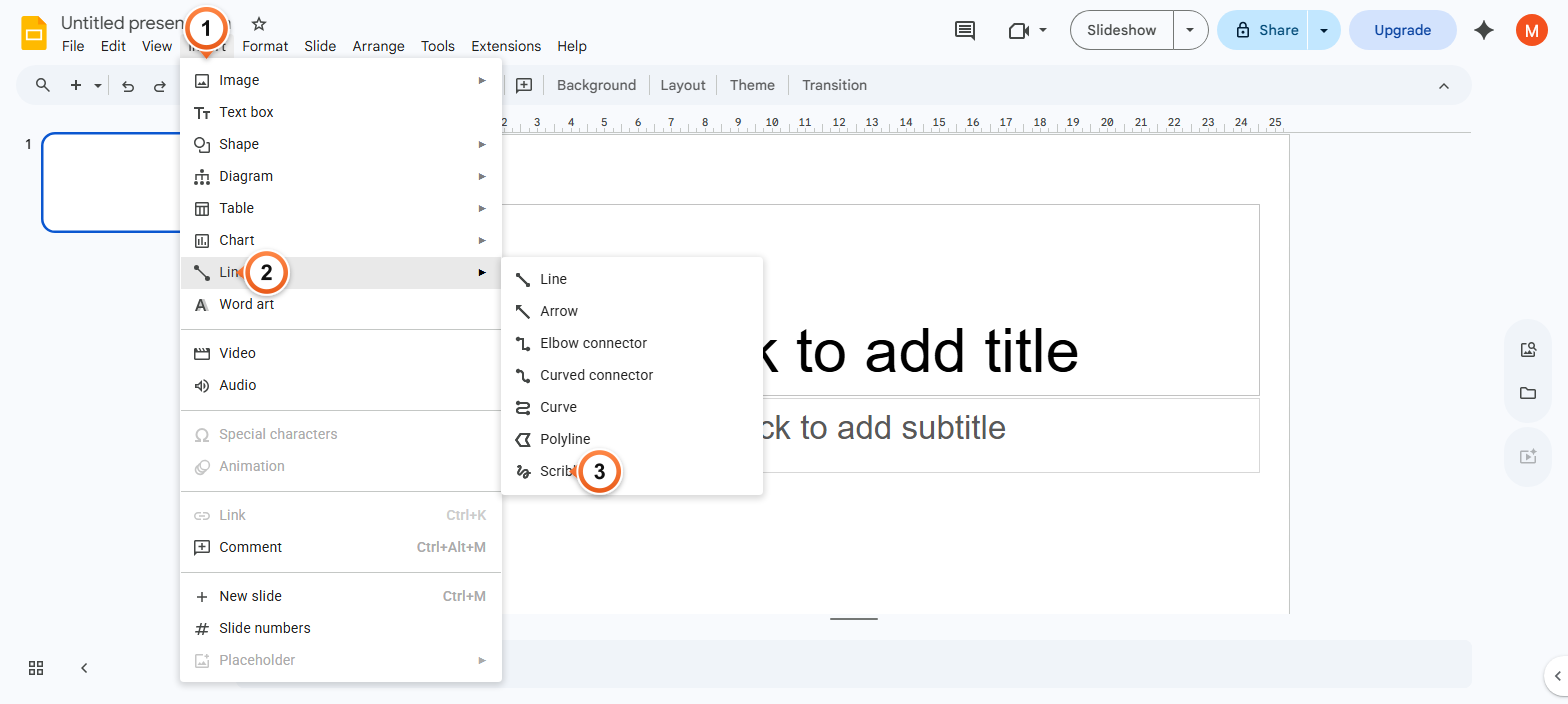
Note: Scribble lines are real shapes - selectable, movable, and resizable. Hold Shift while dragging to constrain to straight horizontal/vertical strokes. Release the mouse to finish a stroke; the next click starts a new shape.
How to add lines, arrows, and shapes for diagrams?
1. Click Insert > Line to open the submenu of line types.
2. Pick a tool: Line (straight), Arrow, Curve, Polyline, or one of the four Connector types.
3. Click and drag on the slide to draw the shape between two points.
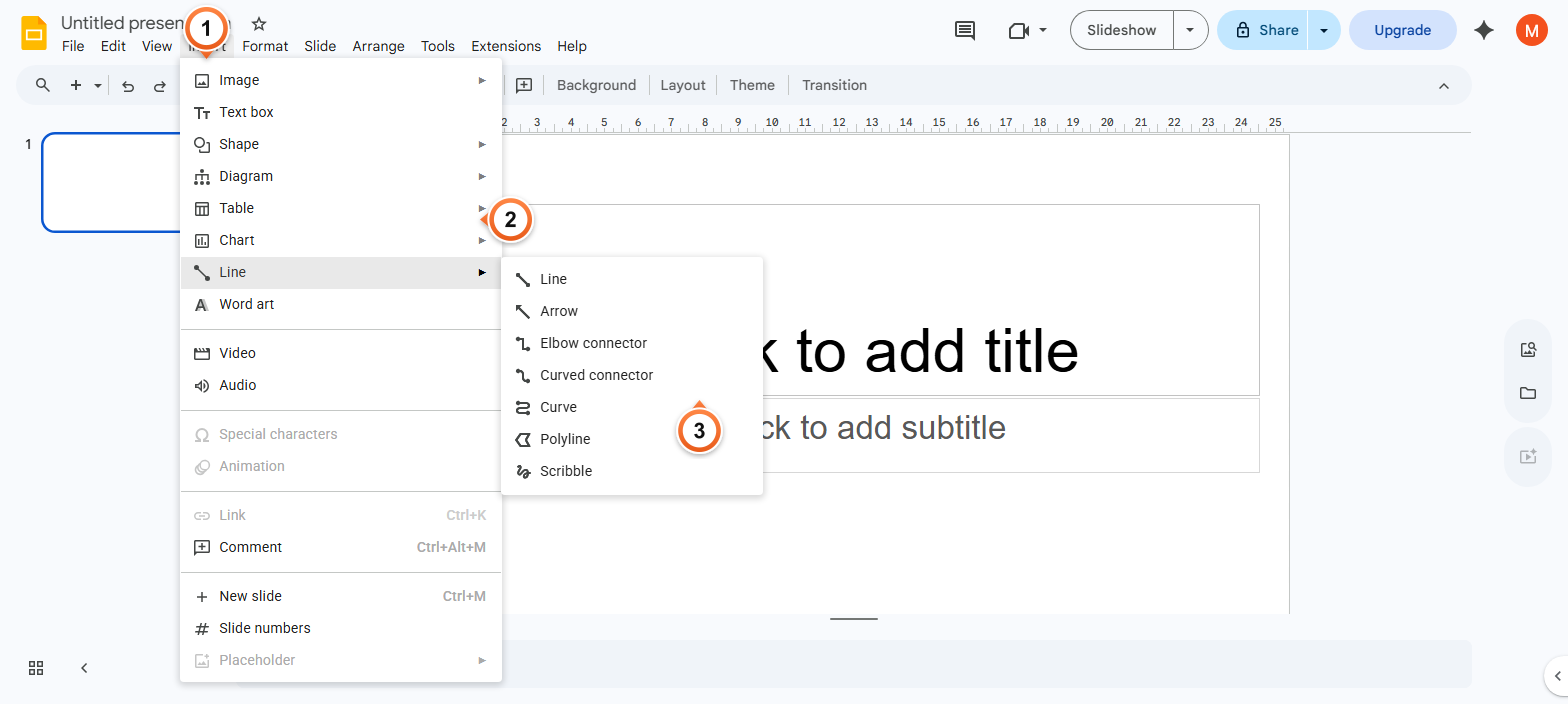
Note: Connectors snap to other objects' anchor points, useful for flowcharts. Hold Shift while drawing a line to lock it to 15-degree angles (perfectly horizontal, vertical, or 45-degree diagonals).
How to change a drawing's colour, thickness, and dash style?
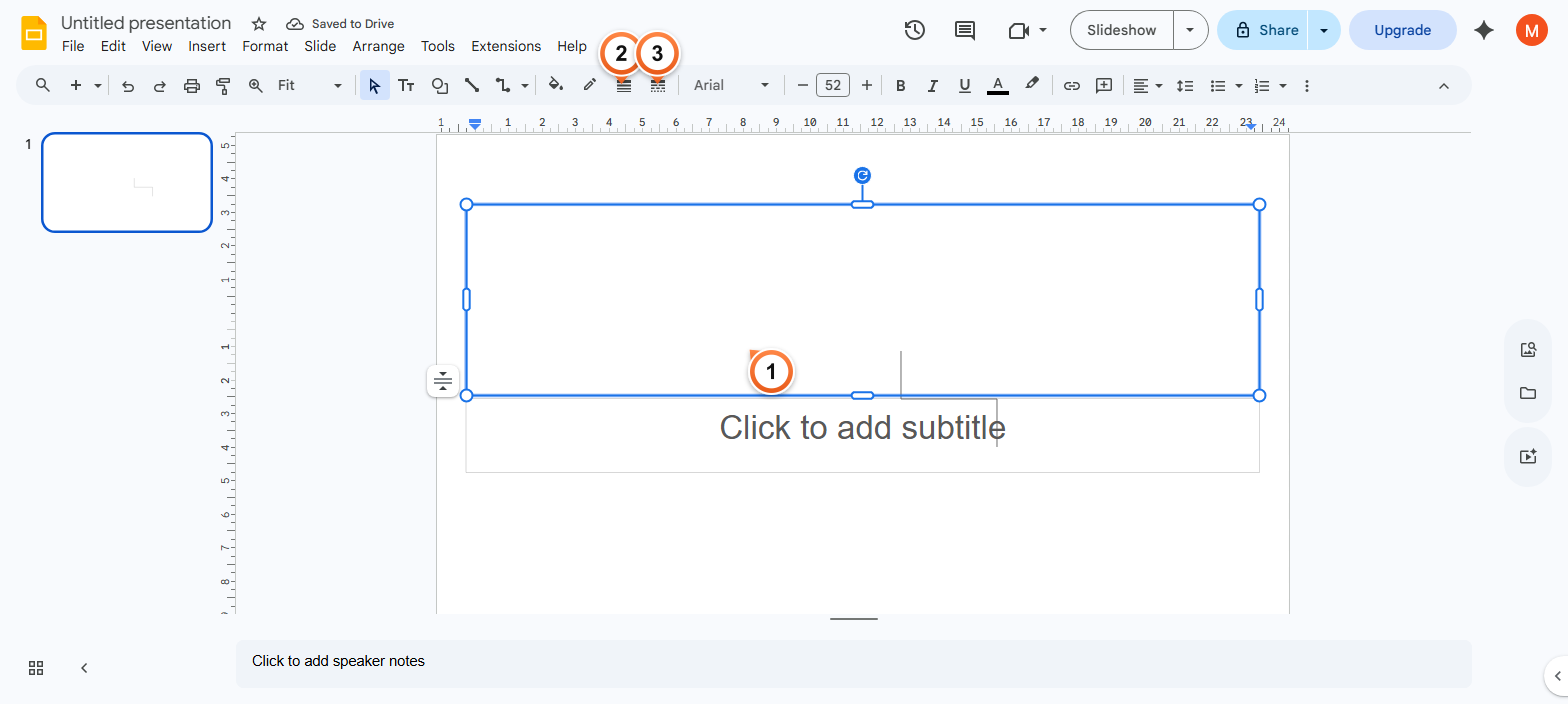
1. Click the line, arrow, or scribble you want to format.
2. Click Line colour on the toolbar to pick a colour, then Line weight for thickness.
3. Click Line dash to switch between solid, dashed, or dotted strokes.
Note: To draw on a slide while presenting, click Slideshow to start, then click the three-dot menu in the bottom-left of the slideshow window and pick Turn on the pen. Pen annotations are temporary and disappear when the slideshow ends.
Frequently Asked Questions
Can I draw freehand on Google Slides during a presentation?
Yes - click Slideshow to start presenting, then click the three-dot menu at the bottom-left of the slideshow window and pick Turn on the pen. The cursor becomes a pen and you can draw with the mouse or trackpad. There are four pen colours and an eraser. Pen annotations are temporary and vanish when the slideshow ends - they don't save back to the slide.
What's the difference between Scribble and Line in Google Slides?
Line draws a straight stroke between two points (ideal for diagrams and connectors). Scribble draws a freehand path that follows your cursor (ideal for signatures, sketches, or annotations). Both end up as editable shapes that you can move, resize, recolour, and group with other objects.
How do I draw a perfect straight line in Google Slides?
Pick Insert > Line > Line, then hold Shift while dragging on the slide. The line locks to 15-degree angles - perfectly horizontal, vertical, or 45-degree diagonals. Same trick works for arrows.
Why are my drawings not saving in Google Slides?
Drawings made via Insert > Line or Scribble are normal slide objects and save automatically. Drawings made via the Pen tool during a slideshow are intentionally temporary - they disappear when you exit slideshow mode. To keep an annotation, take a screenshot of the live slide or pre-draw the shape in editing mode using Scribble.
Can I draw on a Google Slide using a touchscreen or stylus?
Yes - the Scribble tool follows touch and pen input on touchscreen Chromebooks, iPads (in the Slides mobile app), and Surface devices. Pen pressure isn't supported (line weight is uniform), but the path quality is fine for handwriting and freehand sketches.
How do I erase a drawing in Google Slides?
Click the drawing to select it, then press Delete or Backspace. To clear several at once, drag a selection rectangle around them or hold Shift to multi-select, then delete. For Pen tool annotations during slideshow, click the three-dot menu and pick Erase.
Can I import a hand-drawn sketch into Google Slides?
Yes. Take a photo of the sketch (or scan it), upload to Google Drive, then Insert > Image > Drive. For better quality, draw in Google Drawings (drawings.google.com), copy the canvas, and paste it directly into a Slides slide - it imports as a fully editable group of shapes.
Do drawings export correctly to PowerPoint and PDF?
Yes for both. PowerPoint export keeps lines, arrows, and scribbles as native PowerPoint shapes (editable in PowerPoint). PDF export rasterises them as part of the slide image - no longer editable but visually identical. Pen-tool annotations made during slideshow don't export at all since they're never saved.
Want diagrams and visuals generated automatically? Try Slidee - generate a complete deck with on-brand visuals in 30 seconds.